We have enabled the usage of JMESPath transformations for DocumentData. The idea is to set up the transformation steps based on document properties, while being able to get live feedback on syntax and result. The transformation step is stored in a named custom XML within the particular document.
There are two commands for this functionality - one to edit and one to apply the JMESPath transformatio.
Read more about the specifications for JMESPath here.
Edit JMESPath transformation
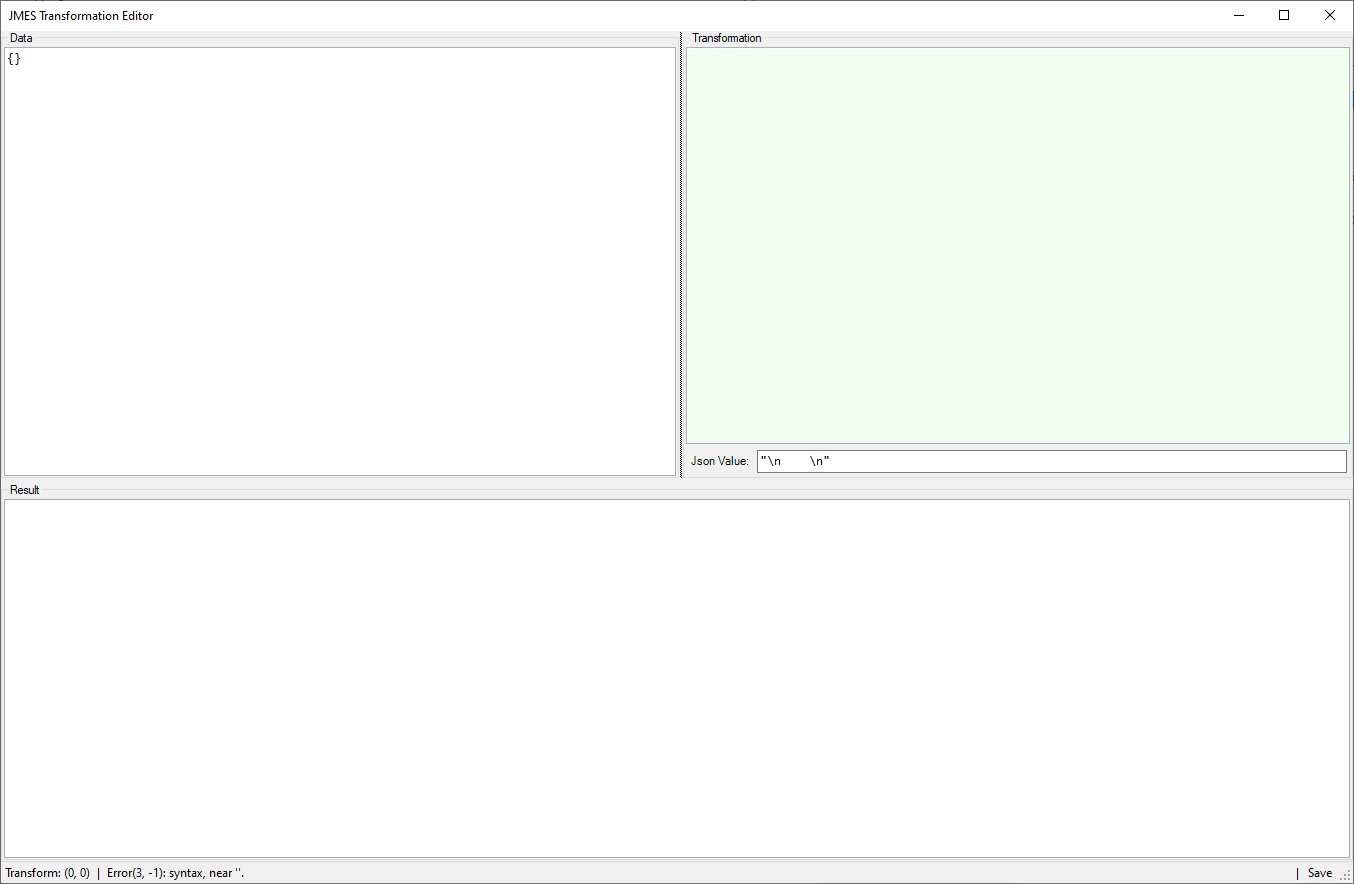
This command opens an editor that takes present document properties as data, which can then be transformed using JMESPath. The editor will automatically show the transformed data as a result.
If there are any errors in the transformation, the editor will tell in the bottom line. In bottom right corner, it is possible to save the transformation.
CMD
<Cmd case="SkabelonDesign.DocumentData:EditJmesTransformation" XmlPartName="X"/>
Parameter
XmlPartName
Define the name (string) of the custom XML part that contains the JMES string, i.e., JmesTransformation.
Example of configuration
<Button label="Edit JMES Transformation">
    <Cmd case="SkabelonDesign.DocumentData:EditJmesTransformation" XmlPartName="JmesTransformation"/>
</Button>
Apply JMESPath transformation
This command takes the transformed JSON from the custom XML part (defined in above command) and adds it to the pending changes where it will be committed with the commit command and then applied to the document. For this reason, these two commands need to be included in the module.
CMD
  <Cmd case="SkabelonDesign.DocumentData:ApplyJmesTransformation" Prefix="X"
  XmlPartName="X"/>
Parameter
Prefix
Define the name of the prefix that should be in the start of the binding in the content control. In EY's solution, the prefix is "XMLT", and thus the syntax of the binding in the content controls is as follows:
XMLT.VariableName
XmlPartName
This should be the same as in the command above - the name of the custom XML part that contains the JMESPath transformation.
Example of configuration
<Button label="Apply JMES Transformation">
    <Cmd case="SkabelonDesign.DocumentData:EnablePendingChanges"/>
    <Cmd case="SkabelonDesign.DocumentData:ApplyJmesTransformation" Prefix="XMLT" XmlPartName="JmesTransformation"/>
    <Cmd case="SkabelonDesign.DocumentData:Commit"/>
</Button>
Was this article helpful?
That’s Great!
Thank you for your feedback
Sorry! We couldn't be helpful
Thank you for your feedback
Feedback sent
We appreciate your effort and will try to fix the article