Depending on the design and needs of yours, we incorporate highlight options in your Corporate Tables solution, meaning that the user is empowered to format rows, columns and cells in a table.
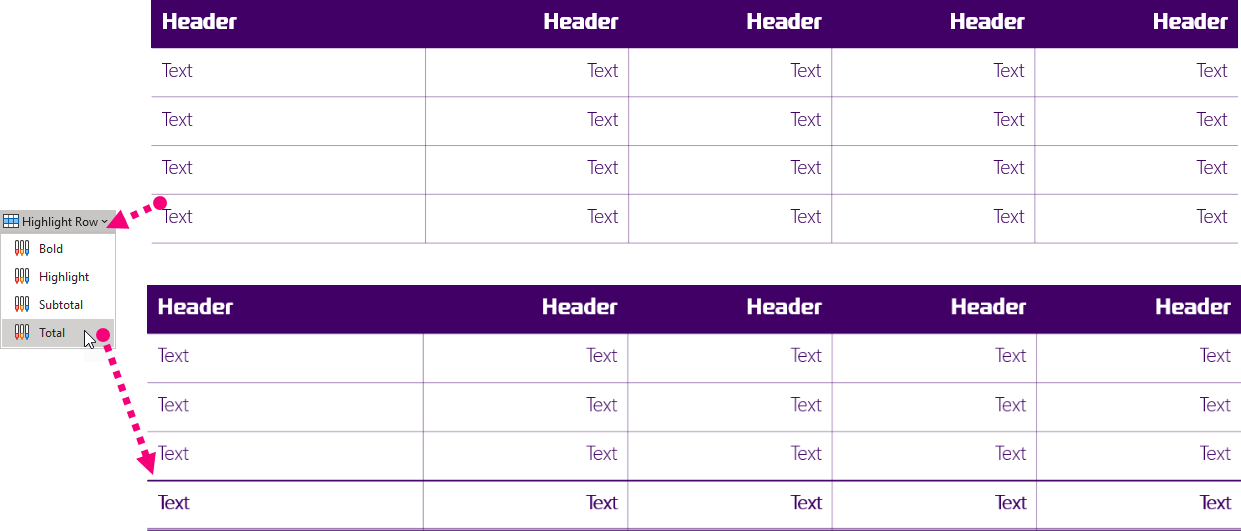
Rows, columns and cells can be formatted and highlighted in several ways, for example with bold text or another background color. Furthermore, the tool can be used to apply a subtotal row or total row. It depends on what you need in your table design.
We can adjust the following elements:
- Background color
- Font, including size, color and text style (bold, italic, etc.)
- Borders
- Alignment
- Margins
- Styles
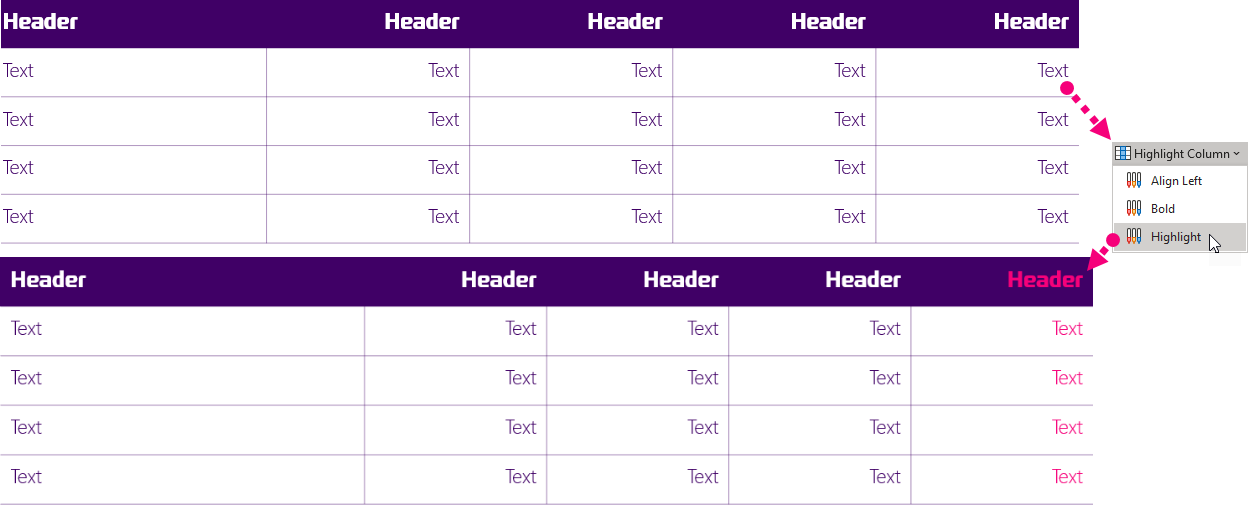
When highlighting/formatting rows and columns, you do not have to select the entire row or column. Place your cursor in a cell in the particular row or column and select the desired option. The feature will automatically highlight/format the row or column, which contain this cell.
When highlighting/formatting cells, you must select the particular cells before clicking the button.
Example 1: Applies a total row.
Example 2: Highlights the text in the column:
Requirements
For technical requirements read more about the Office Extensions platform.
Compatible: Office 2013/2016/365 (32/64bit).
Contact us for further help via the form at omnidocs.com/support.
Was this article helpful?
That’s Great!
Thank you for your feedback
Sorry! We couldn't be helpful
Thank you for your feedback
Feedback sent
We appreciate your effort and will try to fix the article