Data sources
This article describes the functionality of data sources.
What are data sources?
Data sources store JSON data that must be accessible to multiple recipes in a single unit. Any JSON array of objects is a valid data source.
The data from data sources is accessed inside recipes by using the datasource function.
[{
    "productName": "Cool Fridge",
    "height": "200",
    "width": "50"
},
{
    "productName": "Cooler Fridge",
    "height": "210",
    "width": "100"
}]
Managing data sources
To access data sources in a unit, you need unit administrator rights for that unit. This allows you to create, read, update, and delete data sources.
You can access the Data source overview from the left side pane in the admin site.
Data sources can be BuiltIn or ConnectionBased.
BuiltIndata sources allow you to add and reuse data directly in Create.ConnectionBaseddata sources reflect data from an external system.
In most cases, data sources refer to BuiltIn data sources.
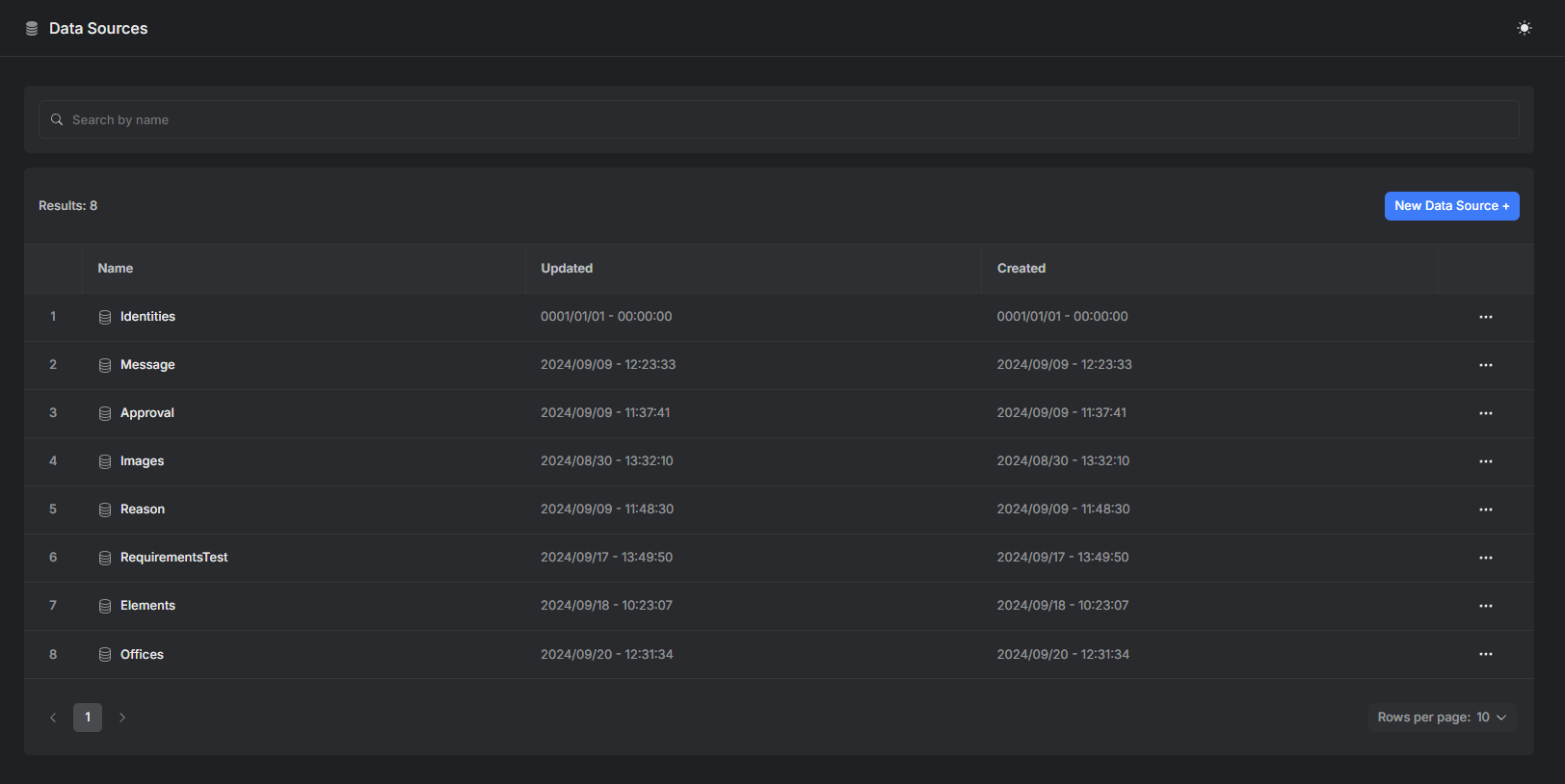
Overview of data sources of a unit.
When you open a data source, you can view it as raw JSON or in Table view.
- JSON shows the JSON file in the editor.
- Table view represents each object in the array as a row. Each property is shown as a column.
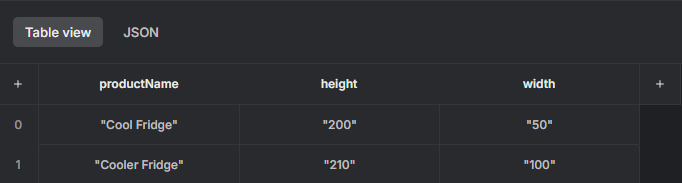
The table view of the example data source.
You can edit a data source in both Table view and JSON view.
The data from data sources is accessed inside recipes by using the datasource function. The function performs a lookup based on a given column and value, and returns the entire row.
Storing assets and elements
Assets and elements can be stored in data sources. In the JSON values of the data source, you can call the asset and element functions.
asset(string $assetID): Returns the base64 representation of the asset identified by$assetID.element(string $elementID): Returns the base64 representation of the element identified by$elementID. The element can be stored either in an element content source or a document content source.
The functions must be enclosed in double quotes.
[{
    "productName": "Cool Fridge",
    "height": "200",
    "width": "50",
    "image": "asset(abcd1234abcd1234abcd1234)",
    "productManual": "element(1234abcd1234abcd1234abcd)"
},
{
    "productName": "Cooler Fridge",
    "height": "210",
    "width": "100",
    "image": "asset(efef5678efef5678efef5678)",
    "productManual": "element(abab9012abab9012abab9012)"
}]
Was this article helpful?
That’s Great!
Thank you for your feedback
Sorry! We couldn't be helpful
Thank you for your feedback
Feedback sent
We appreciate your effort and will try to fix the article