Data sources
TABLE OF CONTENTS
- Overview
- The Data sources page
- Creating a data source
- Configuring columns
- Adding entries
- Using a data source in a Select node
- Data source columns in the information tree
- Column node properties
Note: Data sources is not yet released. This article describes planned functionality and is subject to change.
Data sources is a unit-level resource that lets you manage structured content in a table format. Each data source is made up of columns and entries. Columns define the type of data stored, and entries are the individual rows of content.
Once configured, a data source can be connected to a Select node in the information tree. When a user selects an entry, the column values for that entry become available in the template.
The Data sources page
Data sources are managed from the Data sources page, found under Resources in the left navigation.
The overview lists all data sources in the unit, with their name and the last updated timestamp. From here you can create new data sources and open existing ones.
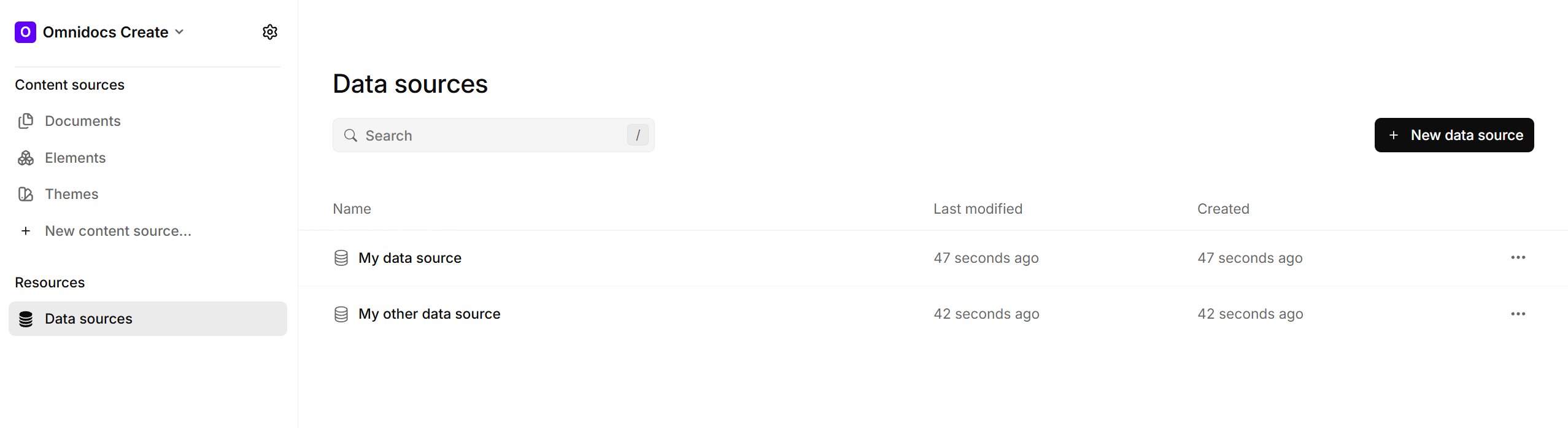
Data sources overview
Creating a data source
To create a new data source:
- Open Data sources from the left navigation.
- Click + New data source in the top right.
- Give the data source a name.
The new data source is added to the list immediately and is ready to be configured with columns and entries.
Configuring columns
Every data source starts with a Entry ID column. This column is always present and identifies each entry. You add further columns by clicking the + button next to the column headers.
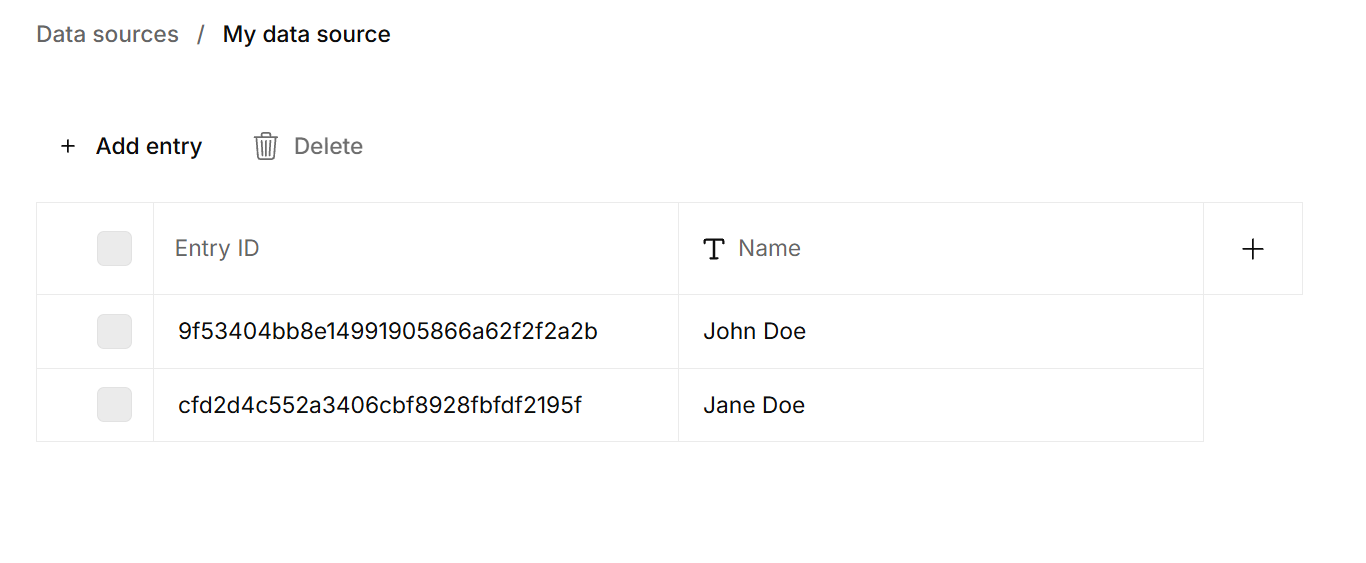
Data source table view
Each column has a type. The available types are:
- Text
- Number
- Date
- Element
- Image
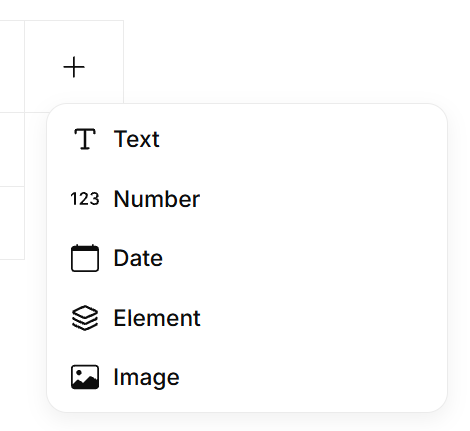
Selecting a column type
The column type determines what kind of value can be entered for each entry in that column, and how it is made available in the information tree when the data source is used.
Adding entries
To add a row of content to a data source, click + Add entry.
Each entry corresponds to one row across all configured columns.
Using a data source in a Select node
A Select node in the information tree can be connected to a data source. When connected, the Select node presents the data source entries as options to the person filling in the form, rather than using statically configured elements.
To connect a data source to a Select node:
- Open the Select node's properties in the information tree.
- Under Data source options, choose a data source from the Data source dropdown.
- Choose which column to use as the visible label in the Column to use for dropdown label dropdown.
- Optionally set a Default value to pre-select an entry when the form opens.
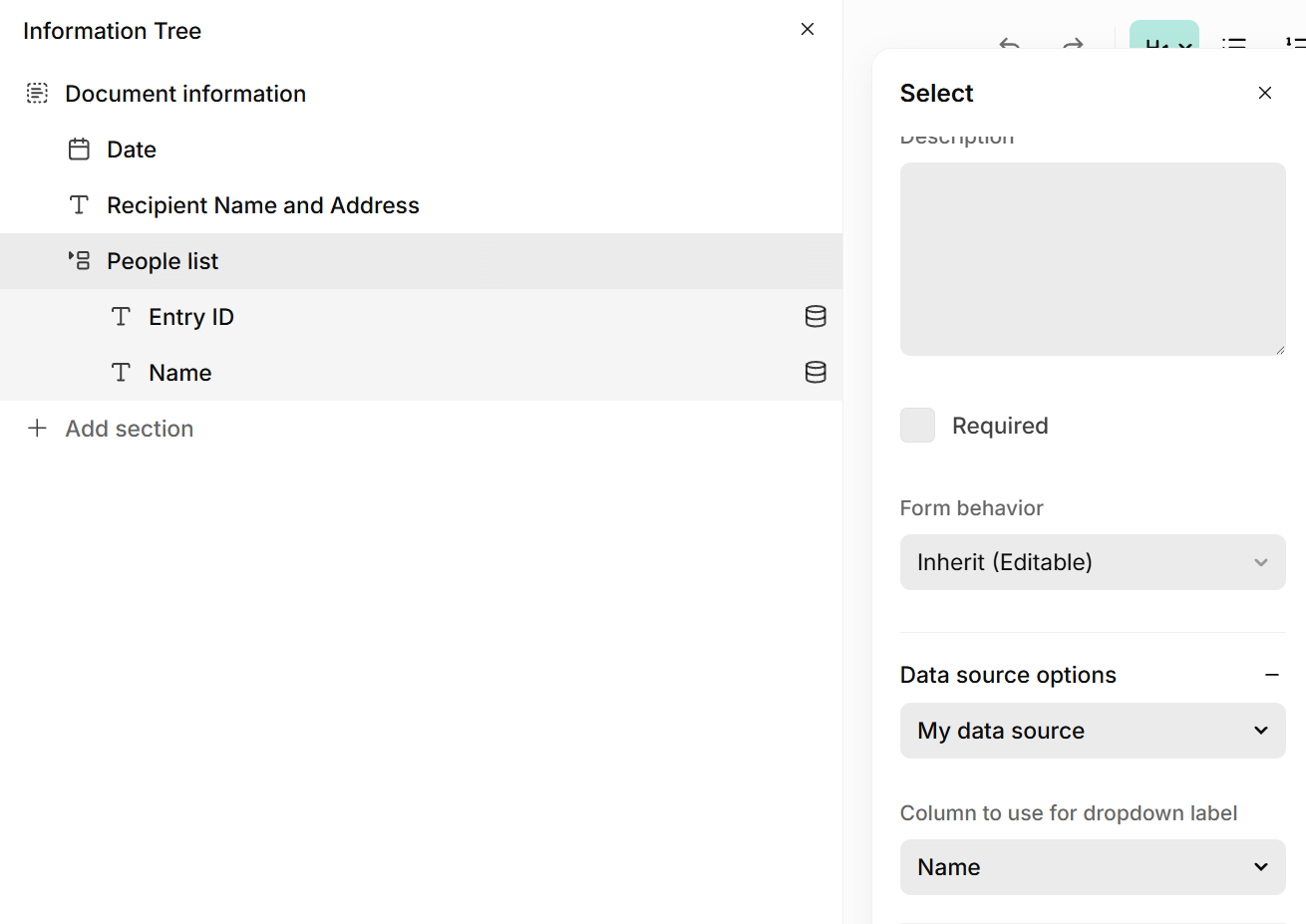
Select node connected to a data source
You can also Enable search to add a search field to the dropdown.
When a data source is connected, the Select node can no longer have manually configured element children. Instead, its children are auto-generated from the data source's column configuration.
Data source columns in the information tree
Once a Select node is connected to a data source, its child nodes in the information tree reflect the columns of that data source. Each column becomes a child node that can be bound to content in the template.
In the template editor, the Dataset pane on the left shows the entries and their column values from the connected data source. This gives you a live preview of what data will flow into the template when an entry is selected.
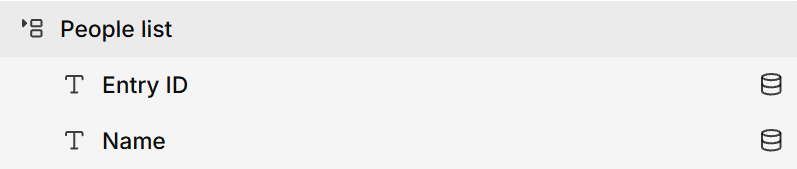
Template editor with data source columns visible in the information tree
Was this article helpful?
That’s Great!
Thank you for your feedback
Sorry! We couldn't be helpful
Thank you for your feedback
Feedback sent
We appreciate your effort and will try to fix the article