Backups
Backups are made on a unit basis, and a unit can be restored completely from a backup. Backups can be run manually, but they are also run automatically every day and month. The last 24 hourly automatic backups are kept, the last 7 daily ones, and the last 5 monthly ones.
Backup states
A manual backup saves the current state of the unit. After a backup is scheduled, either automatically or manually, it can be in the following states:
- Pending
The backup has been successfully requested, and the server is waiting for resources to initiate backup. - Active
The backup is underway. - Succeeded
The backup succeeded. - Failure
The backup failed.
Restore
A unit can be restored in the same unit where it was made, another unit of the same organization, any unit of any other organization, or even in a unit of a completely different environment.
Any previous backups of that unit are retained on restore. To restore a backup of unit A in unit B, download the backup from unit A, and upload it to unit B. Then restore the uploaded backup inside unit B.
Entering a unit and restoring a backup restores it in the current unit, erasing all current data in the unit, except for integrations. Integrations are only added, and never removed. If an integration is already existing, based on ID, it is not overwritten by an integration from a backup with the same ID.
Captures are not backed up nor restored.
? The current size limit for restoring backups in 100MB.
Move content to another unit with a backup
You can use a backup to move content from one unit to another. You create a backup in the source unit, download it, upload it to the target unit and restore it there.
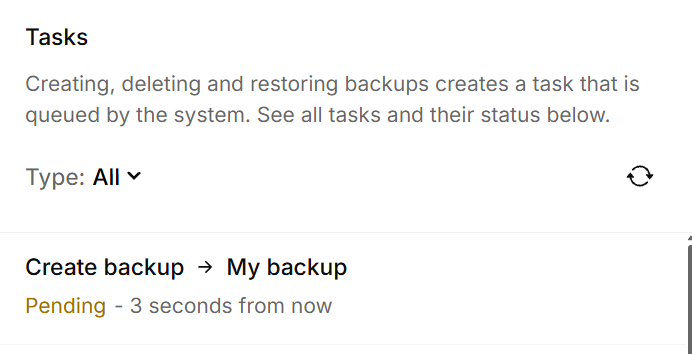
Note: Creating, deleting and restoring backups creates a task that is queued by the system. You can follow the status of each task in the Tasks panel on the right side of the Backups page.
Step 1: Create a backup in the source unit
- Go to the unit that has the content you want to move.
- Open the Backups page and select the Manual tab.
- Click New backup.
- In the Create Backup dialog, enter a name for the backup in the Name field.
- Click Ok.
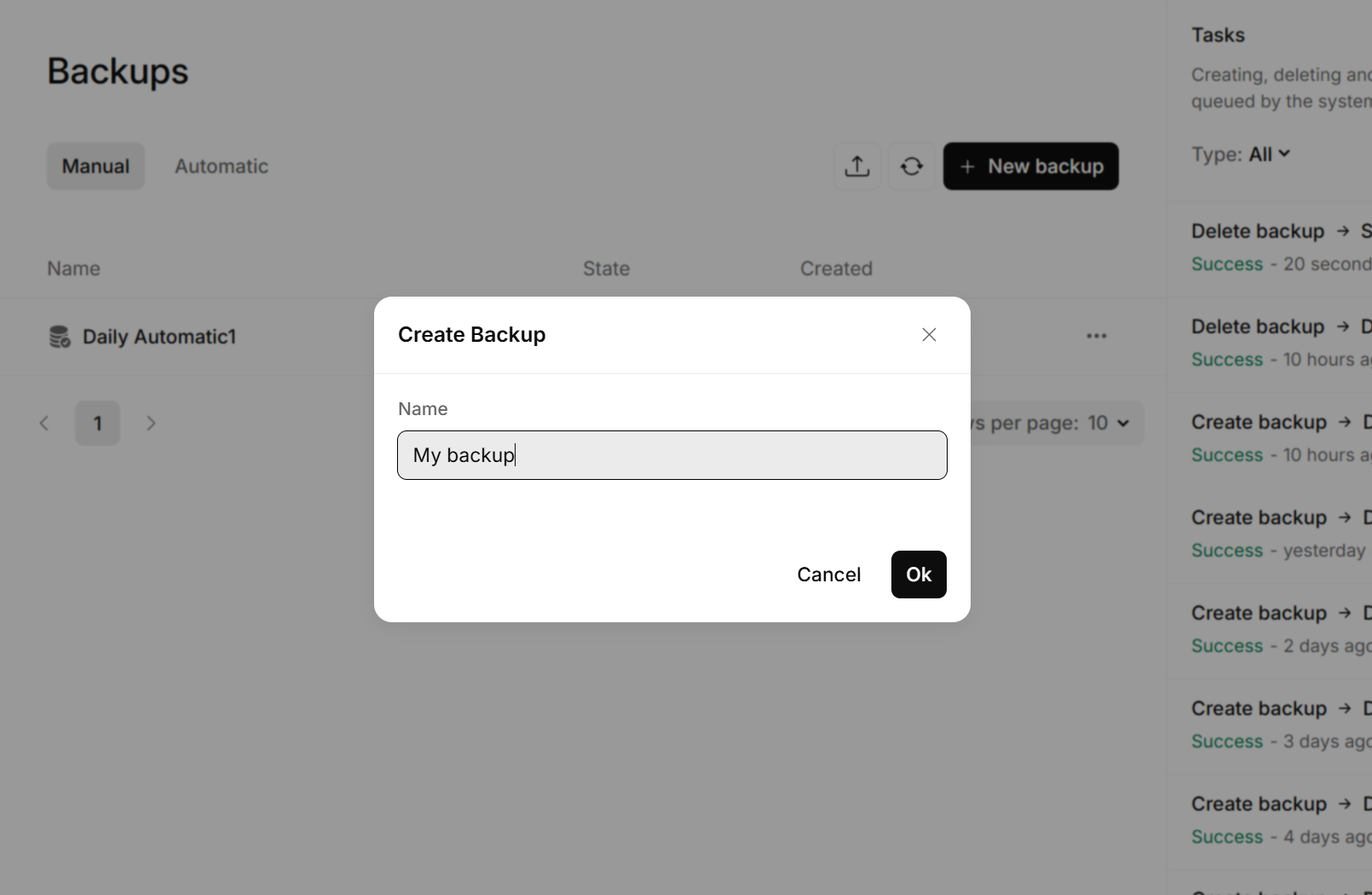
A Create backup task is added to the Tasks panel with the state Pending. When the task is done, the state changes to Success, and the backup is shown in the list with the state Complete.
Tip: If the backup does not show up in the list, click the refresh button next to New backup to update the list.
Step 2: Download the backup
- In the list of backups, find the backup you created.
- Click the three dots (...) at the end of the row.
- Click Download.
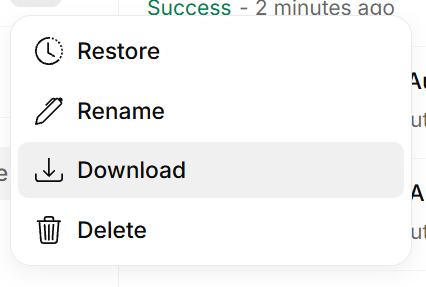
The backup file is saved to your computer.
Step 3: Upload the backup to the target unit
- Go to the unit that you want to move the content to.
- Open the Backups page and select the Manual tab.
- Click the upload button to the left of the refresh button.
- Select the backup file you downloaded in step 2.
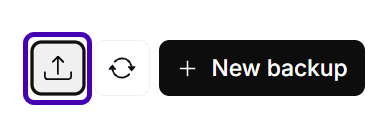
When the upload is done, the backup is shown in the list of backups in the target unit.
Step 4: Restore the backup in the target unit
Important: Restoring a backup replaces the current content of the unit. We recommend that you create a backup of the target unit before you restore, so you can go back if needed.
- In the list of backups, find the backup you uploaded.
- Click the three dots (...) at the end of the row.
- Click Restore.
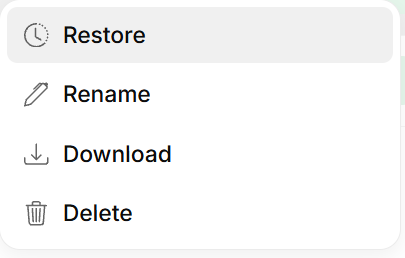
A Restore backup task is added to the Tasks panel. When the state of the task changes to Success, the content from the source unit is available in the target unit.
Was this article helpful?
That’s Great!
Thank you for your feedback
Sorry! We couldn't be helpful
Thank you for your feedback
Feedback sent
We appreciate your effort and will try to fix the article