Version: 3.8.xxx
Date: 23 September 2024
Introduction and general information
The EU’s directive, "Accessibility of public websites and mobile applications " (the web directive) came into force on 23 September 2018 and includes a requirement that all documents that are uploaded onto public websites must be accessible to people – no matter their disabilities. The directive requires that documents, including PDFs are marked up correctly, such that screen readers can find and access necessary information about the content as described in W3C’s Web Content Accessibility Guidelines (WCAG 2.1). This covers descriptive text for images, logos, and other graphics, as well as tables, links, etc.
Introduction to Assist Pro
Assist Pro is an analysis tool for Microsoft Office Word (2016, 2019, 2021 and 365), Excel (2019, 2021 and 365) and PowerPoint (2019, 2021 and 365), that simplifies marking up documents before they are converted to PDF. The tool identifies and marks up:
- Titles
- Pictures/Illustrations
- Tables
- Links
- Objects
- Headings and their hierarchy
- Contrast colours
- Metadata (Track changes and comments)
If you have a license for Assist Pro, the solution can be found in Office as an add-in. The add-in is installed on the user’s Office clients and will be found on the Home-ribbon in Word, Excel and PowerPoint.
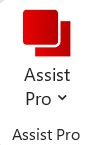
Figure 1
Warnings
Three warnings may appear when using Assist Pro: compatibility problems, missing mark up and PDF/UA.
Compatibility problems
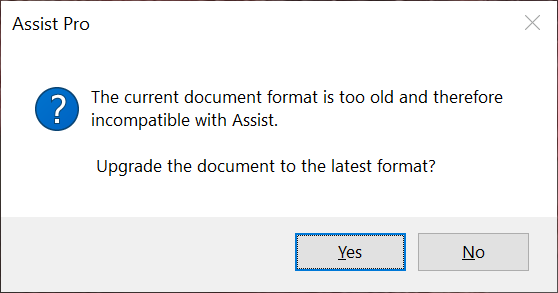
Figure 2
If the document is incompatible with Assist Pro, the user will see a warning when any of the solution’s buttons are clicked. The user can choose to upgrade the document or cancel. Typically, this problem occurs when documents are created in older formats. The warning can be deactivated in the configuration file (see 2.2 Configuration )
Missing markup
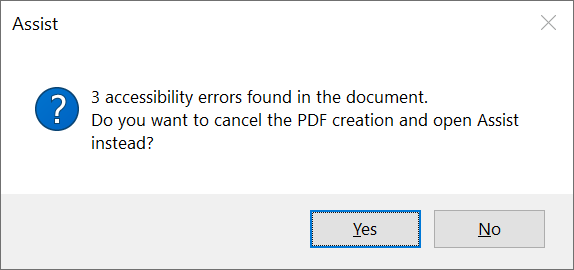
Figure 3
If the document contains elements that do not meet the accessibility requirements, then the user will be shown a warning when ‘Save as PDF’ is clicked.
The user can click Yes to open the Assist Pro pane, or No to ignore the warning and create a PDF anyway. This warning must be activated in the configuration file before it will appear (see 2.2 Configuration ).
PDF/UA
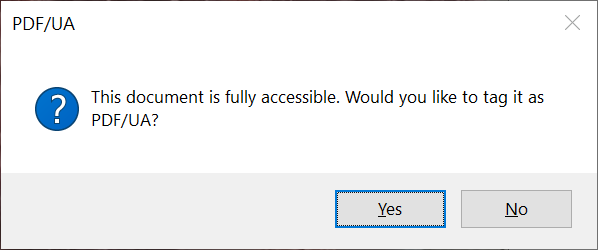
Figure 4
If the document is fully marked up by Assist Pro and you have set marking with PDF/UA as optional in the configuration, the above warning will appear when ‘Save as PDF’ is used.
Set up and installation
Assist Pro installation
The solution comes as an MSI installation package (Windows Installer Package) and requires Microsoft .NET Framework 4.6.2 and Microsoft Visual Studio 2010 Tools for Office Runtime to be pre-installed. The installation package will offer to download these if they are not available. You can download the installation file from the portal here , where a license key is also available. For customers with offline licensing, a license file must be downloaded. It is available on the portal under "License" - "Get license file." In general, the implementation takes place by specifying the license key or the location of the license file as a parameter during installation. The following is an example of an installation command in silent/quiet mode, with the ’Key’ parameter set: msiexec /i ”\\Server\Share\Setup.msi” Key=<license key> /quiet If you are using offline licensing, you should instead specify the 'LicensePath' parameter, as shown here: msiexec /i ”\\Server\Share\Setup.msi” LicensePath=”<path\assistlicense.key>” /quiet
Configuration
In the Assist Pro portal it is possible to switch the following settings on and off:
- Show/Hide the ‘Save as PDF’ button
- Automatic display of the side pane
- Display of groups in the side pane
- Check for correct markup before PDF creation
- Check for document compatibility before use of Assist Pro
- Validation of tooltip for links
- Validation of link text
- Activation of colour contrast check
- Adjustable level of WCAG requirements for colour contrast check
- Required membership in Active Directory security group
- Check of whether PDF creation generates PDF/A documents
- Check of whether missing font types are embedded as bitmaps
- Stamp check with PDF/UA
- Selection of PDF engine
- Check for empty paragraphs
- Require table headers
These elements are detailed below.
- Save as PDF: When set to ‘true’, the ‘Save as PDF’ button is shown in the Accessibility tab (default: ‘true’).
- Auto show sidepanel: When ‘true’ the Assist Pro pane is opened automatically when Windows is started, and upon creation or opening of a new document (default: ‘false’).
- Validate document before saving as a PDF: When set to ‘true’, the document markup is checked when the Save as PDF button is clicked. If errors are found, then the user is offered the chance to open the Assist Pro pane and fix the issues (default: ‘false’).
- Group shapes in audits: If set to ‘true’, any group elements will be listed under Objects in the Assist Pro panel (default: ‘false’). Embed non-standard fonts: Settings for generation of PDF. If set to ‘true’, any fonts that are not integrated in the document will be made as bitmap (default: ‘true’)
- Validate document compatibility: When set to ‘true’, the compatibility of an open document is checked when a button in the Accessibility tab is clicked. If the document is incompatible with Assist Pro, the user is prompted to upgrade the document (default: ‘true’).
- Scan for hidden content: If set to ’true’, the document is checked for hidden content.
- Scan for link tooltips: If set to “true”, you will see a warning if a link lacks a tooltip.
- Scan for text to display in link: If set to ’true’, a warning appears if the link text contains the link address without any further description.
- Scan for empty paragraphs: If set to 'Enabled', the document will be checked for empty paragraphs. There are 2 levels of enabled; namely "Warning" and "Error".
- Require table headers: If set to 'true', you will be forced to specify column and/or row headers.
- Check for colour contrast: Activate colour contrast check. If set to “false”, colour contrast check is inactivated.
- Level of colour contrast check: Indicates what level will be approved in the colour contrast check. Selecting “AAA” means that contrasts that satisfy WCAG AAA requirements will be approved. Selecting ‘AA’ approves contrasts that satisfy either WCAG AAA or AA requirements.
- Limit the use of Assist Pro: Indicates name of one or more AD secure groups that the user must be a member of in order to have access to the Assist Pro functionality. If blank or omitted, the user has access. If multiple group names, separate with |. The user must be a member of at least one of the specified groups.
- PDF/A Compatibility (Excel and PowerPoint): Indicates whether PDF files created using the ‘Save as PDF’ function are saved as PDF/A-compatible documents. Automatically set to ‘true’ if ‘SetBitmapMissingFonts’ is also set to ‘true’. Default value: ‘false’.
- Save as PDF/UA: If set to "Enable" or "Optional", the document will be stamped with PDF/UA, which is a certificate that documents are accessible.
User security group
It is possible to limit which users have access to the solution based on one or more Active Directory security groups. The permitted groups are specified in the UsersGroupName configuration, separated by vertical lines (‘|’).
Prerequisites
The following requirements must be met before Assist Pro can be used:
- Microsoft Windows 7 / 8 / 10 / 11 is used on the client.
- Microsoft Office is used on the client:
o Word (2016 / 2019 / 2021 / 365). o Excel (2019 / 2021 / 365). o PowerPoint (2019 / 2021 / 365).
- If 32-bit Office is used, the maximum supported file size is 100 MB.*
- Screen resolution of at least 1280 x 1024.
- Microsoft .NET Framework 4.6.2 is installed.
- Microsoft Visual Studio 2010 Tools for Office Runtime (version 10.0.50903 or above) is installed.
- Write access to the registry database is required during installation.
- Outward traffic is allowed to ‘https://proxy.daniasoftware.com’ (v. 3.7.006 or lower) or 'https://gateway.daniasoftware.com' (v. 3.7.007 or higher).
*This is a memory limitation in the 32-bit version of Office.
Was this article helpful?
That’s Great!
Thank you for your feedback
Sorry! We couldn't be helpful
Thank you for your feedback
Feedback sent
We appreciate your effort and will try to fix the article