Routines
TABLE OF CONTENTS
- What is a routine?
- When to use routines
- Finding routines in the editor
- Creating a routine
- The routine canvas
- Actions
- Logic actions
- Modify actions
- Calculate actions
- Building a routine
- Nodes defined by routines
- Conditions
- Validation
- Considerations
What is a routine?
A routine is a named sequence of actions that runs automatically once input is entered into a template, whether by a user filling in the form or from a dataset.
Each routine reads a value from one information tree node, passes it through one or more actions, and writes the result to another node. Routines allow you to automate calculations, apply conditional logic, and transform data without requiring the person filling in the form to do it manually.
Actions come in three categories: Logic, Modify, and Calculate.
Routines are stored at the template level. They are not shared across templates.
When to use routines
Use routines when you need to transform or derive a value that cannot be handled by a dataset filter alone, or when the transformation depends on input that the user provides at generation time.
Common use cases include:
- Extracting part of a text value, such as taking the first name from a full name.
- Calculating a derived value from a user-entered number, such as computing an age from a CPR number.
- Applying conditional logic to determine which value to use, such as applying a different price based on age.
- Performing arithmetic on one or more node values, such as multiplying a base price by a discount factor.
- Chaining multiple operations where the output of one step feeds into the next.
Finding routines in the editor
Routines are found in the "Routines" section at the bottom of the left panel, directly below the information tree. The section lists all routines configured for the current template. Click the arrow next to the section heading to expand or collapse it.
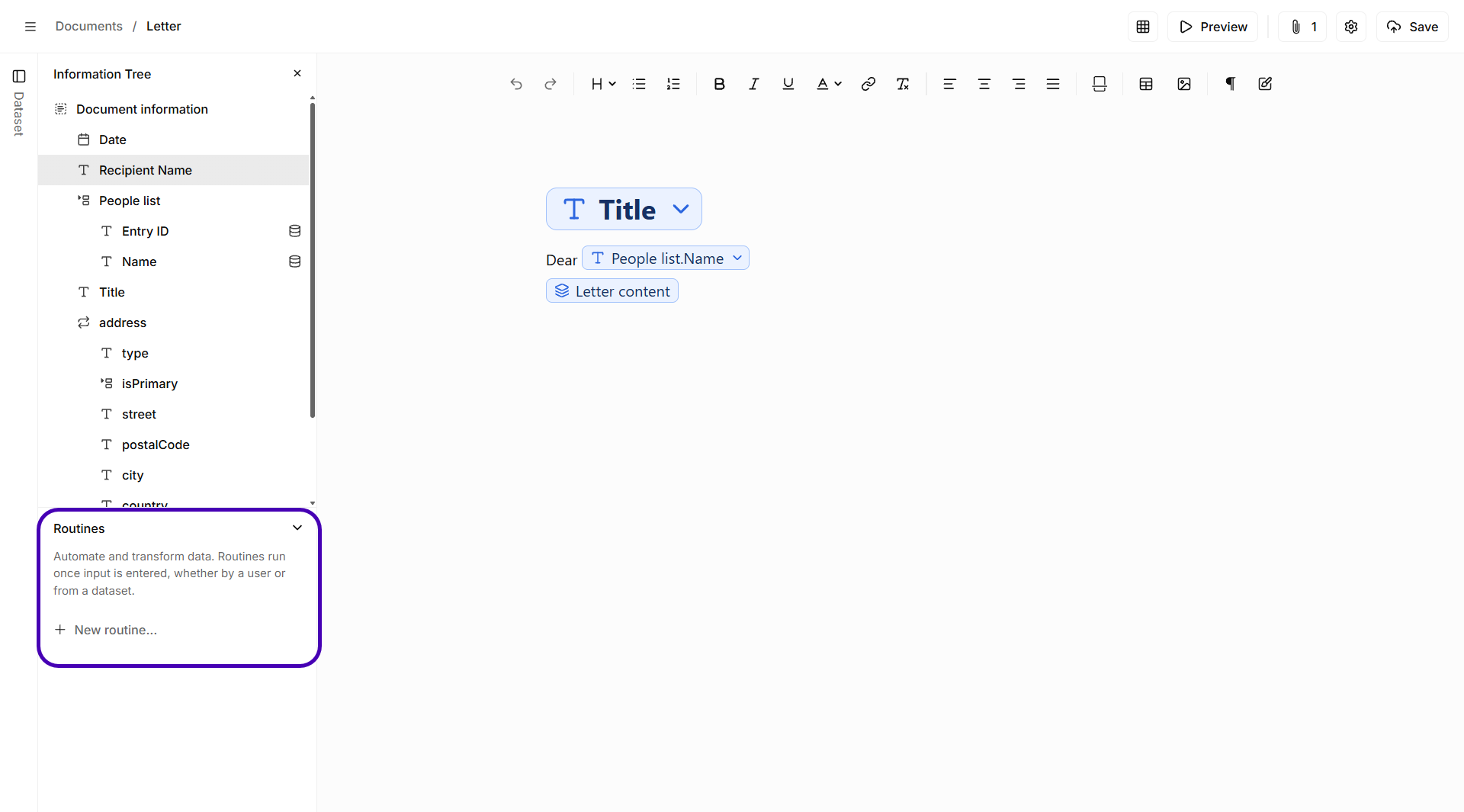
The Routines section below the information tree
Creating a routine
To create a new routine, click "+ New routine..." in the Routines section. The routine is added to the list and the routine canvas opens in the center of the editor, in place of the template.
To open an existing routine, click its name in the Routines section.
The routine canvas
The routine canvas is where you build the routine. The information tree remains visible on the left, so you can drag nodes onto the canvas while you work.
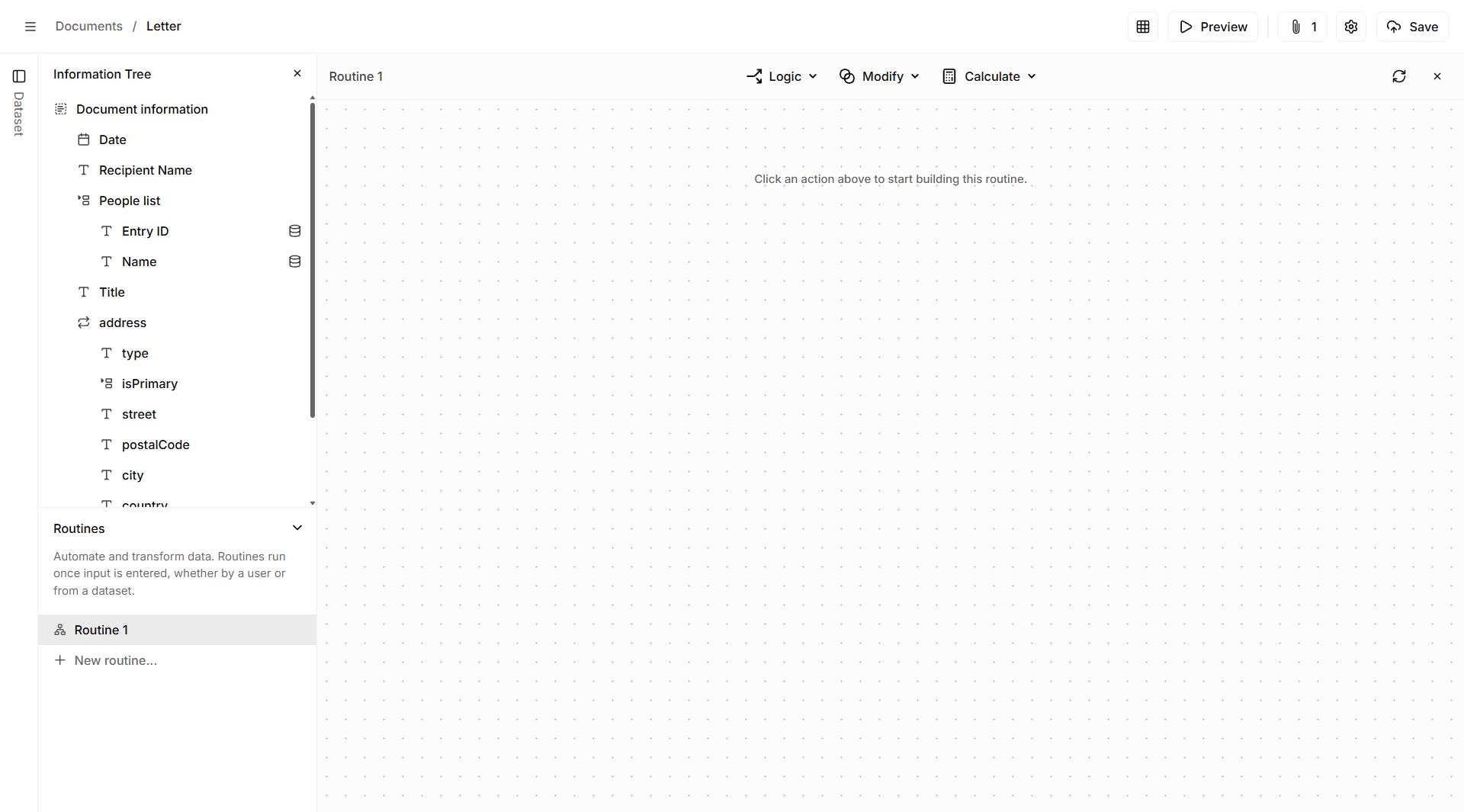
The routine canvas, empty state
The toolbar at the top of the canvas contains the following:
| Element | Description |
|---|---|
| Routine name | The name of the routine currently open, shown on the left. |
| Logic | Menu with actions that branch the routine based on a condition. |
| Modify | Menu with actions that transform the value of a node. |
| Calculate | Menu with actions that perform operations on numerical values. |
| Refresh | Refreshes the routine canvas. |
| Close | Closes the routine canvas and returns to the template. |
When the canvas is empty, it shows the message "Click an action above to start building this routine." Pick an action from one of the menus to add it to the canvas.
Actions
An action is a single step within a routine. Each action is shown as a card on the canvas, and the cards are connected with arrows that show the order in which the steps run.
Every routine has at minimum:
- An input: The node whose value is used as the input, for example the node in a When / If card.
- Apply result to: The node that receives the output of the routine.
Nodes are connected to action slots by dragging them from the information tree on the left and dropping them onto the slot in the card.
Each card has the following controls:
- Move: Drag the move handle (four arrows) to reposition the card in the routine.
- More options: Click the three dots to open more options for the card.
- Remove: Click the trash icon to remove the node or value from the slot.
Each action is type-aware. The input slot only accepts nodes of the type the action supports. If you drop an incompatible node, Create shows an error and does not assign it. See Validation below.
Logic actions
Logic actions let you branch the routine based on a condition. The available logic action is When / If.
A When / If action works as follows:
- Select "When / If" from the "Logic" menu.
- Drag a node into the When / If card to define what is being evaluated.
- In the Condition card, select a condition from the dropdown. The available conditions depend on the type of the node. See Conditions below.
- Enter or drag a comparison value into the Condition card.
- Add the actions to run when the condition is met. They are added below the Condition card.
- Optionally add an Else branch to define what happens when the condition is not met.
Modify actions
Modify actions transform the value of a node. The following Modify actions are available in the "Modify" menu in the routine canvas toolbar:
- Extract text: Extracts a specific part of a text value.
- Replace / remove text: Replaces text in a value with other text, or removes it.
- Split text and take part: Splits a text value into parts and returns one of them.
- Trim: Removes spaces at the start and end of a text value.
- Set value: Sets the result to a fixed value.
- Format as text: Converts the value to text.
Calculate actions
Calculate actions perform operations on numerical values. The available Calculate actions include:
- Basic math: Applies one or more arithmetic operations (multiply, add, subtract, divide) to the input value. Each step in the math chain can reference a fixed number or another node.
- Age from CPR number (DK): Derives a person's age from a Danish CPR number. Accepts a 10-digit number or a text node in the format XXXXXX-XXXX. Always returns a number.
Building a routine
Actions are chained together on the canvas. The output of one action flows into the next. A routine can contain a single action or a sequence of several, including conditional branches.
The example below shows a complete routine that takes the first name from the "Recipient Name" node, but only when the recipient is Jane Doe:
- The When / If card evaluates the "Recipient Name" node.
- The Condition card checks whether the value is Equal to "Jane Doe".
- The Split text and take part card splits the name on the whitespace character and takes part 1, with Trim result selected.
- The Apply result to card writes the result to the "Recipient First Name" node.
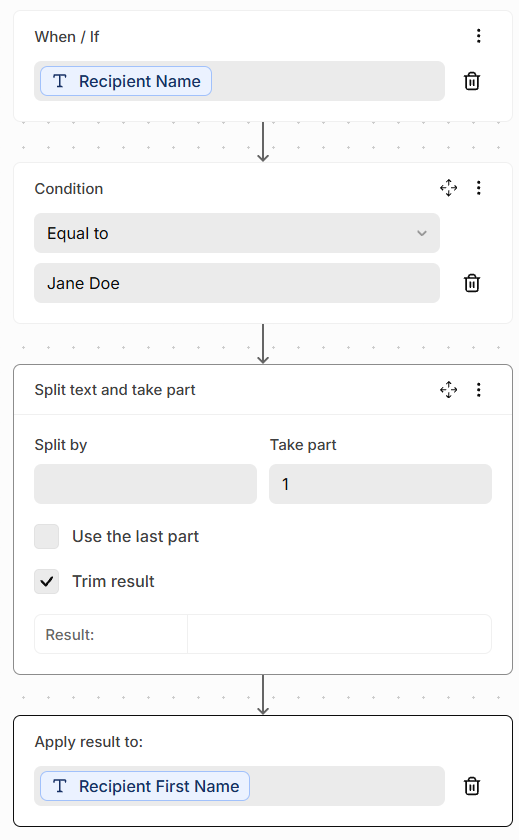
A complete routine combining a When / If condition with a Split text and take part action
When you are done, click "Save" to save the template, including its routines. Click the close icon in the routine canvas toolbar to return to the template. The routine runs whenever input is entered into any of its source nodes.
Nodes defined by routines
When a node's value is defined by one or more routines, a lightning bolt icon appears next to it in the information tree. Opening the node's configuration panel shows a "Value defined by routines" section listing the names of the routines that write to it.
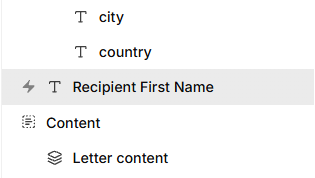
A node showing that a routine defines its value
Multiple routines can write to the same node. When this happens, the node configuration lists all routines that target it.
Conditions
The conditions available in a When / If action depend on the type of the node being evaluated.
Number nodes
| Condition |
|---|
| is Equal to |
| is Not Equal to |
| is Greater than |
| is Less than |
| is Equal or Greater to |
| is Equal or Less to |
Text nodes
| Condition |
|---|
| is Equal to |
| is Not Equal to |
| Contains |
| does Not Contain |
| is Empty |
| is Not Empty |
You can compare the node against another node by dragging it into the Condition card, or enter a fixed value directly.
Validation
Create enforces two rules when building routines.
Incompatible node type: If you drop a node onto an action slot that does not support its type, Create shows an "Invalid node" error: "This action does not support the chosen node type." The node is not assigned.
Same node as input and output: The node used as the input of a routine cannot also be its result. If you attempt this, Create shows an "Invalid node" error: "The result node must be different from the input node."
Considerations
- Routines run automatically: A routine runs as soon as input is entered into any of its source nodes, whether that input comes from a user or from a dataset. There is no manual trigger.
- Routines are template-level: Routines are stored in the template they are created in and are not available to other templates.
- Multiple routines per node: More than one routine can write to the same node. The node configuration shows all routines that define its value.
- Error handling: If a routine receives invalid or empty input, the behavior depends on the action. Fallback and error handling rules will be covered in a future update.
- Repeat and Select nodes: Routines do not currently support Repeat or Select nodes as action targets.
Was this article helpful?
That’s Great!
Thank you for your feedback
Sorry! We couldn't be helpful
Thank you for your feedback
Feedback sent
We appreciate your effort and will try to fix the article