Themes
TABLE OF CONTENTS
- Overview
- Theme structure
- Theme files
- Theme scope
- Adding a new theme
- Configuring a theme
- Static themes
- Dynamic themes
- Styles
- Applying a theme to a unit
- Applying a theme to a template
- Headers and footers
- Theme selection behavior
- Updating themes
- Previewing a theme
- Good to know
Overview
This article describes how themes are configured and applied in Omnidocs Create.
A theme controls the styling of documents generated by templates. It contains design definitions such as fonts, colors, layout rules, and element styling as well as dynamic placeholders. These settings are applied automatically when a template generates a document.
Themes allow you to maintain consistent styling across multiple templates without modifying each template individually.
Themes are configured at unit level and can be selected when generating a document. A unit can also define a default theme that templates will use unless another theme is explicitly chosen inside the individual template.
Themes can be static or dynamic. A static theme applies styling only. A dynamic theme also defines an information tree, allowing values from a dataset or form input to flow into the theme file itself, for example to populate a company name or logo in a letterhead.
Theme structure
A theme consists of several configuration components that define the styling of generated documents.
| Component | Description |
|---|---|
| Typographies | Defines fonts, font sizes, and text styling used throughout the document. |
| Colors | Defines the color palette used for headings, highlights, and other styled elements. |
| Layout rules | Controls margins, spacing, and alignment of document elements. |
| Element styling | Defines styling rules for elements such as tables, lists, graphs, and other structured content. |
| Headers / Footers / Body | Defines the content and layout used in document headers, footers and body. |
These components together define how the document is rendered when it is generated.
Theme files
A theme can contain styling definitions for multiple output formats.
Each theme may include:
| File | Purpose |
|---|---|
.docx file | Defines styling when generating Word documents. |
.html file | Defines styling when generating HTML output. |
When a document is generated, the system uses the styling file that matches the selected output format.
If both formats are configured, the same template can generate documents in multiple formats while maintaining consistent design.
Theme scope
Themes exist within a unit and are available to all templates in that unit.
A theme can be used in two ways:
| Scope | Description |
|---|---|
| Unit-level default theme | Automatically applied to templates in the unit unless overridden. |
| Template-level theme | A theme selected directly in the template configuration. |
If both are defined, the template-level theme takes precedence.
Adding a new theme
To add a new theme, navigate to Themes in the left navigation and select New item and choose Theme. Give the theme a name.
This opens the theme editor. From here you upload theme files and, for dynamic themes, configure the information tree and dataset.
Configuring a theme
The theme editor opens when you create or open a theme. The editor supports two modes depending on whether you want a static or dynamic theme.
On first open, the editor shows an upload area. You can click one of the supported file types or drag and drop a file to upload it.
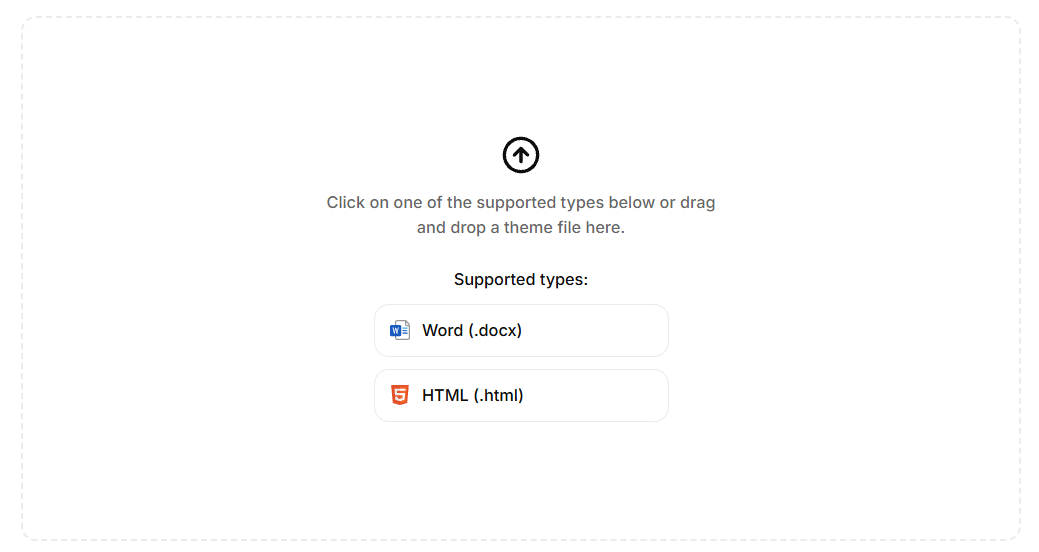
Theme editor, ready to receive a theme file
Static themes
A static theme applies styling to generated documents without adding any dynamic content. Once you upload a .docx or .html file, the theme editor shows a live preview of the uploaded file.
The editor toolbar lets you switch between the Word and HTML tabs to manage each file independently. You can download the current file or upload a replacement using the controls in the top right.
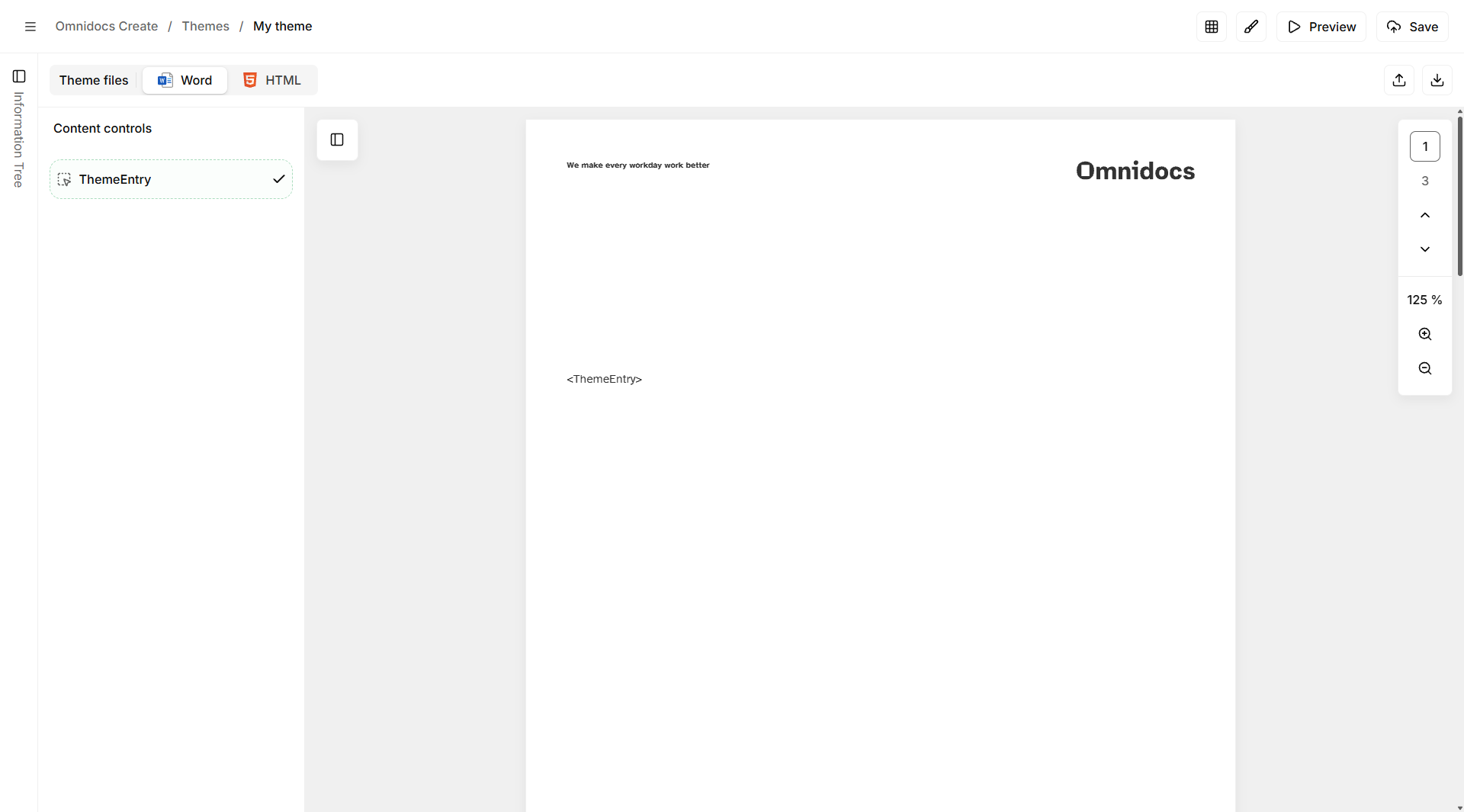
Static Word theme, uploaded file shown in the preview
The preview shows the theme file as it will be applied. The ThemeEntry placeholder marks where content from the template will be inserted when a document is generated.
Dynamic themes
A dynamic theme adds an information tree and dataset to the theme editor. This allows values such as a company name, address, or logo to flow into the theme file itself, rather than being hardcoded in the uploaded file.
This is useful when the same theme structure should be reused across different organizations or contexts, with only the identifying content changing per generation.
Setting up a dynamic theme
To configure a dynamic theme, open the theme editor and build out the information tree using the panel on the left. The information tree works the same way as in the template editor: you add nodes for each piece of content you want to make dynamic.
Once the information tree is configured, use the Content controls panel. This panel lists the content controls detected in the uploaded theme file and lets you map each one to a node from the information tree.
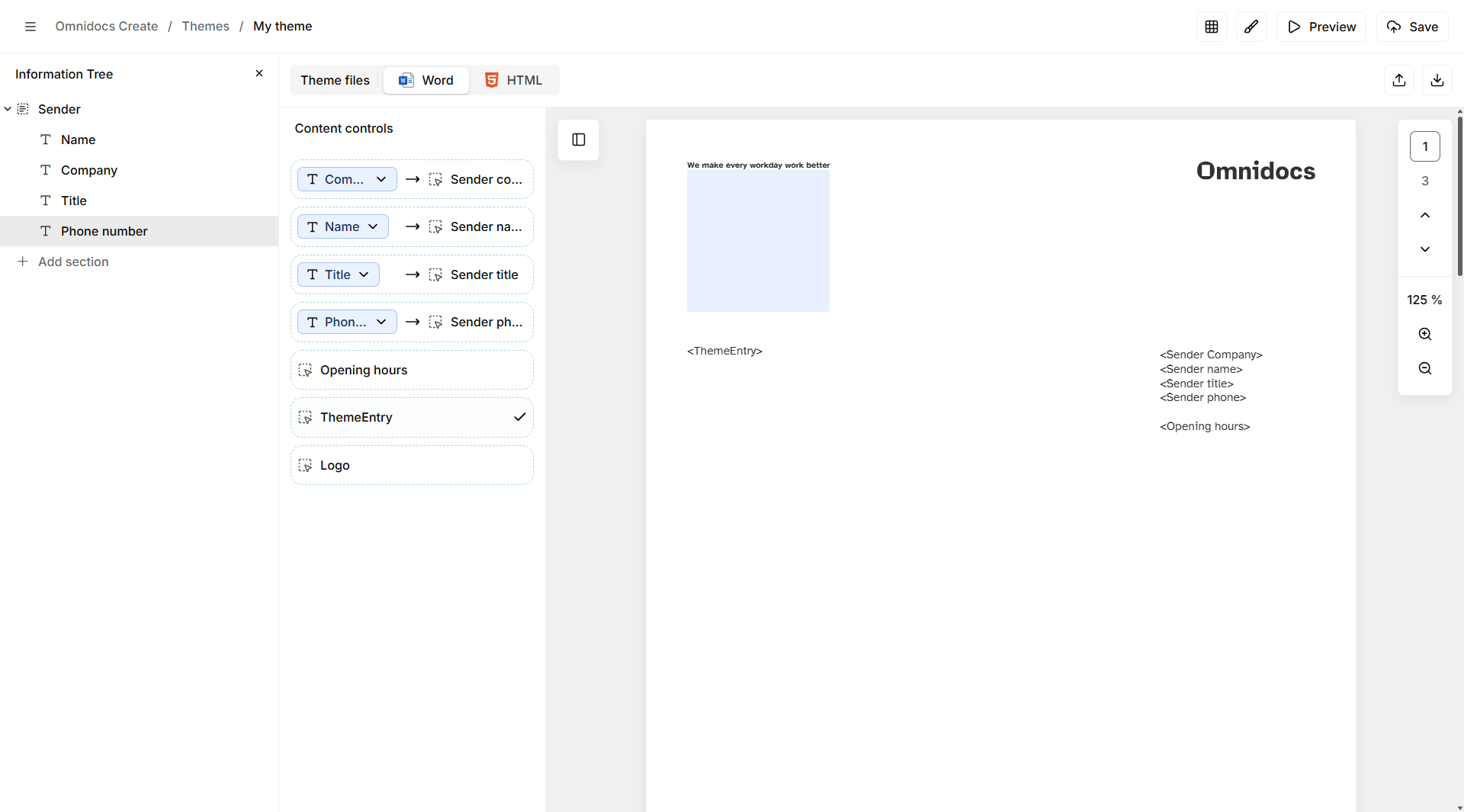
Dynamic theme, mapping information tree nodes to content controls in the theme file
Each row in the Content controls panel shows a content control from the theme file on the left and the mapped information tree node on the right. The ThemeEntry row marks where the template content will be inserted. This row cannot be remapped.
You can also use a dataset in the theme editor. The Dataset pane works the same way as in the template editor: define inbound JSON data, apply an optional filter, and use the result to pre-fill information tree nodes.
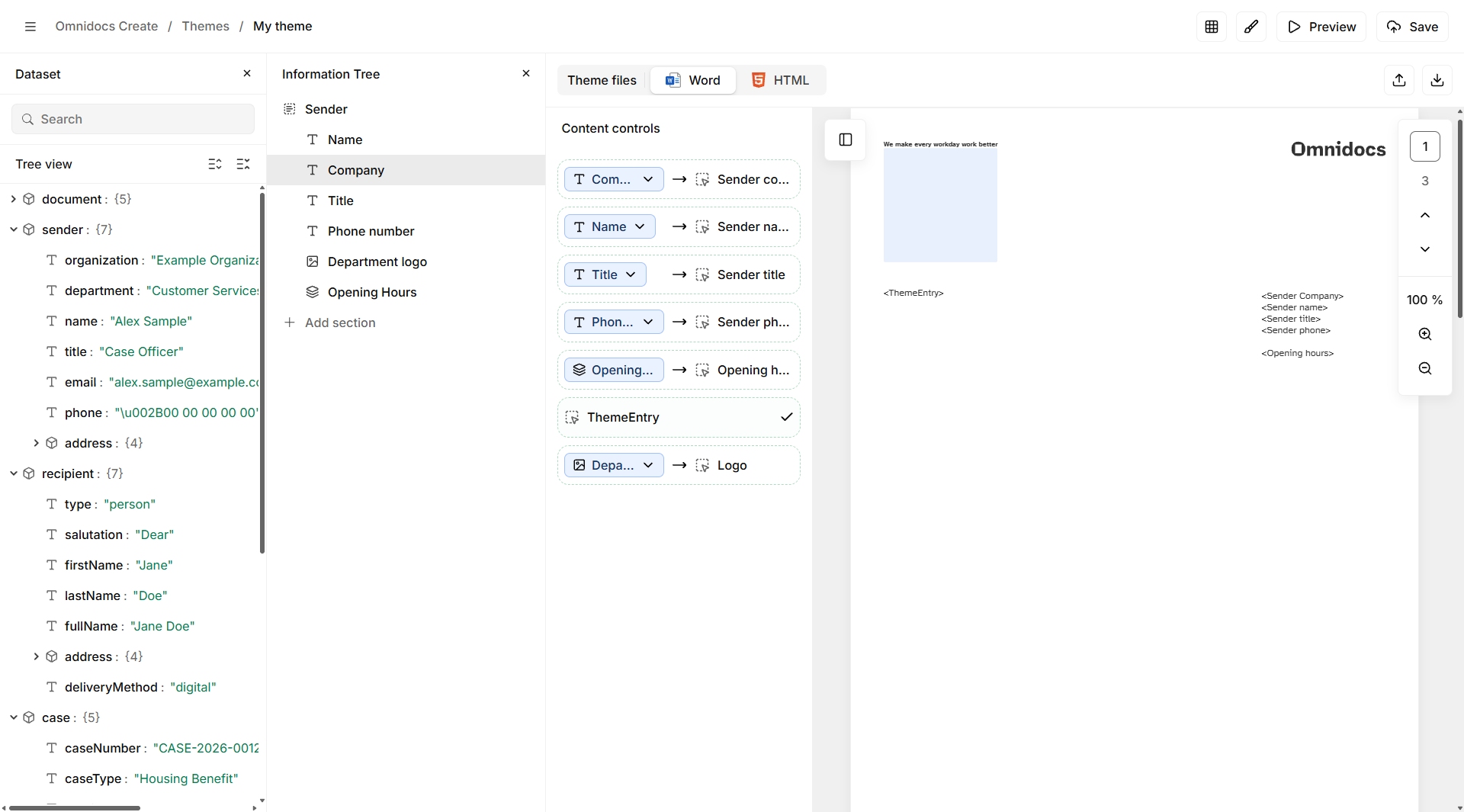
Completed dynamic theme configuration
Styles
Styles allow you to map the styles in your theme files to the built-in styles used by the template editor, and to create custom styles that templates can apply to specific content elements such as tables and paragraphs.
Style configuration is accessed from the theme editor by clicking the Styles button in the toolbar. This opens the style mapping screen.
Imported styles
When you upload a theme file, Create reads and imports the styles it contains.
- For
.docxfiles, the styles defined in the Word document are imported and listed in the Imported styles panel on the right. - For
.htmlfiles, the class names defined in the<style>tag of the HTML file are imported and listed.
Imported styles are the available targets when configuring style mappings.
Built-in style mapping
The Built-in tab maps the editor's built-in styles (Paragraph, Heading 1–6, Bullet list, Ordered list, Table, and Link) to the corresponding styles from your uploaded theme files.
When both a Word and an HTML file are uploaded, the mapping screen shows a column for each format side by side, so you can configure both in one place.
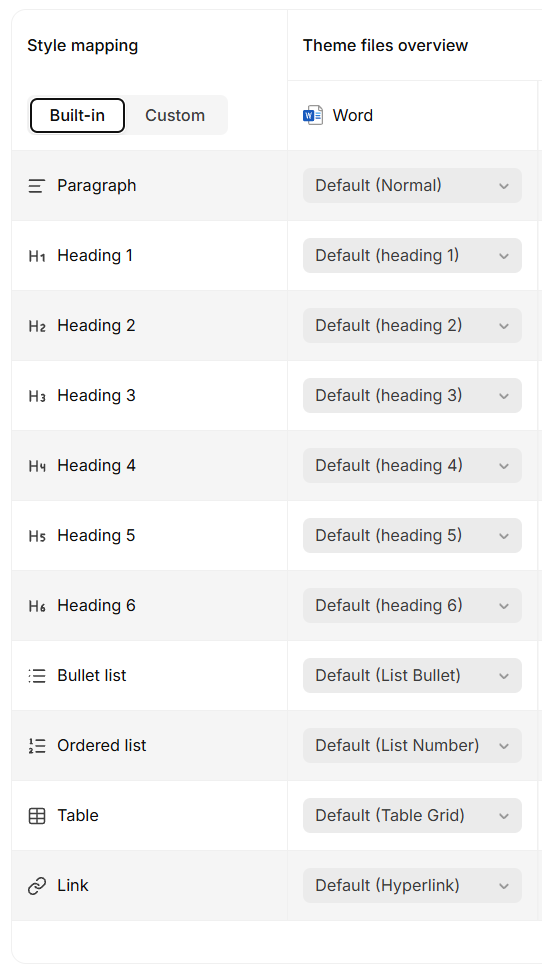
Built-in style mapping for a theme
Custom styles
The Custom tab lets you define additional styles beyond the built-in set. This is useful when your theme supports multiple variants of an element, for example several table styles with different visual treatments.
Custom styles are shared across all themes in the unit, but the mapping to theme file styles is specific to each individual theme. A custom style added to one theme is available to all themes, but each theme maps it to its own imported styles independently.
To add a custom style, click the + button in the Custom tab and give it a name. Then map it to the appropriate imported style for each theme file format.
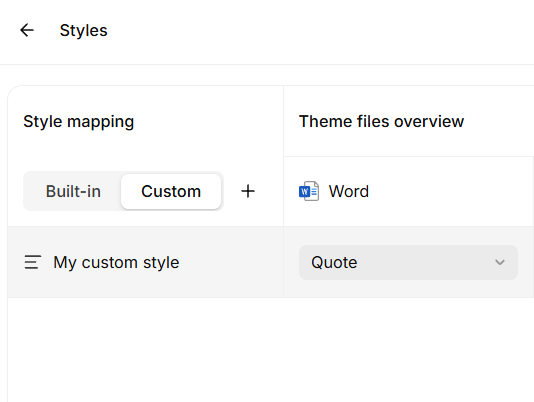
Custom style mapping for a theme
Once custom styles are defined and mapped, they become available in the template editor for selection on supported content elements.
Applying a theme to a unit
You can apply a unit-level theme in the general settings of your unit.
In General settings, select the theme you want to use as the default.
Changing the theme will affect all future documents generated from that unit, unless a template-specific theme has been applied to some of the templates.
Applying a theme to a template
You apply a template-level theme when configuring a template, by pressing the cogwheel in the top-right of the builder.
From there, you can browse to the theme you want to apply by default for that template specifically.
Changing the theme will affect all future documents generated from that template.
Headers and footers
Themes can define the content used in the headers and footers of generated documents.
Header and footer definitions may include:
- Organization branding
- Page numbers
- Document metadata
- Standardized legal text
These elements are automatically included when a document is generated.
Theme selection behavior
When generating a document, Create determines which theme to use in the following order:
- Template-level theme
- Unit-level default theme
- System default styling
This ensures that a theme is always applied even if no explicit configuration exists.
Updating themes
To update a theme, open it from the Themes overview. From the theme editor, you can replace the .docx file, the .html file, or both, using the upload or drag-and-drop controls.
For dynamic themes, you can also update the information tree and content control mappings at any time.
Previewing a theme
The theme editor includes a Preview mode. Click Preview in the top-right to open it.
In Preview mode, a form on the left reflects the information tree configured in the theme. Filling in the form updates the document preview on the right in real time. You can switch between Word and HTML output using the tabs at the top of the form, and download the preview document once you are satisfied.
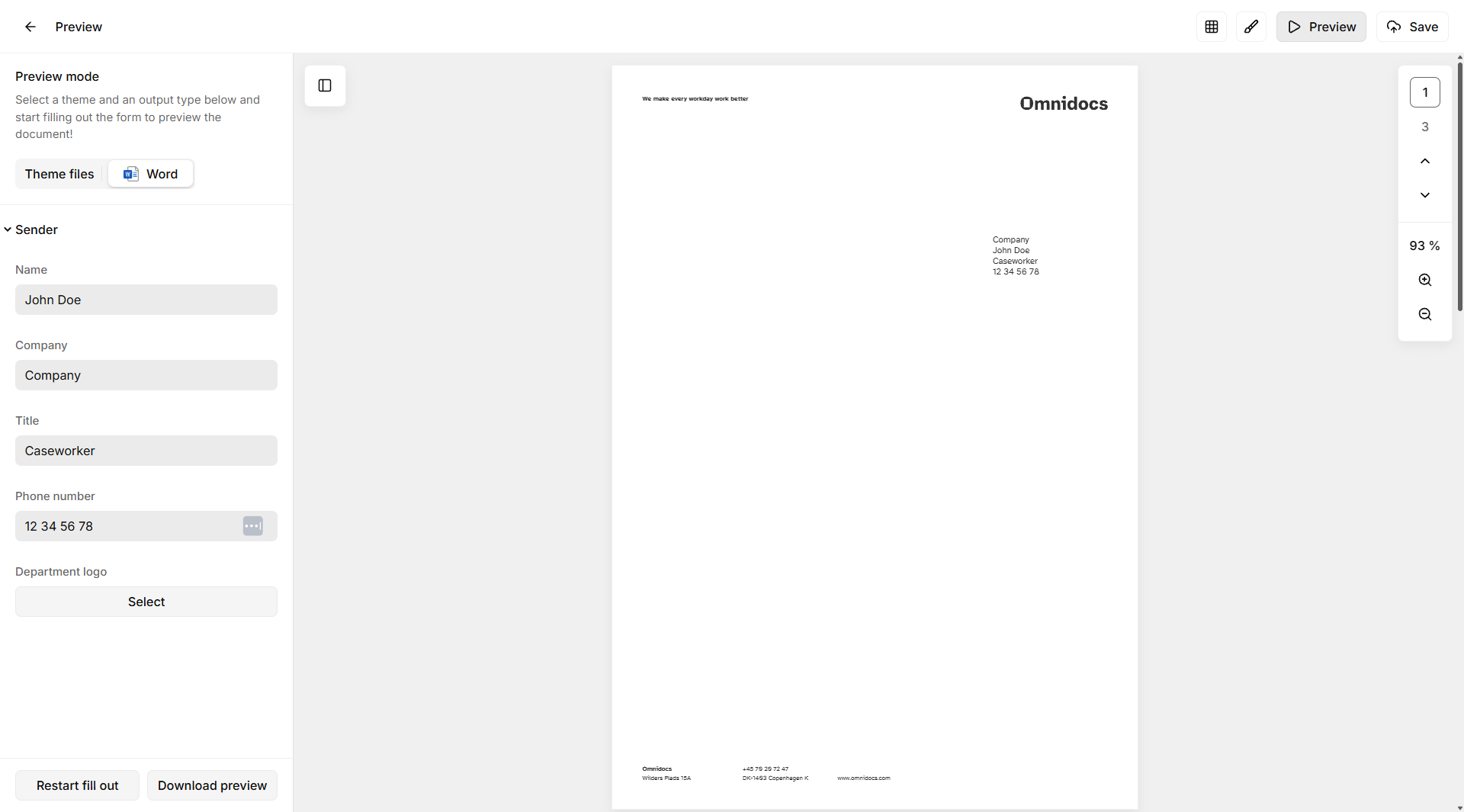
Preview mode, fill in the form to see the theme applied to a live document
Good to know
Theme entry binding
It is possible to define a specific binding in your theme that defines exactly where content from the template should be inserted.
For .docx, the theme entry binding is a content control with the following tag:
{"BindingType": "ThemeEntry"}For .html, the theme entry binding is an HTML snippet with the following contents:
<p data-binding-configuration='{"BindingType":"ThemeEntry"}' data-type="binding" />In the theme editor, the Theme entry row in the Content controls panel confirms that the binding has been detected in the uploaded file.
Was this article helpful?
That’s Great!
Thank you for your feedback
Sorry! We couldn't be helpful
Thank you for your feedback
Feedback sent
We appreciate your effort and will try to fix the article