After creating an Alloy structure with the script you will have a folder that will make up a client's SDUP. This is where we locate document themes, configuration of functionality and ribbons as well as registry entries. These elements are separated into three folders called Office, ProgramData and Registry entries within SDUP/files.
This article elaborates on the content of these three folders as well as how to configure and setup solutions.
Contents
Office
Within the Office folder, you will find another folder called UserTemplates. This is where we locate the client's templates (unless if it is a Templafy client). If a client has a blank PPT, this is where it should be located as well.
The UserTemplates folder moreover contains a folder called Document Themes which then contains two separate folders called Theme Colors and Theme Fonts. This is where we save color and font theme if the particular client has any.
ProgramData
The ProgramData folder contains another folder called OfficeExtensions. Within this folder, we configure the setup and functionality of the client's solution. Thus, this very folder includes four folders called Common, Content, Modules and Plugins.
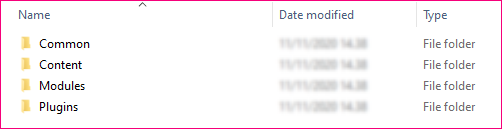
The purpose of each folder is described below.
Common
The Common folder is the "platform" - it is the basis for modules and plugins to run. This is where Alloy is configured. Generally, we do not change anything in this folder, but exceptions can occur (often related to ribbon configuration).
The Common folder contains the following folders as default:
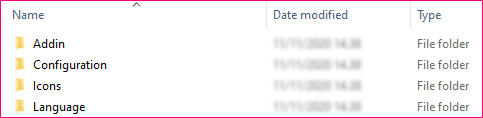
The Addin folder contains the addins for Alloy. Here, you can check the Alloy version but it is also the go-to folder when approaching the log. Notice that Alloy rarely needs to be updated.
The Configuration folder contains the different files for the ribbon configuration. Read more about ribbon configuration in this article.
If you are using custom icons in the configuration of modules, they should be stored in the Icons folder.
The Language folder contains files for translations, i.e. English and Danish. In these files, we define potential translations, e.g. if the label of a section in ribbon should be translatable, meaning that the label of the particular section depends on whether the language of the SDUP is set to English or Danish. This is rarely used.
Content
The Content folder is where we store any content used in the configuration. For instance, when configuring Branded Startup or Corporate Tables, the functionality of the features requires some content in order to work.
Content must be saved in folders where the folder name must match the name of the plugin for the particular feature. This means that if you are saving content for a Branded Startup configuration, the content must be saved in a folder called BaseExtensions as this is the plugin for that feature.
In the same way, content for a Corporate Tables configuration must be saved in a folder called SkabelonDesign.CorporateTables since this is the name of the plugin.
What content that is required for the different features is documented in the respective articles. Notice that not all configurations require content.
Modules
A module is what defines a feature/button/menu in Office. If you have a button or menu in the ribbon, there is a corresponding .xml file in this very folder. Read more about creating menus and buttons in this article.
In this folder, you place the modules needed. The structure of the folder names should always be like this:
##_nocontext_Groupname
Every subfolder in the Modules folder represents a group in the ribbon. Below is an example.
OfficeExtensions\Modules\04_nocontext_Productivity Tools
This naming will represent a group called Productivity Tools in the ribbon. This folder may then contain several .xml files representing buttons and/or menus. Bear in mind that everything is sorted alphabetically so the order of folders and .xml files within the folders will show in the ribbon in the order you see them (always A>Z).
Find the module you need
All of our features and integrations are documented in this Knowledge Base. Nonetheless, we have a library of most of our modules from where they easily can be grabbed and saved in the SDUP.
You find Module Library here:
...\SD.Installers\AlloyPlugins\ModuleLibrary
Be aware that a few modules are saved in another path. Currently, this counts for Branded Startup, Corporate Infographics and Accessibility Assistant as these are considered to be advanced installs. Find them here:
...\SD.Installers\AdvancedInstalls
But how do I know which feature I need?
This one is a bit more tricky. You will need to be familiar with our features. And also: Experience!
Plugins
In the old days a plugin would be an actual Office add-in. With the Alloy platform, we instead have plugins. You may have heard names such as BaseExtensions, Corporate Charts, Agenda and Brand Checker. These are plugins, and plugins are what makes our software tick.
Find the plugin you need
Remember to use the Knowledge Base when finding the plugins needed as there is a clear indication of what plugin is needed for a certain feature based on the section or content of the particular article. Otherwise, you can always the Support and Technology Operations team.
Just like with our modules, we have a library containing our various plugins here:
...\SD.Installers\AlloyPlugins\RawPlugins
However, not all of our plugins can be taken from this path. The most commonly used plugins must be added to the SDUP using a script. You find this by right-clicking the particular SDUP and then you go to the Office Extensions menu from which you can select the plugin you need. This method applies for the plugins shown in the image below.
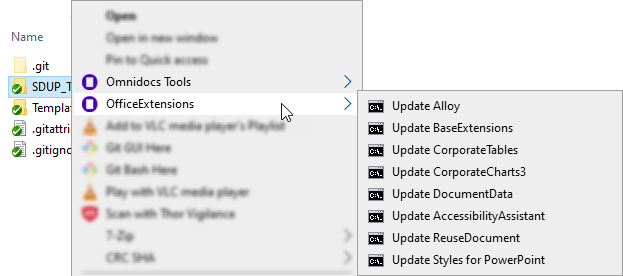
The script will automatically go to the Plugins folder and update the selected plugin. When updating Accessibility Assistant, it will also update the required content in the Content folder.
Registry entries
The Registry entries folder contains .reg files (registry entries), which are text-based human-readable files for exporting and importing portions of the registry.
Based on your decisions when creating the Alloy structure, registry entries will be stored in this very folder. For instance, if you select Word and PowerPoint, but not Excel, when answering in which programs you need Alloy plugins, the creation of the Alloy structure will automatically store the registry entries for these programs. This will ensure that the ribbon is visible in Word and PowerPoint. If you later need functionality in Excel, it is necessary to add the HKCU_AlloyExcel.reg entry, cause otherwise the ribbon is hidden.
Global registry entry
In the Registry entries folder, you find a file called HKCU_Global.reg. This is the global registry entry in which you can change the name of the ribbon tab and ribbon language.
This registry entry also contains a license unit. Without this license, a prompt stating that license is missing will appear every time an Office program is opened. Contact our support to add the license.
Tab name
The tab name is "CLIENTNAME" as default:
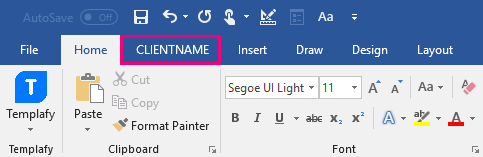
To change this, right-click the registry entry and click "Edit". The CLIENTNAME is then replaced in the following line:
"ClientName"="CLIENTNAME"
Save the change and the name should now be replaced in the ribbon.
Ribbon language
We are able to change the language of the ribbon by setting a different language code in the following line:
"Language"="en-GB"
The language is set to English (United Kingdom) as default and it is rarely changed. However, it sometimes makes sense to change the language when the client is Danish. It depends on what the client prefers.
Was this article helpful?
That’s Great!
Thank you for your feedback
Sorry! We couldn't be helpful
Thank you for your feedback
Feedback sent
We appreciate your effort and will try to fix the article