We support combining the feature to insert a table placeholder with the feature to insert a table in one button. Before using this functionality of combining feature insert a table and a placeholder, I recommend to read both articles.
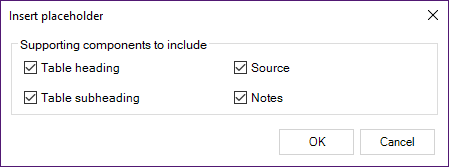
First, the user will first be prompted to determine which components that should be included in the placeholder.
After clicking OK, the user will be prompted to insert a table.
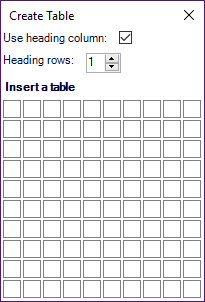
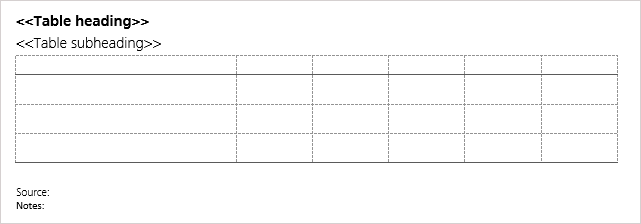
When setting the number of columns and rows, the table will be inserted with the placeholder elements.
Configuration
In order to combine the features, we firstly use the command to insert a placeholder. In the <Select/> element, we add a <Master/> element. Thus, the master from the template will be selected. Inside the <Master/> element, we use the command to insert a table.
<DynamicMenu label="Insert table" icon="TableInsert" size="large">
  <Button special="SkabelonDesign.CorporateTables:Table" icon="TableStylesGalleryExcel">
    <Cmd case="BaseExtensions:insert-placeholder" templatePath="Placeholders/Template1">
      <Select>
        <Master>
          <Cmd case="SkabelonDesign.CorporateTables:Table" CreateFormat="Create" CanPickUseHeadingColumn="true" CanPickHeaderRowCount="true"/>
        </Master>
      </Select>
    </Cmd>
  </Button>
</DynamicMenu>
Was this article helpful?
That’s Great!
Thank you for your feedback
Sorry! We couldn't be helpful
Thank you for your feedback
Feedback sent
We appreciate your effort and will try to fix the article