Table of contents
Known issue 1 - Block Win32 API calls from Office macros - Office VBA Add-ins
Recommended approach to blocked solution components
Identifying ASR blocked files with Event Viewer
Unblocking files with per rule exclusions
Introduction
This article is about Attack Surface Reduction (ASR) rules - what they are, the affect they can have on Omnidocs solutions and our recommended approach to manage them in situations where files are blocked.
What are ASR rules?
Microsoft Defender for Endpoint attack surface reduction (ASR) rules are a security feature designed to eliminate threats on the organization's devices and network. It can be considered as a set of policies that can be activated to block certain files
It is a powerful and widespread tool used in many modern IT infrastructures.
Attack surface reduction rules target certain software behaviours, such as:
- Launching executable files and scripts that attempt to download or run files
- Running obfuscated or otherwise suspicious scripts
- Performing behaviors that apps don't usually initiate during normal day-to-day work
See https://learn.microsoft.com/en-us/defender-endpoint/attack-surface-reduction
Attack surface reduction rules contain one of four settings:
- Not configured/Disabled: The attack surface reduction rule is disabled
- Block/Enabled: The attack surface reduction rule is enabled
- Audit: Allows evaluation how the attack surface reduction rule would impact the organization if enabled - files that would be blocked can be seen in the attack surface reduction rules reporting page in the Microsoft Defender portal
- Warn: The attack surface reduction rule is enabled but allows the end user to bypass the block
Best practice is to test ASR rules in audit mode on a number of devices before enabling them for the whole organization.
See a list of ASR rules here:
https://learn.microsoft.com/en-us/defender-endpoint/attack-surface-reduction-rules-reference#per-rule-descriptions
Affect on Omnidocs Solutions
ASR rules have been identified to have affected Omidocs solutions to a significant degree where key parts of functionality is rendered unusable.
Known issue 1 - Block Win32 API calls from Office macros - Office VBA Add-ins
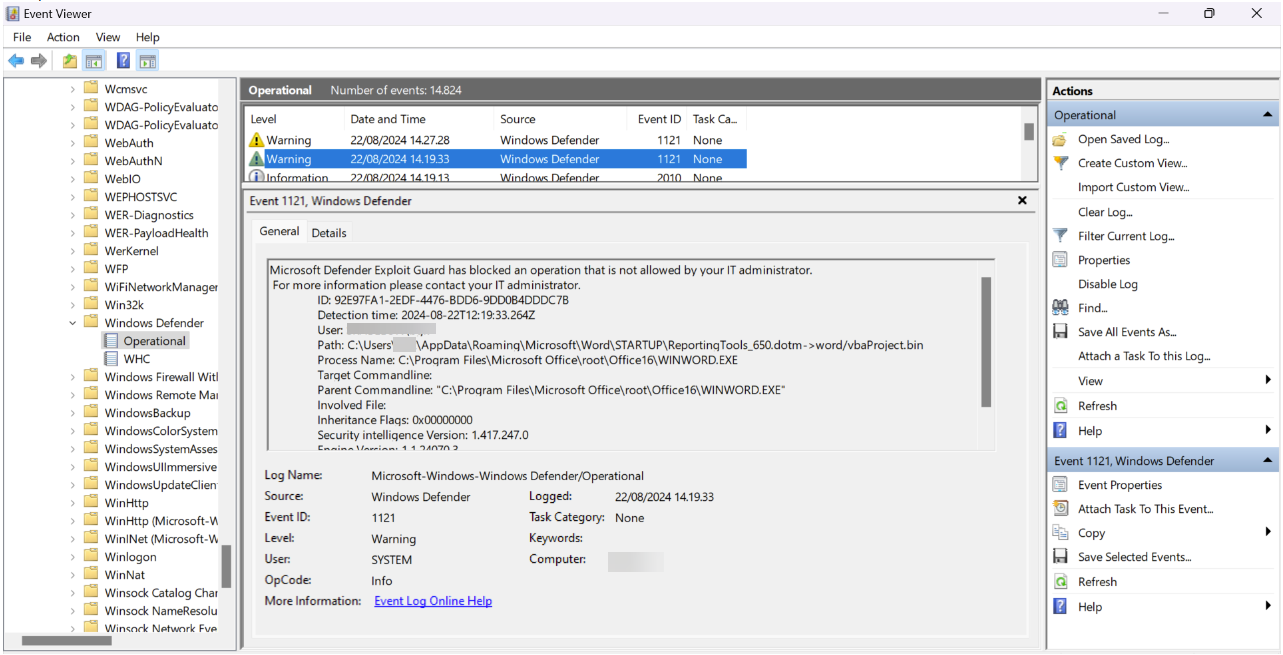
Rule ID: 92e97fa1-2edf-4476-bdd6-9dd0b4dddc7b
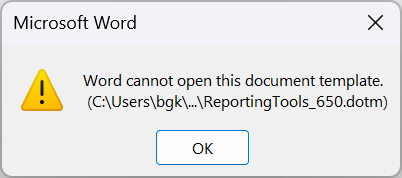
This rule has been found to block macro enabled add-ins in Word, PowerPoint and Excel.
Examples of error messages in the Office programs:
Word
Excel

PowerPoint

Read more about the rule here:
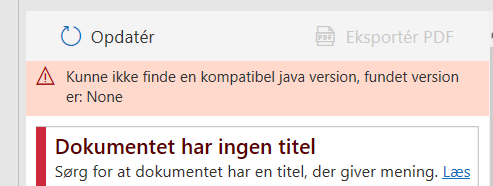
Known issue 2 - Block all Office applications from creating child processes - Java.exe, a prerequisite of Accessibility Assistant PDF export
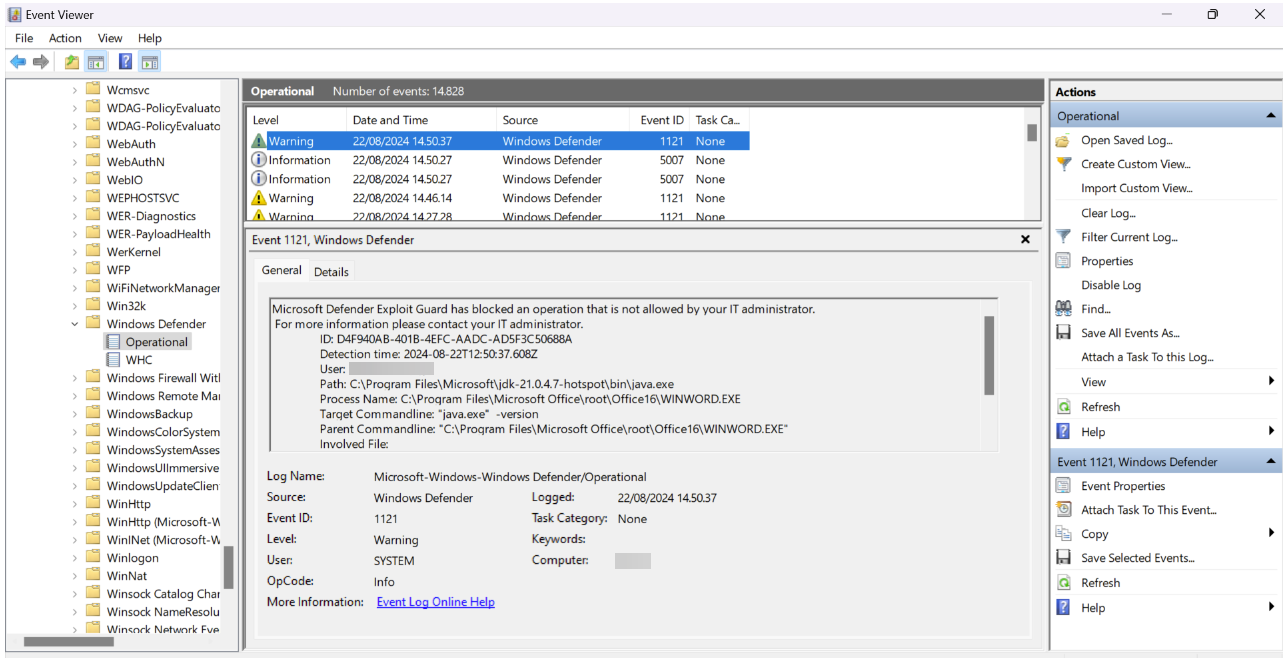
Rule ID: d4f940ab-401b-4efc-aadc-ad5f3c50688a
This rule blocks Office apps from creating child processes. Office apps include Word, Excel, PowerPoint, OneNote, and Access.
Accessibility Assistant uses Java in the PDF export process and having Java.exe blocked by this rule makes it undetectable and unusable thus prevents the export with Accessibility Assistant
Read more about the rule here:
Recommended approach to blocked solution components
- Check on user's machine the Event Viewer for warnings
which ASR rules are enabled - If the Event Viewer shows the known issues IT can create a Per Rule Exclusion for the file and rule in question. This should restore the functionality if the file has not been deleted or blocked by something else as well.
Identifying ASR blocked files with Event Viewer
Windows Event Viewer offers a low risk way to identify both the file being blocked and the id of the rule enforcing it. Events here will show the Warning level.
To access the log open Windows Event Viewer and browse to Applications and Services Logs > Microsoft > Windows > Windows Defender > Operational.
The ID of the log message is the GUID of the ASR rule and the Path shows which file is being blocked.
Example 1. Word add-in is blocked by ASR:
Example 2. Java is blocked by ASR:
Unblocking files with per rule exclusions
Per Rule Exclusions are our recommended method to prevent the known issues with VBA add-ins and AA export. It is the minimal impact on the hardening of the device whilst ensuring the operation of our solutions. It is only useful if one knowns, which ASR rule(s) blocks the given file(s) in question (see Recommended approach to blocked solution components)
Read more about configuring per rule exclusions here:
Was this article helpful?
That’s Great!
Thank you for your feedback
Sorry! We couldn't be helpful
Thank you for your feedback
Feedback sent
We appreciate your effort and will try to fix the article