Corporate Charts is a tool that enables to create a new chart or format an existing one in both PowerPoint, Word and Excel. We support two ways for using this tool. The first one is based on templates for each type of chart, and this version is handy if the design of yours include specifications regarding position and the like. The second version is built on Office's built-in chart feature, meaning that it opens a dialog from which the user selects the type of chart that should be inserted and then the design will be applied, setting the correct font, colors, size, etc.
Both versions are elaborated below.
Specific templates
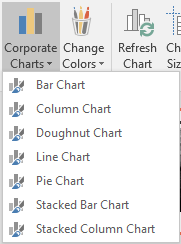
The user will be able to choose between the different templates (type of charts) from a drop down menu. This version is recommended if the design is rather specific for each type of chart, for instance regarding colors and position.
This is how it can look in ribbon:
Same design for all chart types
The user will be prompted with Office's chart dialog from which the chart type can be selected and inserted. In this version, we apply the same design for each chart type (colors, fonts, sizes, etc.), and thus this version can be described as being broad. This version further enables to format existing charts, including charts that have been inserted from Office or have been copied from another document/presentation.
This is how it looks in ribbon:
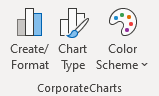
Notice that this version always include extra buttons that makes it possible to change chart type and, if necessary, change chart color.
Requirements
For technical requirements, read more about the Office Extensions platform.
Compatible: Office 2013/2016/365 (32/64bit).
Contact us for further help via the form at omnidocs.com/support.
Was this article helpful?
That’s Great!
Thank you for your feedback
Sorry! We couldn't be helpful
Thank you for your feedback
Feedback sent
We appreciate your effort and will try to fix the article