Contents
- Paragraph marks
- Gridlines
- Color scheme
- Styles
- The anchor of elements
- Copying text into the template
- Go to next field
We have gathered some general guidelines on how to use Word templates in the best way.
All of the following is described and illustrated in this video.
Paragraph marks
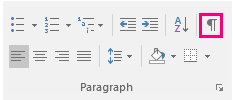
Turn on paragraph marks (see button below) for increased control of your document. Empty lines, spaces as well as hidden page- and section breaks are now visible.
Gridlines
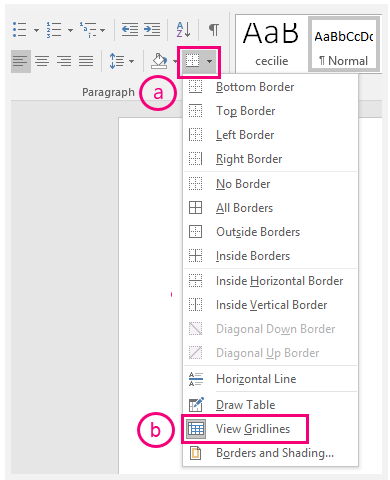
Tables are used for positioning elements. Turn on gridlines (a below) to see the hidden borders of the table (b below).
Color scheme
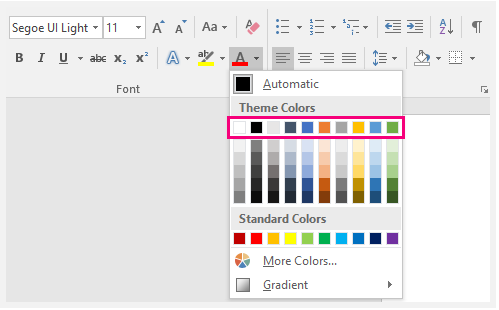
The color scheme of your organization is available inside Word. You can edit text color and background colors. As marked below, the top line of colors is your color scheme, and the colors below are shades of your colors.
Styles
Always use the built-in quick styles to change the design of text – avoid using direct styling. In the Quick style menu as visualized below, the most often used styles are available, for example, numbered and bullets lists.

The anchor of elements
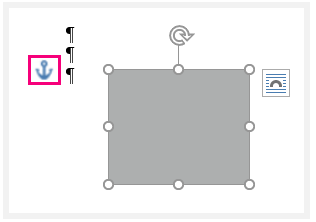
All elements, like shapes and pictures in Word, have an anchor. Stay aware of the position of the anchor, when you are creating documents. The position of the anchor defines, where the element is positioned, and when you select the anchor, you also select the element. You can move the anchor with drag-and-drop.
Copying text into the template
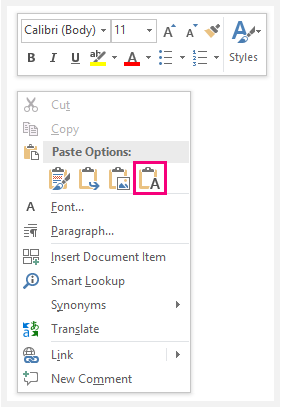
When copying text from a document into the template, it is important, that you insert with the button "Keep text only". This function inserts the text in the template's format and removes the previous formatting of the text. The following window opens, when you have copied a text and right-clicks in Word:
Go to next field
The template contains insert fields. Here, the user must insert information. You can jump from one insert field to the next with the F11 button on your keyboard. Use shift + F11 to go to the previous field
If you use these guidelines, it will be easier to work in the template.
You are always welcome to contact us for further instructions and help.
Was this article helpful?
That’s Great!
Thank you for your feedback
Sorry! We couldn't be helpful
Thank you for your feedback
Feedback sent
We appreciate your effort and will try to fix the article