Number
TABLE OF CONTENTS
- Introduction
- Add a Number building block
- General settings
- Advanced settings
- Format numbers in the template
A Number building block lets you collect numeric input.
Introduction
Use a Number building block to collect numeric input.
A Number building block allows you to enter whole numbers or decimal values. Use it when the input must be numeric and follow a defined range.
Add a Number building block
To add a Number building block, click the plus (+) icon in the Information Tree and select Number.
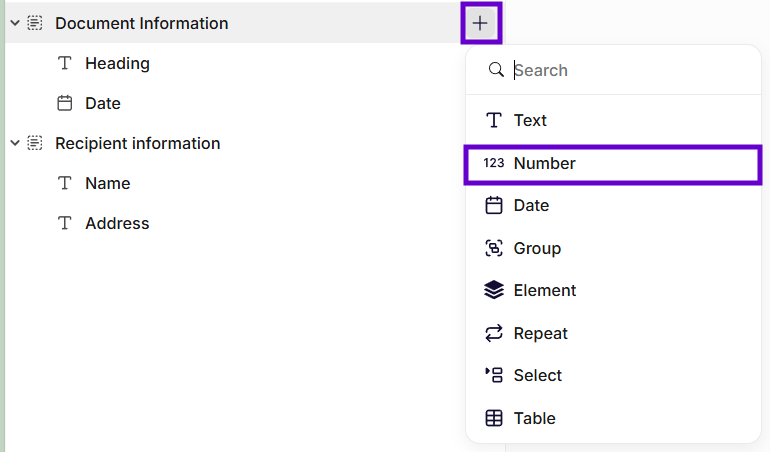
Insertion of a number building block
General settings
Name
Enter a clear name. This label appears in the Information Tree and helps you identify the field.
Description
Add a short description to explain what should be entered.
Required
Enable this option to make the field mandatory. The user creating the document must enter a value before continuing.
Min value
Set the lowest number allowed. The system does not accept values below this limit.
Max value
Set the highest number allowed. The system does not accept values above this limit.
Default value
Enter a number that pre-fills the field. The user creating the document can change or remove it later.
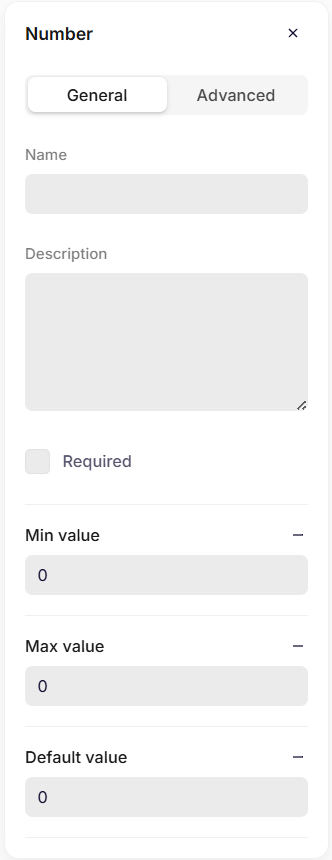
General settings
Advanced settings
Key
The key automatically inherits the Name you enter in the General settings. If needed, you can change it and define a unique key for the building block.
The system uses the key to reference this field in the data structure and in templates.
Use a clear and consistent naming pattern. For example: itemCount or totalAmount.
Do not use spaces or special characters. Use letters only.
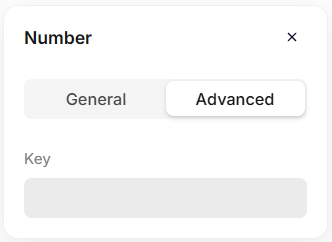
Advanced settings
Format numbers in the template
After you insert a Number building block into the template, you can control how the number appears in the output.
Select the building block in the template and choose a Format option.
None
Displays the number exactly as entered.
Integer
Displays the value as a whole number. Decimal values are removed.
Custom format
Lets you define your own number format code. This gives you full control over how the number appears in the output.
Common custom number formats
You can use custom number format codes to control how numbers appear in the output.
The table below shows some common formats and how they affect the displayed value.
| Format code | Example input | Output (en-US) | Description |
|---|---|---|---|
0 | 25 | 25 | Displays a number without thousands separators. |
0000 | 25 | 0025 | Pads the number with leading zeros. |
#,##0 | 12345 | 12,345 | Adds thousands separators. |
#,##0.00 | 12345.6 | 12,345.60 | Displays two decimal places. |
#,##0;-#,##0 | -12345 | -12,345 | Defines formatting for positive and negative numbers. |
#,##0;(#,##0) | -12345 | (12,345) | Displays negative numbers in parentheses. |
0.## | 12.5 | 12.5 | Shows decimals only when needed. |
0.00 | 12.5 | 12.50 | Always shows two decimal places. |
#,##0% | 0.25 | 25% | Displays the number as a percentage. |
0.00 "kg" | 5 | 5.00 kg | Adds text after the number. |
Notes
0shows a required digit.#shows an optional digit.,adds a thousands separator..defines the decimal separator (depends on the selected culture).;separates formats for positive, negative, zero, and text values.
Culture
The Culture setting controls how numbers are displayed based on regional formatting rules.
Different cultures use different decimal separators and thousands separators.
For example, the same number formatted with #,##0.00 may appear differently depending on the selected culture.
| Culture | Output |
|---|---|
| English (US) | 1,234.56 |
| German (DE) | 1.234,56 |
| Danish (DK) | 1.234,56 |
In this example:
- English uses
,as the thousands separator and.as the decimal separator. - German and Danish use
.as the thousands separator and,as the decimal separator.
Choose the culture that matches the formatting rules of your document or audience.
Was this article helpful?
That’s Great!
Thank you for your feedback
Sorry! We couldn't be helpful
Thank you for your feedback
Feedback sent
We appreciate your effort and will try to fix the article