To get started using the Accessibility Assistant, make sure that your SDUP is configured correctly.
Note that Accessibility Assistant will disable WordEngine when the document is exported as a PDF. This is due to WordEngine ruining the flow when we copy and open the document where we apply post processors.
Modules
The modules for Accessibility Assistant is located here:
...\SD.Installers\AlloyPlugins\ModuleLibrary\AccessibilityAssistant\01_nocontext_AccessibilityCopy the folder into the Modules folder in your SDUP.
The first module, 01_checkDocument.xml, opens the task pane in both Word and PowerPoint showing present checks. Read more here.
The second module, 02_editSelectedObject.xml, opens a dialog from where you can edit the checks for selected object. Read more about that in this article.
The last module, 03_info.xml, opens the Splash dialog containing information about the tool.
Plugin
The plugin that enables the feature to work is called SkabelonDesign.PowerVision. Ensure that you use the latest plugin by first pulling in SD.Installers, and thereafter right-click at the SDUP to update the plugin:
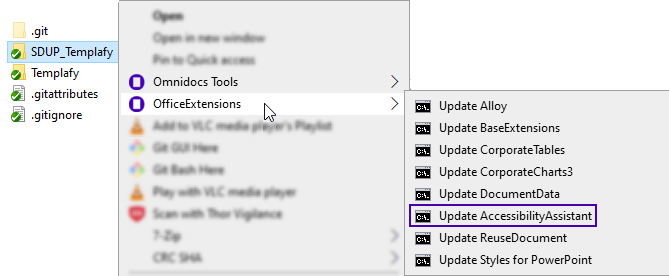
This script will ensure both the necessary plugin and content for the configuration of Accessibility Assistant.
Was this article helpful?
That’s Great!
Thank you for your feedback
Sorry! We couldn't be helpful
Thank you for your feedback
Feedback sent
We appreciate your effort and will try to fix the article