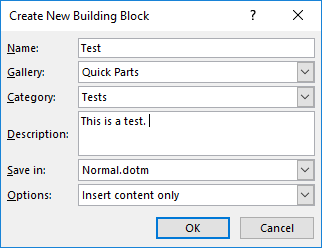
With BaseExtensions, we are able to simply insert a BuildingBlock or QuickPart in Word. When the document is configured, the saved BuildingBlock or QuickPart can easily be inserted with this feature. The BuildingBlock/QuickPart should be saved in the appropriate template, which could be Normal.dotm as shown in the image below:
Module is located here:
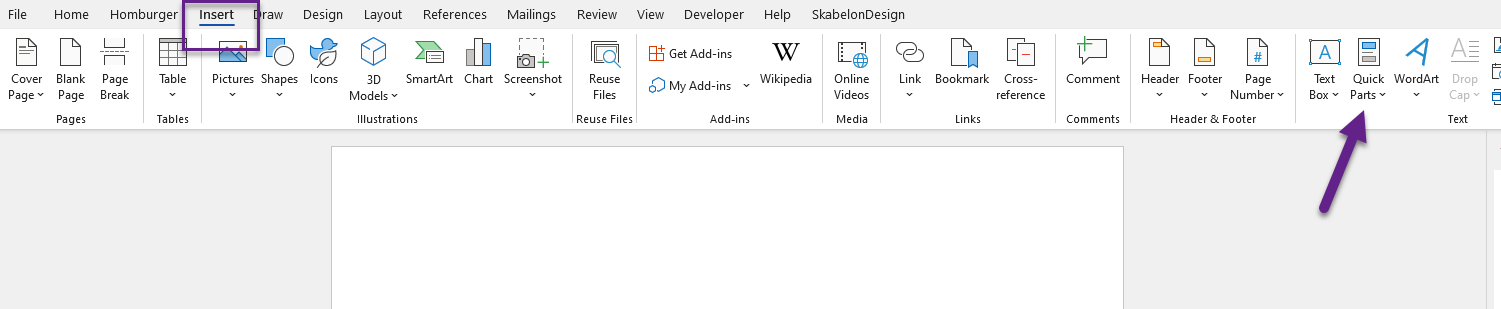
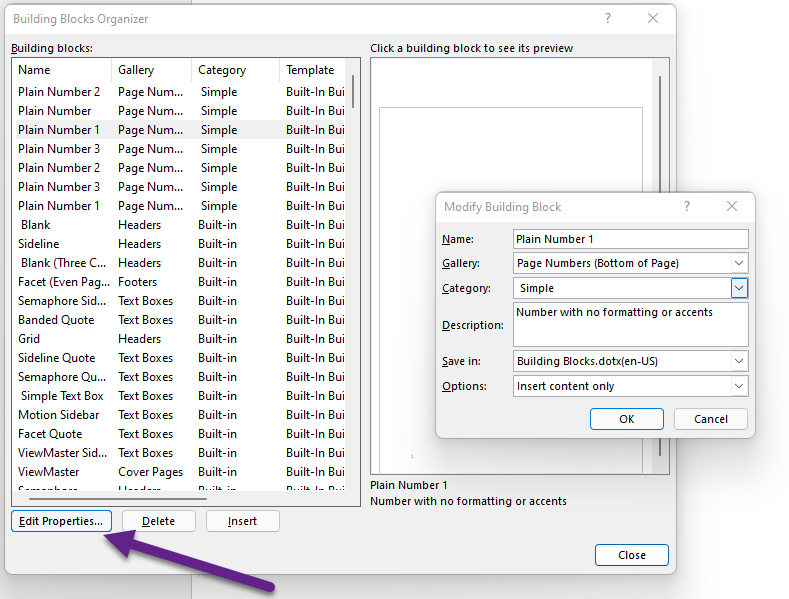
...\ModuleLibrary\BaseExtensions\01_nocontext_Tools\53_W_insertContent.xmlYou can look up at the Building Block properties of the current template by going to Insert > QuickParts > Building Block Organizer as shown below :
CMD
<Cmd case="BaseExtensions:insert-bblocks-qparts" type="x" category="x" name="x" attachedTemplateName="x"/>
Parameters
type
Define what build-in type to insert by its name. Use this link to see the WdBuildingBlockTypes we support. In most cases, use "wdTypeQuickParts".
category
Define name of the category the BuildingBlock or QuickPart has.
Best practice is creating a new category named after [Client Name].
InsertAt
Optional. Define where the Building Block or QuickPart should be inserted. Can be set to DocStart for inserting the BuildingBlock or QuickPart at the start of the document. Can also be set to Selection which inserts at the cursor location. If this parameter is not set, it defaults to Selection.
name
Define name of the BuildingBlock or QuickPart.
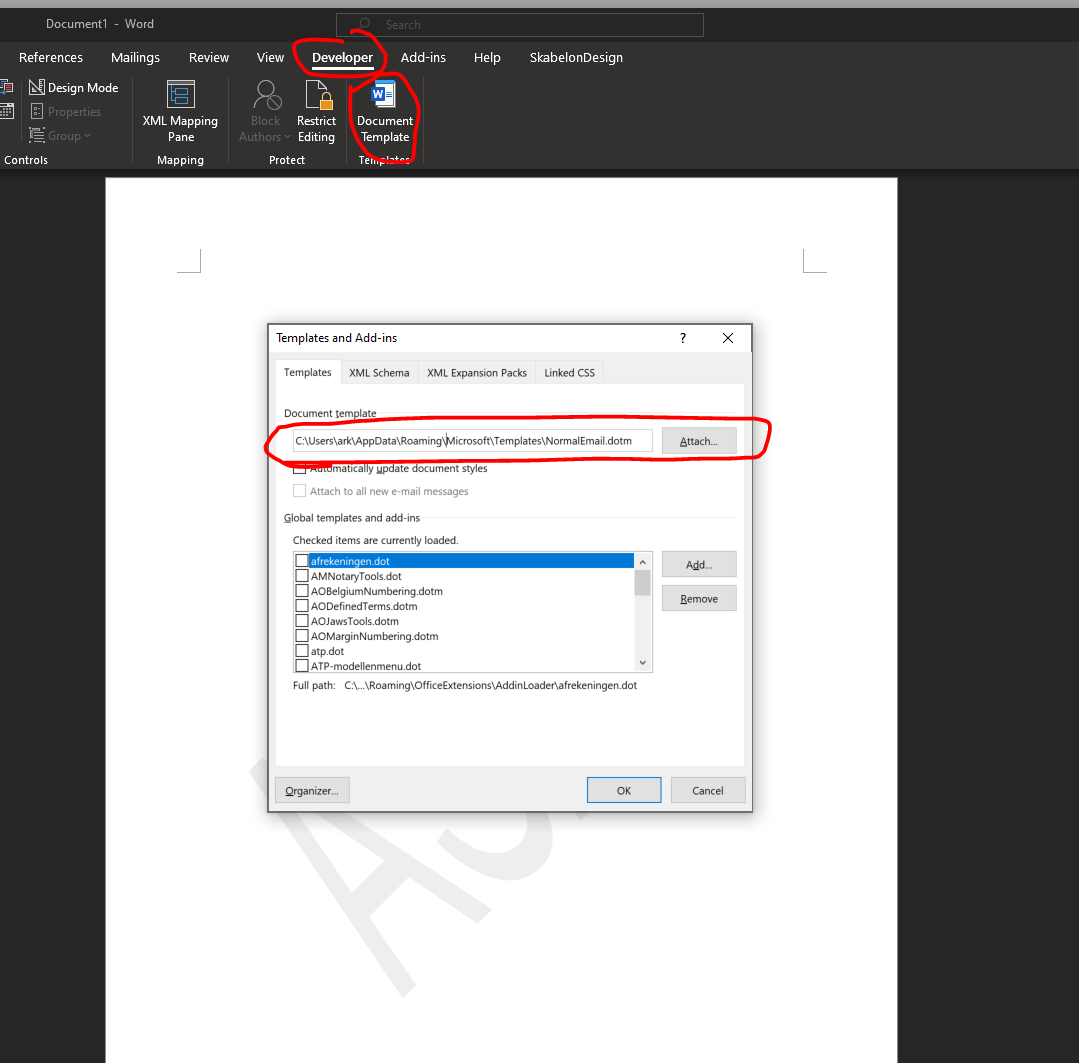
attachedTemplateName
Points to new attached template that contains the bblock qpart (we set the previous one back after inserting).
Was this article helpful?
That’s Great!
Thank you for your feedback
Sorry! We couldn't be helpful
Thank you for your feedback
Feedback sent
We appreciate your effort and will try to fix the article