Essential Tools is a set of tools that enables easier access to most used features in the Office suite on branded templates as well as features that solve a simple use case, which can be difficult for most users. This article will elaborate on how to support various aspects of this very set of features.
General
All Omnidocs tools are managed by one VSTO add-in called Office Extensions. To ensure full functionality of Office Extensions, the prerequisites in this article must be installed. Furthermore, the Office Extensions add-in must be enabled. Read more in this article.
The configuration files of the several tools that constitute Essential Tools are located in this path:
%localappdata%\OfficeExtensions
The addin for the solution is located in the Common folder. The configuration of buttons that are present in ribbon is found in the folder called Modules, and lastly the plugins that make these buttons work are located in the Plugins folder. Read more about the Alloy structure here.
When troubleshooting any issue, it can then be a good idea to start checking if the required plugin for the particular feature is present and/or update the plugin concerned and thus ensure that the solution has the latest plugin. Furthermore, we are able to apply visibility filters at buttons, which is important to be aware of.
Feature-based support
The Essential Tools ribbon is a rather simple ribbon consisting of various tools. This section describes these tools shortly as well as it specifies how to support if a client ask for changes, e.g. in colors.
Productivity
This is a group that consist of five features and is only present in Word.
The first feature, Show/Hide, enables the user to show or hide shapes in the document. This tool is by default configured to show/hide logo or address (or both), but technically speaking it will show or hide based on the naming of shapes that are present in the particular document, which then means that the naming of the shapes must be aligned according to the configuration.
The second feature, Update Fields, updates all fields in the body and header/footer section of the document.
Paste and Formatting is a menu supporting users to take out direct formatting and paste with/without formatting.

The last three features, View Gridlines, View Field Codes and Show/hide Paragraph Marks are injected features, meaning that they are a part of Office's built-in functionalities, and thus changes to these buttons are very limited.
Modules are located here:
%localappdata%\OfficeExtensions\Modules\03a_essential_Productivity
Language
The language selector allows users to easily change spelling language across the entire presentation, and thus this tool is only for PowerPoint.
The feature, Spelling Language, is a menu consisting of a wide range of languages by default. For some clients, it may make sense to narrow down the list and/or add other languages.
The module is located here:
%localappdata%\OfficeExtensions\Modules\03b_essential_Language\01_changeSpelling.xmlColors
The color selector allows easy access to corporate colors throughout both Word, Excel and PowerPoint.
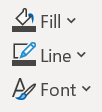
There are three options: 1) change fill color of selected element, 2) change line color of selected element, and 3) change font color of selected text or text within selected element.
Modules are located here:
%localappdata%\OfficeExtensions\Modules\03c_essential_Colors
We define the colors in RGB and notice that we for fill colors also change the line color accordingly and change the font to either black or white (depending on the fill color).
Styles
This group is only present in Word and consist of shortcuts for native styles, meaning that the buttons link to built-in Word styles.
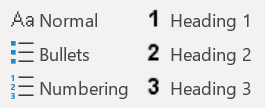
Shortcuts to specific, custom styles may be in Tailored Tools.
Levels
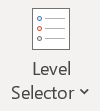
This group is present in PowerPoint and consist of a menu from where levels can be selected and applied in the presentation. The functionality refers to Level 1-9 in the slide master of the particular presentation.
Image
Our Image Tools improves the ability to insert images from non-Templafy libraries into image placeholders in both Word and PowerPoint.
Was this article helpful?
That’s Great!
Thank you for your feedback
Sorry! We couldn't be helpful
Thank you for your feedback
Feedback sent
We appreciate your effort and will try to fix the article