BrandConverter is a tool that allows employees and managers to update old documents to documents that work with Templafy DCU, and refreshes parts of the visual appearance of the document, e.g. font, header, footer, styles, colors etc.
Module is located here:
...\ModuleLibrary\BrandConverter\01_nocontext_BrandConverter\
Plugin here:
...\AlloyPlugins\Omnidocs.BrandConverter\
How does it work?
BrandConverter works by displaying a menu to the users in Word, PowerPoint and/or Excel.
The menu consists of 3 steps.
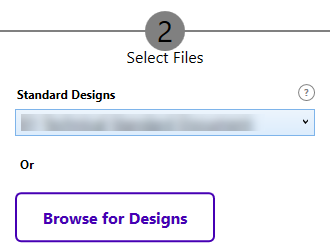
1: Select Design: In this step the user can pick a template from a dropdown, this template is the one the BrandConverter will take parts of the design from.
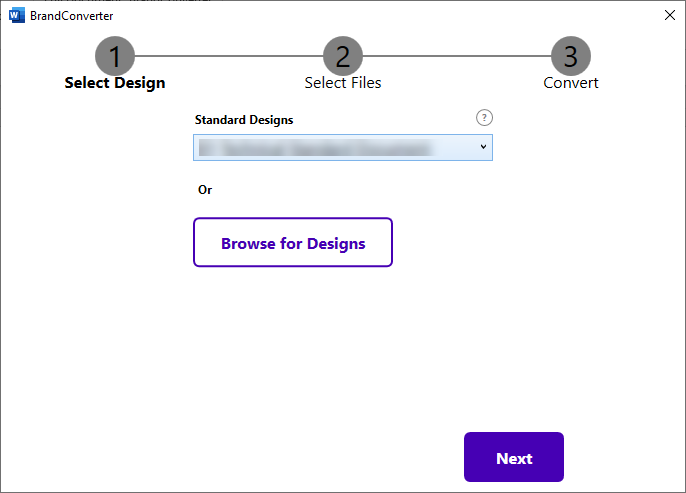
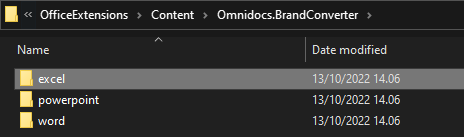
Place the templates in a word/powerpoint/excel folder in another folder named Omnidocs.BrandConverter in the Content folder to make them appear in the dropdown.
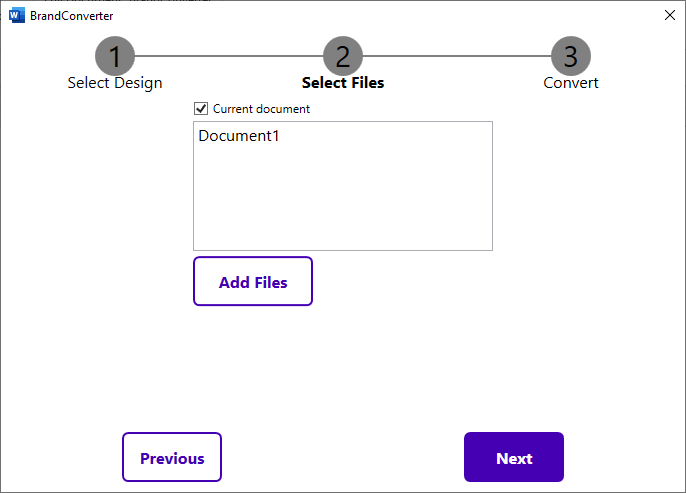
2: Select Files: In this step, the user can pick one or more documents to apply the design to.
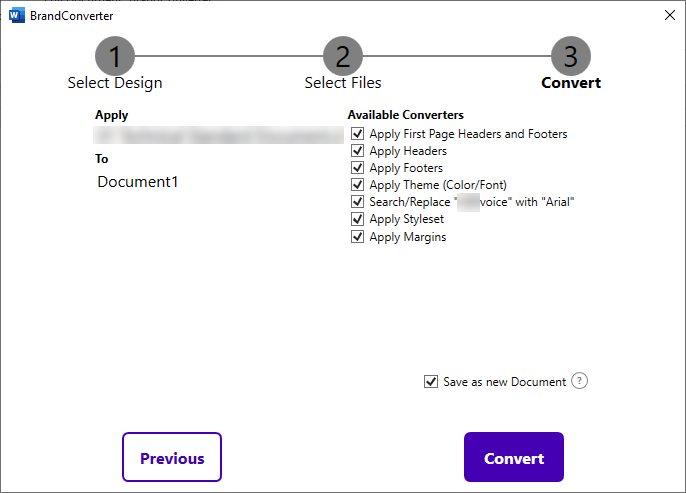
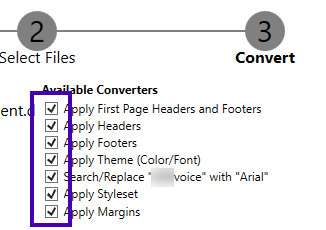
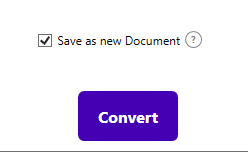
3: Convert: This step will tell the user which "design converters" to apply to the document. After the user clicks 'Convert' a popup will request a folder to save the document in, and a progress bar will run until the document is converted successfully.
CMD
The command below will trigger the menu with the three steps
<cmd case="Omnidocs.BrandConverter:execute/>Various parameters can customize the user's rights and possibilities in the menu.
Parameters
Admin (optional - default is "false")
admin="boolean"
Add "true" if the user should be able to choose which converters to apply.
Add "false" if the user should not be able to choose which converters to apply. If "false" the checkboxes will be removed and in this case the converter configuration will determine whether they should be applied or not.
ppTenantIds (required - PowerPoint only)
ppTenantIds="string"
The names of the different Templafy tenant ids allowed for conversion. Can be multiple names separated by ;.
ConvertCurrentDocumentDefault (optional - default is "false")
ConvertCurrentDocumentDefault="boolean"
Add "true" if the "current document" checkbox in the menu should be checked by default.
Add "false" if the "current document" checkbox in menu should not be checked by default.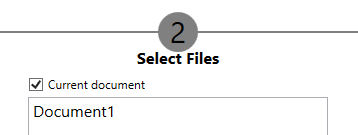
SaveAsNewFileDefault (optional - default is "false")
SaveAsNewFileDefault="boolean"
Add "true" if the "save as new file" checkbox in the menu should be checked by default.
Add "false" if the "save as new file" checkbox in the menu should not be checked by default.
BrowseTemplates (optional - default is "true" - Word only)
BrowseTemplates="boolean"
Add "true" if the "Browse for Designs" button should show.
Add "false" if the "Browse for Designs" button should be hidden in Word
The button is always hidden in PowerPoint.
Word converters (all are optional)
In Word, it's possible to add more different converter elements inside the parameter named Converter.
<Converters>
    <WordFooter DefaultSelected="boolean"/>
    <WordHeader DefaultSelected="boolean"/>
    <WordMargins DefaultSelected="boolean"/>
    <WordThemeColor DefaultSelected="boolean"/>
    <WordStyles DefaultSelected="boolean" reapplyStyles="boolean"/>
    <WordDifferentFirstPage DefaultSelected="boolean" onlyFirstSection="boolean"/>
<WordReplaceFont DefaultSelected="boolean" oldFont="string" newFont="string"/>
</Converters>
Each converter is described below:
Footers-, headers-, margins-, and theme colors convertersWordFooter DefaultSelected="boolean"WordHeader DefaultSelected="boolean"WordMargins DefaultSelected="boolean"WordThemeColor DefaultSelected="boolean"
If DefaultSelected is "true" and if admin="true", the checkbox is checked as default. If admin="false" the converter will be applied to the document/presentation.
If "false" and if admin="true", the checkbox is not checked as default. If admin="false" the converter will not be applied to the document/presentation
The settings for DefaultSelected apply to below converters too.
Different first page converter
WordDifferentFirstPage DefaultSelected="boolean"
If DefaultSelected is "true" you can define the following: onlyFirstSection="boolean"The default value to this parameter is "false", but if "true" the setting "different first page" is added to the first section.
Replace font converter
WordReplaceFont DefaultSelected="boolean"
If DefaultSelected is "true" you can define the following:
oldFont= "string"
the name of the old font that should be replaced. newFont="string"
the name of the new font which will replace the old font.
Styles converter
If selected, this option will copy all styles from the template into the active document.
WordStyles DefaultSelected="boolean"
If DefaultSelected is "true" you can define the following: reapplyStyles="boolean" if "true" the converter will reapply inserted styles without changing direct formatting. Default is "false". In this case the style definitions from the template will be visible in the styles pane, but will not be applied to the document content.
It is important to note the if the WordStyles converter is configured in the same command as the WordStyleRemap converter then the WordStyleRemap will overwrite the style importing and therefore the WordStyles converter is unnecessary. It is recommended to define one of them only.
Remap Styles
Copies the styles from the branded document to the unbranded document and reapplies these according to a defined map.
WordStyleRemap DefaultSelected="boolean" remapPath="String"/
DefaultSelected
If DefaultSelected is "true" you can define the following:
remapPathpoints to remapping definition as a JSON file within the the content folder. This file must follow the following structure:
{
  "DefaultStyle": "",
  "Remaps": [
    {
      "Source": "",
      "Destination": ""
    }
  ]
}
DefaultStyle
A 'fallback' style that is applied when either the styles does not exist in the Remaps array or when the Destination style does not exist. If this parameter is not defined then paragraphs found that do not match a destination style defined in the remap will remain unchanged. NOTE whitespaces should be ignored when defining, i.e. "Client Normal" should be defined as "ClientNormal"
Remaps
Array of all remappings where:
Source
The name of the style in the unbranded document.
Destination
The name of the style in the branded document that should be applied
It is important to note the if the WordStyles converter is configured in the same command as the WordStyleRemap converter then the WordStyleRemap will overwrite the style importing and therefore the WordStyles converter is unnecessary. It is recommended to define one of them only.
PowerPoint converters
In PowerPoint, two converters can be added. Both optional.
<Converters>
    <PowerPointNewLayouts
        DefaultSelected="boolean"
        autoMapping="boolean"
        mappingPath="fileName.json"/>
    <PowerPointTransferOldLayouts DefaultSelected="true" prefix="string"/>
</Converters>
New Layouts converter
PowerPointNewLayouts
If DefaultSelected is "true" you can define the following: autoMapping="boolean"
Add "true" if it should automatically map layouts with the same names in both destination and template presentations.
Add "false" if it should not automatically map layouts with the same names in both destination and template presentations.mappingPath="string"
Add the name of the .json file. In this, you are able to define what old layout names should be replaced with new names. Use the structure in the .json below:
[
  {
    "OldLayoutNames":["03_Cover Slide 2", "01_Cover Slide1", "Title Slide"],
     "NewLayoutName": "01_Cover Slide1"
  },
  {
     "OldLayoutNames":["Title and Content"],
     "NewLayoutName": "Title & Content"
  }
]
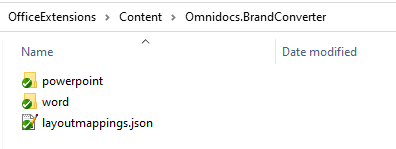
Place the .json files in the Content folder like this:
Transfer old layouts converter
PowerPointTransferOldLayouts
If DefaultSelected is "true" you can define the following: prefix="string"
After layout mapping has been completed some old layouts may not be mapped. This converter will transfer the old layouts to the new master that has been created. To make sure that the user knows that these layouts are old we use the value from the parameter prefix to prepend to the layout name.
Word and PowerPoint Commands
It's possible to define commands after the converters - add them after the converters between <Commands></Commands>.
BrandConverter in Excel
In Excel, the only functionality that is supported by BrandConverter is the copying of CustomCML and DocProps. This was always happening in the background for Word and PowerPoint, but now this is also shown in the UI for all three apps. Regardless, it is not possible to bypass it.
No converters have been implemented for Excel, thus the corresponding part of the configuration should look like this:
<Converters>
</Converters>
Configuration Example
PowerPoint
<cmd case="Omnidocs.BrandConverter:execute" admin="false" ppTenantIds="testtenant" convertCurrentDocumentDefault="true" saveAsNewFileDefault="true" browseTemplates="true">
  <Converters>
     <PowerPointNewLayouts DefaultSelected="true" autoMapping="true" mappingPath="layoutmappings.json"/>
   </Converters>
<Commands>
    <Cmd case="SkabelonDesign.DocumentData:EnablePendingChanges"/>
    <Cmd case="BaseExtensions:ExecuteXmlPart" title="Update"/>
    <Cmd case="SkabelonDesign.DocumentData:Commit"/>
   </Commands>
</cmd>
Word
<cmd case="Omnidocs.BrandConverter:execute"
admin="false"
  <Converters>
     <WordFooter DefaultSelected="true"/>
     <WordHeader DefaultSelected="true"/>
     <WordReplaceFont DefaultSelected="true" oldFont="Calibri" newFont="Arial"/>
     <WordStyles DefaultSelected="false"/>
     <WordMargins DefaultSelected="false"/>
     <WordThemeColor DefaultSelected="false"/>
  </Converters>
  <Commands>
     <Cmd case="SkabelonDesign.DocumentData:EnablePendingChanges"/>
     <Cmd case="BaseExtensions:ExecuteXmlPart" title="Update"/>
     <Cmd case="SkabelonDesign.DocumentData:Commit"/>
     <Cmd case="BaseExtensions:update-fields-2" location="Headers" types="wdFieldDocProperty"/>
     <Cmd case="BaseExtensions:update-fields-2" location="Footers" types="wdFieldDocProperty"/>
     <Cmd case="BaseExtensions:update-fields-2" location="Body" types="wdFieldDocProperty"/>
 </Commands>
</cmd>
Excel
<cmd case="Omnidocs.BrandConverter:execute"
admin="false"
ConvertCurrentDocumentDefault="true"
SaveAsNewFileDefault="true"
browseTemplates="false">
  <Converters>
  </Converters>
  <Commands>
     <cmd case="SkabelonDesign.DocumentData:EnablePendingChanges"/>
     <!--commands that should be run afterwards-->
  </Commands>
</cmd>
Was this article helpful?
That’s Great!
Thank you for your feedback
Sorry! We couldn't be helpful
Thank you for your feedback
Feedback sent
We appreciate your effort and will try to fix the article