We are able to integrate from Document Management Systems (DMS) to Templafy. The approach is different for integrating to Templafy Hive vs integrating to Templafy One.
This article describes the general, generic configuration steps for Templafy Hive and Templafy One, as well as some configuration steps that are specific to each DMS. Use the table below to navigate.
Contents
Templafy Hive
The following section will describe options when integrating between a DMS and Templafy Hive.
Prerequisites
...\SD.Installers\AdvancedInstalls\Omnidocs.TemplafyDms
In this folder you will find prerequisites for Plugins and Content. Copy these, including subfolders, to the respective folders in the SDUP.
IMPORTANT: It is worth mentioning that all DMS templates should not contain any content in their header, as these values will not be transferred correctly once parsed into the final document.
Commands
Command to insert
Templafy Hive is opened in a popup and is fed the key/value pairs gathered from the DMS systems, which are then used to generate a document. This document is returned to the addin, and contents are copied back into the document which triggered the addin.
<cmd case="Omnidocs.TemplafyDms:insert-from-dms"
  TemplafyEndpoint="https://tenantname.templafy.com/library/documents"
  ExternalSystemType="genericAppConnector"
  SettingId="xx"
  DataSourceType="xx"
  FieldMapFileName="%contentfolder%\KeyReplacements.xml"
  ByPassDmsCheck="false"
  InternalAuthentication="true">

  <Configuration
    Filepath="xx"
    XPathToValueTree="xx"
  />

  <Commands>
     <cmd case="BaseExtensions:AlertOk" title="Has Run" text="true"/>
  </Commands>
</cmd>
Parameters
TemplafyEndpoint
Endpoint of the Templafy library which to target.
e.g. https://tenantname.templafy.com/library/documents
ExternalSystemType
This is needed for the Templafy API. In most cases, this will be 'genericAppConnector'. Read more about Templafy App Connectors.
In any case, the value can be extracted from the Popup URL, same as for SettingID below.
SettingID
This is needed for the Templafy API. This value can be found in the Popup URL in the Custom App Connector setup dialog in the Templafy Hive backend. See highlight in snippet below.
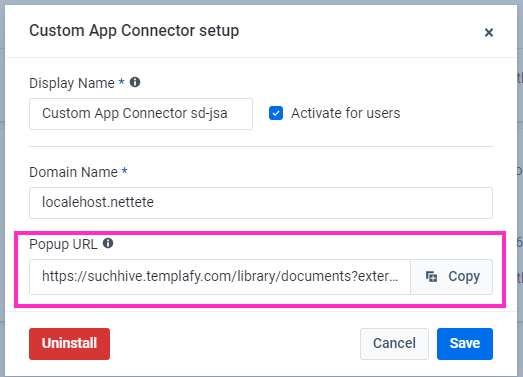
Here is the Popup URL from the screenshot above, only, the SettingID has been bolded:
https://suchhive.templafy.com/[...]settingId=97dcb54a-7e9a-4c85-93f6-5e1dca43f6ed
FieldMapFileName
Path to an .XML file with a mapping of string replacements, for key/value pairs sent to Templafy. %contentfolder%\KeyReplacements.xml is recommended. This will point to KeyReplacements.xml in the [...]\Content\Omnidocs.TemplafyDms folder.
ByPassDmsCheck
This parameter is optional and is used for debugging. If set to true, the keys received from DMS will be logged in the Word.log/PowerPoint.log files. Also, setting this to true will bypass potential needs for having document properties in the active document.
InternalAuthentication
This parameter is optional and is used for debugging. Templafy DMS re-authenticates every time it is used. This prevents us from testing the clients workflow end-end. This setting is designed to work around this limitation. If set to true, Templafy DMS will first authenticate against omnidocs.hive.templafy.com before presenting the clients Tenancy.
UseTemplafyOne
This parameter optional. It should be set to true whenever the integration is used for Templafy One. If the integration is used for Templafy Hive, this parameter can be omitted. Note that this is not the original DMS integration for Templafy One. The updated DMS integration to Templafy Hive also supports Templafy One. See below to read about the original DMS integration for Templafy One.
DataSourceType
The type of data source; usually the DMS where the data comes from. This determines which Configuration parameters are used.
Valid values include: F2, SBSYS, Public360, AcadreApi, Maconomy
Children elements
Configuration
This element holds the configuration parameters required for each respective DataSourceType.
See the DMS Specific Configuration options below.
Commands
The element allows to run other OfficeExtensions commands after integration has run.
Command to create
<Cmd case="Omnidocs.TemplafyDms:create-from-dms"/>Alternative to above insert-command that inserts data and formatting in active document or presentation, this creates a new document or presentation for data- and formatting insertion.
Command to modify data
<Cmd case="Omnidocs.TemplafyDms:modify-data"/>Modifies data inserted through the 'insert-from-dms' command.
Command to reinsert data
<Cmd case="Omnidocs.TemplafyDms:reinsert-data"/>Reinserts data from the DMS into the document Custom XML, but without opening Templafy Hive.
Command to reinsert and modify data
<Cmd case="Omnidocs.TemplafyDms:reinsert-modify-data"/>Reinserts and modifies data from DMS, without opening Templafy Hive.
DMS Event
Use this event for triggering DMS integrations rather than BaseExtensions- or Templafy events.
<event type="Omnidocs.TemplafyDms:document-open">
</event>
Run any of the above-mentioned commands inside this event.
<event type="Omnidocs.TemplafyDms:document-saved">
</event>
This event only triggers when the document is saved. Useful when having to wait for a DMS flow to be finished, before you trigger any other commands.
Populate Content Controls and Document Properties
By using the below commands it is possible to populate content controls and/or document properties with data that is fetched by the DMS integration.
<Cmd case="Omnidocs.TemplafyDms:fill-content-from-xml"></Cmd>
<Cmd case="Omnidocs.TemplafyDms:fill-docprops-from-xml"></Cmd>
Usually, this functionality can be handled by Templafy, but with these commands, it is possible to insert data into content controls and document properties without involving Templafy.
Similarly to the normal DMS flow, the above commands will insert data into content controls and document properties based on the remapped data. More specifically, if the OutputName of a key is the same as the title of a content control or a document property, then the key's value will be inserted into it.
Remapping Data
This section will explain the options when remapping data in the Templafy DMS integration.
<docroot>

  <remap>
    <InputName>docTitle</InputName>
    <OutputName>DocumentTitle</OutputName>
  </remap>

  <remap>
    <InputName>FirstName</InputName>
    <InputName>LastName</InputName>
    <OutputNameseparator="%w%">FullName</OutputName>
  </remap>

  <remap>
    <InputName type="Date" format="dd. MMMM yyyy" lang="da-DK">date</InputName>
    <OutputName type="Date" format="dd/MMMM/yy" lang="en-US">engDate</OutputName>
  </remap>

</docroot>
The above is an example, that will be broken down into pieces in the following section.
Simple remap
The simple operation of renaming a key. In this case, the key received from the DMS is "docTitle". However, the key expected by Templafy is "DocumentTitle". This is handled in the remapping.
<docroot>
  <remap>
    <InputName>docTitle</InputName>
    <OutputName>DocumentTitle</OutputName>
  </remap>
</docroot>
Joining values
By defining two or more input values, and equipping the output key with a "separator"-parameter, it is possible, as seen in the example below, to join FirstName and LastName into FullName. In this case we use %w% to define a white space as as separator. %lb% would designate a line break as a separator.
<docroot>
  <remap>
    <InputName>FirstName</InputName>
    <InputName>LastName</InputName>
    <OutputNameseparator="%w%">FullName</OutputName>
  </remap>
</docroot>
Type of input/output
Date takes a format "format" and a language culture "lang". By providing these, we can transform date formats.
Parameters in the InputName element must match the format of the input value, and help the functionality decipher the incoming date.
Parameters in the InputName element is the desired output date format.
<docroot>
  <remap>
   <InputName type="Date" format="dd. MMMM yyyy" lang="da-DK">date</InputName>
   <OutputName type="Date" format="dd/MMMM/yy" lang="en-US">engDate</OutputName>
  </remap>
</docroot>
DMS Specific Configuration
The following section will describe how to configure the DMS integration to each supported DMS. Combine this with the generic parts described above.
Acadre
The DMS commands will only run if the active document contains a document property called AcadreDmsEnabled.
The DataSourceType parameter should have the value "AcadreApi".
There is one parameter specific to the Acadre integration.
AcadreBaseUrl
Here, the link to the Acadre server that is being used is defined.
Module Example
<button label="Acadre for Hive">
    <Cmd case="Omnidocs.TemplafyDms:insert-from-dms"
        TemplafyEndpoint="https://suchhive.templafy.com/library/documents"
        ExternalSystemType="genericAppConnector"
        SettingId="637707488065432810"
        AcadreBaseUrl="xx"
        FieldMapFileName="%contentfolder%\KeyReplacements.xml"
        BypassDmsCheck="false"
        DataSourceType="AcadreApi">
    </Cmd>
</button>
F2
The DMS commands will only run if the active document contains a document property called F2DmsEnabled.
The DataSourceType should have value "AcadreApi".
Maconomy
Unlike many of the other DMS integrations, there is no requirement of having a document property in the active document in order to run the commands.
The DataSourceType should have value "Maconomy".
The Configuration XML element takes one parameter:
url should point to the URL from where a JSON file will ultimately be downloaded.
e.g. https://filesamples.com/formats/json
width and height allow for control of the size of the Maconomy dialogue.
Module example
<button label="Maconomy to Hive">
  <Cmd case="Omnidocs.TemplafyDms:insert-from-dms"
      FieldMapFileName="%contentfolder%\KeyReplacements.xml"
      BypassDmsCheck="false"
      DataSourceType="Maconomy"
      TemplafyEndpoint="https://suchhive.templafy.com/library/documents"
      ExternalSystemType="genericAppConnector"
      SettingId="637707488065432810">
      <Configuration url="https://filesamples.com/formats/json" width="1500" height="900"/>
  </Cmd>
</button>
Public360
The DMS commands will only run if the active document contains a document property called Public360DmsEnabled.
Public360 is almost identical to Acadre, however, the keys for the values are the names of the XML Elements, thus the 'XmlElementName' property is used slightly differently.
Their XML document is located in a document's CustomXML, and we provide the Namespace to our AddIn to find the correct piece of CustomXML.
SBSYS
The DMS commands will only run if the active document contains a document property called SBSYSDmsEnabled.
SBSYS also use XML in their DMS, however, it is very different from Acadre and Public360, thus the configuration is different, their data is located in an XML file at a specific location on the computer.
The data is structured in groups, of lists with key-value pairs. Within their groups the keys are unique, however, between groups there can be duplicates. In the configuration we provide an XPath to a Group, 'XPathToValueTree', and an atttribute to look for in that XML Element. The attribute, 'PrefixAttributeName', is used to ensure that there aren't any duplicate keys.
Module examples
Omnidocs authentication
This module will evaluate a registry key DMSOmniAuth to determine whether Templafy authentication should happen as a client or as Omnidocs. Specifically, the parameter InternalAuthentication controls this authentication.
<cmd case="BaseExtensions:If" if-1-type="Registry" if-1-key-1="Software\OfficeExtensions" if-1-key-2="DMSOmniAuth" if-1-value-2="True">
	<True>
		<Cmd case="Omnidocs.TemplafyDms:insert-from-dms"
			TemplafyEndpoint="https://suchhive.templafy.com/library/documents"
			ExternalSystemType="genericAppConnector"
			SettingId="637707488065432810"
			AcadreBaseUrl="xx"
			FieldMapFileName="%contentfolder%\KeyReplacements.xml"
			BypassDmsCheck="false"
			DataSourceType="AcadreApi"
			InternalAuthentication = "true">
		</Cmd>
	</True>
	<False>
		<Cmd case="Omnidocs.TemplafyDms:insert-from-dms"
			TemplafyEndpoint="https://suchhive.templafy.com/library/documents"
			ExternalSystemType="genericAppConnector"
			SettingId="637707488065432810"
			AcadreBaseUrl="xx"
			FieldMapFileName="%contentfolder%\KeyReplacements.xml"
			BypassDmsCheck="false"
			DataSourceType="AcadreApi"
			InternalAuthentication = "false">
		</Cmd>
	</False>
</cmd>
The registry key:
Windows Registry Editor Version 5.00

[HKEY_CURRENT_USER\Software\OfficeExtensions]
"DMSOmniAuth"="True"
Templafy One
The following section will describe options when integrating between a DMS system and Templafy One. Using the TemplafyDms plugin is recommended, but the legacy method of using TemplafyEvents is also described below.
Using TemplafyDms
Configure the module similarly to how it would be configured for Templafy Hive (see above).
Hive-specific parameters can be omitted. This includes SettingID and ExternalSystemType.
Set UseTemplafyOne to "true".
Module example
<button label="Acadre for One">
    <Cmd case="Omnidocs.TemplafyDms:insert-from-dms"
        UseTemplafyOne="true"
        AcadreBaseUrl="http://xx:xx/"
        FieldMapFileName="%contentfolder%\KeyReplacements.xml"
        BypassDmsCheck="false"
        DataSourceType="AcadreApi">
    </Cmd>
</button>
Using TemplafyEvents (Legacy)
Path to plugin:
...\SD.Installers\AlloyPlugins\RawPlugins\TemplafyEvents
Event
<event type="TemplafyEvents:dms">
This event will prompt a pop-up window and enable users to merge content from a document generated in a Document Management System and a document in Templafy and vice versa.
Commands
With TemplafyEvents, we are able to trigger the Templafy DMS dialog. Note that the DMS dialog trigger is native Templafy functionality, so these commands are only needed in edge cases when the normal docprop trigger can not work. Read more about the native Templafy DMS functionality here.
Two command cases exist to trigger the dialog:
Word
<Cmd case="TemplafyEvents:OpenDmsForWord"/>
PowerPoint
<Cmd case="TemplafyEvents:OpenDmsForPowerPoint"/>
Parameters
areasToInsert
This parameter is only for Word. It decides which areas of the document that should be updated and supports the following values:
HeaderFooterBodyHeaderFooterAll
externalSystemType
This parameter is for both Word and PowerPoint. Define the name of the external system. Information is fed to Templafy statistics.
Start DMS pipe for data
This command starts the data provider for Templafy. It will read key/value pairs first from bookmarks (Word only) and then from custom document properties.
<Cmd case="TemplafyEvents:StartDmsPipeForData"/>
This command makes sense to "prepare" right before opening the DMS.
Stop DMS pipe for data
This command stops the data provider for Templafy.
<Cmd case="TemplafyEvents:StopDmsPipeForData"/>
Start DMS pipe for data (XML)
This command is only for Word. It enables us to fetch data from a XML file and save to custom XML in the document and then call and send data to Templafy DMS to pre-fill forms. It reads all the key/values and returns to caller (CallFunction).
<Cmd case="TemplafyEvents:StartDmsPipeForDataXml"/>
Parameters
XmlElementName
This parameter is required. Define the XML element name tag to spot the line, e.g. "mergeField".
KeyAttribute
This parameter is required. Define the name that should be the key for the data dictionary, e.g. "id".
FilePath
This parameter is optional. Define the path to the XML file. Default is the same location as document and same name (just with .xml). This parameter also support ability to expand environment variables, e.g. FilePath="%temp%\AcadreMergeDocument.xml".
DataPath
This parameter is optional. Define the folder structure that resolves both special-folder and environment variables even though they can be nested. If this parameter is omitted, the folder structure is inherited from the Word document path.
FixedNameDataSource
This parameter is optional. Define the name of the XML data source, which should be loaded from the folder specified in DataPath. If this parameter is omitted, the name is inherited from the Word document name.
Omnidocs Create
You can also use Omnidocs Create instead of Templafy, by inserting a Omnidocs Create url in the TemplafyEndpoint parameter, and set the optional parameter UseCreate = true.
Furthermore, you must add a PostMessageIntegration in your Unit of choice, that has the allowed domain of localehost.nettete. See example below:
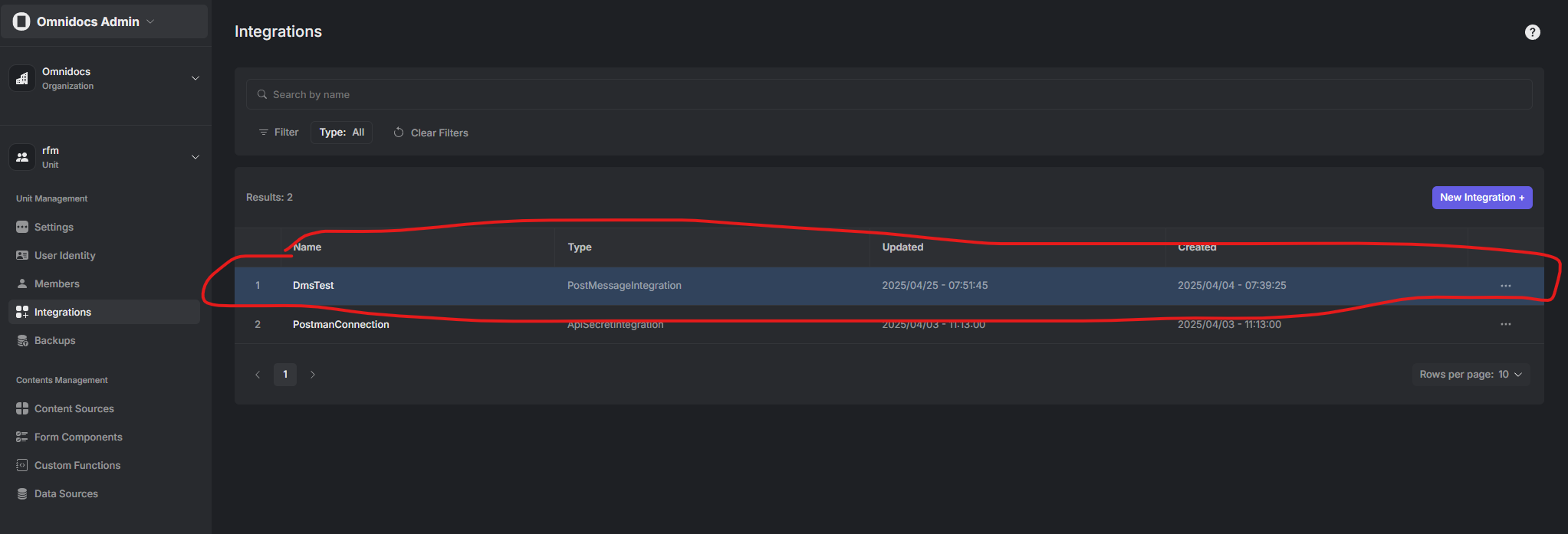
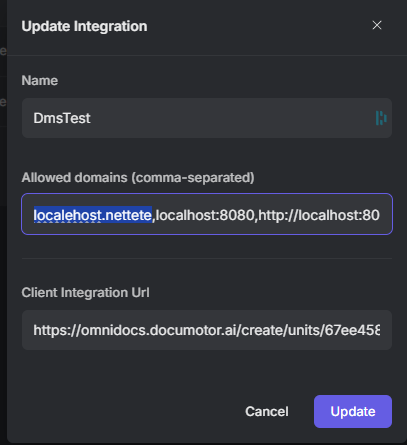
Note that you can have multiple domains allowed, however remember they must be comma-separated, without a space.
Below is an example of how a DMS command can be configured for Omnidocs Create
<Cmd case="Omnidocs.TemplafyDms:insert-from-dms"
    TemplafyEndpoint="https://omnidocs.documotor.ai/create/units/67ee458e7b5754c79e46d2b0/documents?integrationId=67ef8cad7b5754c79e470672"
    DataSourceType="Generic"
    FieldMapFileName="%contentfolder%\KeyReplacements.xml"
    ByPassDmsCheck="true"
    UseCreate = "true">
</Cmd>
As of 1st May 2025, this DMS integration does not support filling out the forms in Omnidocs Create.
Was this article helpful?
That’s Great!
Thank you for your feedback
Sorry! We couldn't be helpful
Thank you for your feedback
Feedback sent
We appreciate your effort and will try to fix the article