This feature is a tool for copying content from one document and pasting the content into another. There are various ways to do so, thus this article will elaborate our different commands.
Modules are located here:
...\ModuleLibrary\ReuseDoc\01_nocontext_reuseDocument.xml
Get the latest plugin from OmniFiles at:
...\GIT\OmniFiles\Alloy\RawPlugins\SkabelonDesign.ReuseDoc
Extract and insert
The first command copies every content control in the document including the actual content (body text), which will be after a certain bookmark in the document. The second command pastes the copied content into a new document, and targets the correct content controls and replaces the content within. This can only be done if the potential content controls and document properties are matching.
Command to extract
CMD: <Cmd case="SkabelonDesign.ReuseDoc:Extract" BodyTextBookmarkStart="x"/>
Description: Copies the content in a document. It copies content controls that does not contain the prefixes (if these are defined). This command copies either selected body text or the body text from the specified bookmark. Lastly, it copies custom document properties. Therefore, this is an advanced copy.
Parameters:
BodyTextBookMarkStart
Define the name of the bookmark where the body text is starting from, e.g. "StartOfDocument". If not found, the user will be prompted.
Command to insert
CMD: <Cmd case="SkabelonDesign.ReuseDoc:Insert" BodyTextBookmarkStart="x">
Description: Pastes the copied content into a new document. This command can have zero to many children with filters. Depending on what is defined in parameters, this command will paste the content controls that matches, body text from the start of the bookmark, and custom document properties.
Parameters:
ContentControl
Define to be true if content controls should be imported.
BodyTextBookMarkStart
Define the name of the bookmark where the body text is starting.
DocumentProperty
Define to be true if document properties should be imported.
We are also able to define which content controls and document properties that should not be copied (with prefixes). To do so, use filters as children in the command and define the prefixes.
type
DocumentProperty
Filter for document properties.
ContentControls
Filter for content controls.
DocumentProperty, ContentControl
Filter for both.
prefix
Filter for matching prefix.
Example of usage
<Button label="Extract" icon="CopyMenu">
 <Cmd case="SkabelonDesign.ReuseDoc:Extract" BodyTextBookmarkStart="StartOfDocument" />
</Button>

<Button label="Insert" icon="PasteAllRules">
 <Cmd case="SkabelonDesign.ReuseDoc:Insert" ContentControl="true" BodyTextBookmarkStart="StartOfDocument" DocumentProperty="true">
  <Filter type="DocumentProperty" prefix="TemplafyTemplateId"/>
  <Filter type="ContentControl" prefix="ccFrom"/>
 </Cmd>
</Button>
Copy and paste
This feature is created as a flow when using Templafy. The first command does a simple copy of body text (like CTRL+C) in a document, while the second command pastes it into a new document. Here, the pasting can be adjusted due to how the copied text should be pasted. The combination of these two commands will only work when a third one is included. The third command opens the Templafy window and allows the user to pick a template that the copied text must be pasted into. Thus, this command must be executed after the first one, while the second command must be executed as a part of the this one.
Command to copy
CMD: <Cmd case="SkabelonDesign.ReuseDoc:Copy"/>
Description: Copies the text in the opened document.
Parameter:
SelectionOnly
Use this parameter and set to be true if the command should copy only the selection. If this is set to false or omitted, the feature will copy whole document range.
Command to paste
CMD: <Cmd case="SkabelonDesign.ReuseDoc:Paste"/>
Description: Pastes the copied text into the active document. How the copied text is pasted is based on what is defined in the parameters. Notice that we also have a command for pasting and remapping styles of the pasted content.
Parameters:
formatted
true
The command will paste with formatting.
false
The command will paste by using text only (from clipboard).
plain
The command will paste with plain text formatting (no clipboard).
strip
The command will paste by creating a temp document applying "ClearFormat".
clipboard-dest-clear
The command will paste with formatting and clear destination formatting except for Normal style and styles defined in the keepStyles parameter, explained below.
bookmarkName
Define the name of the bookmark where the copied text should be pasted. This will delete what the bookmark already contains. If the bookmark is not found, the command will paste in the end of the document.
keepStyles
This parameter can only be used when formatted="clipboard-dest-clear". It will ensure that Normal + styles defined in this parameter will have their direct formatting kept when clearing. Style names must be in enum value if referring to Word built-in Styles, otherwise naming must match exactly the name of a custom style. Must be comma seperated.
insertAtSelection
Set this parameter to true for pasting at the location of the cursor.
selectPasted
Set this parameter to true for selecting the pasted content.
numberingPreserved
If true, the command will preserve the numbering in the numbered- or lettered lists of the original document.
If false or not defined, the command will reset the setting "Restart at 1" to instead "Continue Numbering", thus merging multiple numbered lists into one single list.
SectionBreaksPreserved
If this parameter is defined to be true the section breaks will be preserved. This means that all the properties of the source sections are applied to the target document. This includes margins, distances from headers and footers, and wether the section was linked to previous or not. This parameter can only be combined with formatted="clipboard-dest-clear" option regarding formatting type.
Command to open Templafy One window
CMD: <Cmd case="SkabelonDesign.ReuseDoc:TemplafyReuse">
Description: Opens the Templafy window and allows the user to pick a template where the copied text should be pasted into. This command contains some children that can be defined.
Parameters:
relativePathDocPropName
Define a default fall back in case the value from the document property is not found.
relativePathFallback
Define a default fall back in case the path is not found.
closeSourceDocument
If true, source document will close after document creation was successful. Default is false, which will leave source document open.
Children in CMD:
ReplacementMap
Replaces the value found in the document property in order to construct a valid Templafy path. It defines what path in Templafy that should be opened when specific value can be found in the relativePathDocPropName document property. See example in the end of this article.
PreCommands
This enables to execute commands before the template is selected.
PostCommands
This enables to execute commands after the template is selected. This is where our paste command should be located.
PostPostCommands
These will run after the PostCommands, and thus happens after the reused (source) document is closed. The idea for this was that we needed a "level" more to ensure that we could manage the correct order of commands.
Example of usage
<Button label="Reuse" Icon="ImportOpml">

  <Cmd case="SkabelonDesign.ReuseDoc:Copy"/>

  <Cmd case="SkabelonDesign.ReuseDoc:TemplafyReuse" relativePathDocPropName="TemplateType" relativePathFallback="documents/paradigme-templates">

    <ReplacementMap>
      <DocPropValue value="Paradigme">documents/paradigme-templates</DocPropValue>
    </ReplacementMap>

    <!-- User selects template at this point, active document is the one I open -->

   <PostCommands>
     <Cmd case="SkabelonDesign.ReuseDoc:Paste" formatted="true" bookmarkName="StartOfDocument"/>
   </PostCommands>

  </Cmd>
</Button>
As illustrated in the above example, this feature is gathered in one button. First, the text in the active document will be copied, and hereafter the user will be prompted and able to select a template from Templafy. When a template is selected, our paste command is executed and will paste the copied text from the first document into the selected document.
Command to open Templafy Hive window
CMD: <Cmd case="SkabelonDesign.ReuseDoc:TemplafyHiveReuse">
Description: Opens the Templafy window and allows the user to pick a template where the copied text should be pasted into. This command requires configuration of a few parameters similar to our DMS integration to Hive.
Parameters (Case Sensitive)
templafyEndpoint
Endpoint of the Templafy library which to target.
e.g. https://tenantname.templafy.com/library/documents
externalSystemType
This is needed for the Templafy API. In most cases, this will be 'genericAppConnector'. Read more about Templafy App Connectors.
In any case, the value can be extracted from the Popup URL, same as for SettingID below.
settingId
This is needed for the Templafy API. This value can be found in the Popup URL in the Custom App Connector setup dialog in the Templafy Hive backend. See highlight in snippet below.
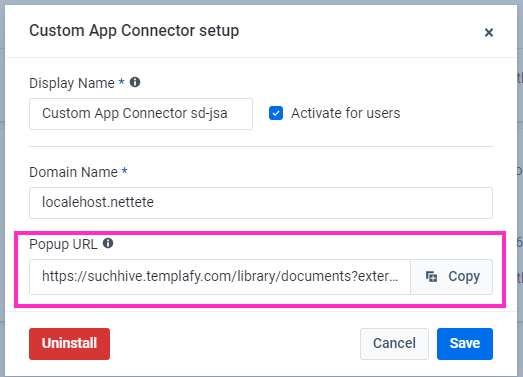
Here is the Popup URL from the screenshot above, only, the SettingID has been bolded:
https://suchhive.templafy.com/[...]settingId=97dcb54a-7e9a-4c85-93f6-5e1dca43f6ed
Children in CMD:
ReplacementMap
Replaces the value found in the document property in order to construct a valid Templafy path. It defines what path in Templafy that should be opened when specific value can be found in the relativePathDocPropName document property. See example in the end of this article.
PreCommands
This enables the user to execute commands before the template is selected.
PostCommands
This enables the user to execute commands after the template is selected. This is where our paste command should be located.
Example of usage
<Button label="Reuse Hive" size="large" Icon="ImportOpml">
  <Cmd case="SkabelonDesign.ReuseDoc:Copy" />
  <cmd case="SkabelonDesign.ReuseDoc:TemplafyHiveReuse"
            templafyEndpoint="https://suchhive.templafy.com/library/documents"
            externalSystemType="genericAppConnector"
            settingId="637707488065432810">

            <ReplacementMap>
            </ReplacementMap>

            <PreCommands>
            </PreCommands>

            <PostCommands>
              <Cmd case="SkabelonDesign.ReuseDoc:Paste"
                        formatted="clipboard-dest-clear"
                        insertAtSelection="true"
                        numberingPreserved="true"
                        SectionBreaksPreserved="true" />
           </PostCommands>
  </cmd>
</Button>
Was this article helpful?
That’s Great!
Thank you for your feedback
Sorry! We couldn't be helpful
Thank you for your feedback
Feedback sent
We appreciate your effort and will try to fix the article