Nodes
TABLE OF CONTENTS
Nodes define the structure, input, and reusable content used in the Information Tree.
Overview
A node is a component in the Information Tree. Each node defines how a specific piece of information is collected, structured, or inserted into a generated document.
| Node | Description |
|---|---|
| Section | A container node used to organize related nodes within an Information Tree. It provides structure but does not store values itself. |
| Text | Stores free-text input entered by the user and is used for names, descriptions, and other textual content. |
| Number | Stores numeric values and supports validation and formatting for numerical data. |
| Date | Collects date values in a consistent format for use in document generation. |
| Select | Lets users choose predefined options, enabling controlled input and conditional document behavior. |
| Repeat | Creates repeating collections of child nodes, allowing multiple instances of the same information. |
| Table | Collects structured information in rows and columns for tabular data. |
| Element | References reusable content that can be maintained centrally and reused across templates. |
| Group | Organizes related nodes into a logical section within the Information Tree. |
| Image | Lets users select an image to insert into the generated document. |
When you build the Information Tree, you add nodes to define what data is needed and how users should provide or select that data.
Node types
Different node types are available depending on the type of input, structure, or document behavior you need.
Use clear and descriptive names for nodes. This makes the Information Tree easier to maintain and makes inserted fields easier to identify in the template.
Add a node
You can add a node to the Information Tree by clicking the plus (+) icon in the top-right corner of the Information Tree.
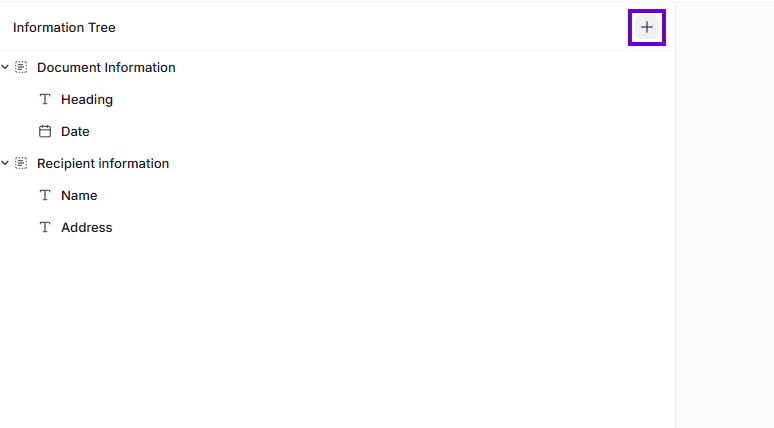
Add a node to the Information Tree
This inserts a Section node.
Use a node in a template
After you configure a node, you can insert it into your template.
Click the Insert button, or drag the node from the Information Tree and drop it into the template where the value should appear.
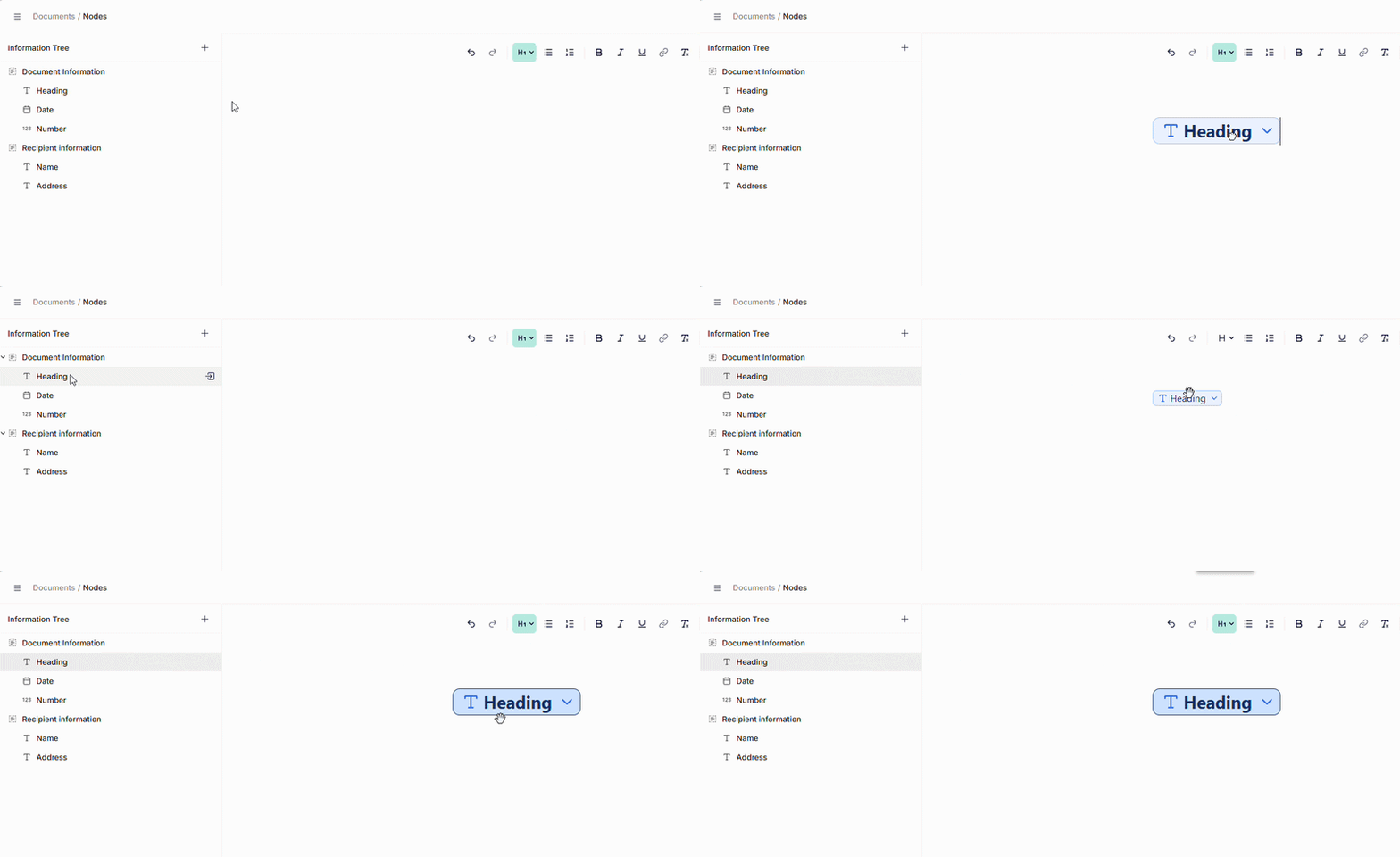
Insert a node into a template
When the document is generated, the inserted field uses the value, content, or behavior defined by the underlying node.
The node menu
Right-click a node in the Information Tree to open the node menu. The menu gives you quick access to common actions, and most actions also have a keyboard shortcut.
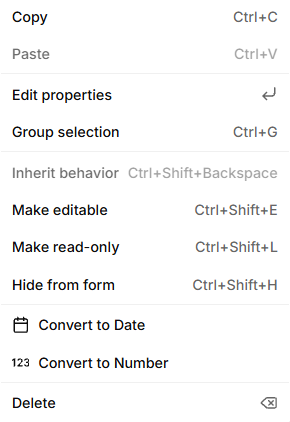
The node menu for a Text node
| Action | Shortcut | Description |
|---|---|---|
| Copy | Ctrl+C | Copies the node. |
| Paste | Ctrl+V | Pastes a copied node. The action is only available when a node has been copied. |
| Edit properties | Enter | Opens the configuration panel of the node. |
| Group selection | Ctrl+G | Places the selected nodes in a new Group node. |
| Inherit behavior | Ctrl+Shift+Backspace | Removes the behavior set on the node, so it inherits the behavior of its parent node. The action is only available when a behavior has been set on the node. |
| Make editable | Ctrl+Shift+E | Lets users enter or change the value in the form. |
| Make read-only | Ctrl+Shift+L | Shows the value in the form, but users cannot change it. |
| Hide from form | Ctrl+Shift+H | Hides the node from the form. |
| Convert to ... | Converts the node to another type. The available types depend on the node. See Convert a node below. | |
| Delete | Backspace | Deletes the node from the Information Tree. |
Node behavior
The behavior of a node controls how it appears in the form shown to end users. You set the behavior from the node menu.
| Behavior | Description |
|---|---|
| Editable | The node is shown in the form, and users can enter or change its value. |
| Read-only | The node is shown in the form, but users cannot change its value. This is useful for values that come from a dataset, an integration, or a routine. |
| Hidden | The node is not shown in the form. Its value can still be used in the template. |
By default, a node inherits the behavior of its parent node. For example, if a Section is read-only, the nodes inside it are also read-only. To return a node to the inherited behavior after changing it, select "Inherit behavior" in the node menu.
Convert a node
Some nodes can be converted to another type. Right-click the node in the Information Tree and select "Convert to" followed by the type you want to convert it to, for example "Convert to Date". Only the types the node can be converted to are shown in the menu.
| Node type | Can be converted to |
|---|---|
| Text | Date, Number |
| Date | Text |
| Number | Text |
| Repeat | Table |
| Table | Repeat |
Was this article helpful?
That’s Great!
Thank you for your feedback
Sorry! We couldn't be helpful
Thank you for your feedback
Feedback sent
We appreciate your effort and will try to fix the article