Repeat
TABLE OF CONTENTS
- Introduction
- Add a Repeat node
- General settings
- Advanced settings
- Using Repeat nodes in templates
- Use separators between items
- Place the repeat field inline
- Include whitespace in your separators
Repeat content in your documents
Introduction
Use a Repeat node to collect a list of repeating entries.
A Repeat node allows the user to add the same set of fields multiple times. This is useful when you need to collect several items of the same type, such as multiple people, products, or addresses.
Each entry inside the repeat follows the same structure, defined by the nodes placed inside the Repeat node.
Add a Repeat node
To add a Repeat node, click the plus (+) icon in your section and select Repeat.
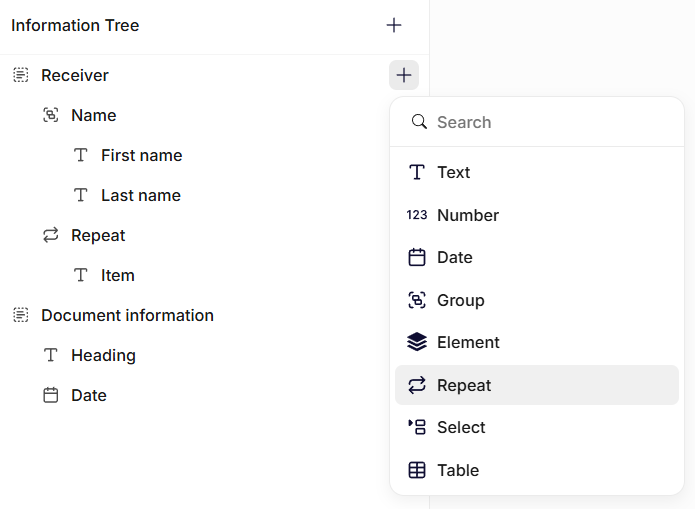
Insertion of a repeat node
After adding the Repeat node, you can insert other nodes inside it. These nodes define the fields that will repeat for each entry.
For example, a Repeat node could contain fields such as:
- Name
- Phone number
When filling out the form, the user can then add multiple entries using this structure.
General settings
Name
Enter a clear name. This label appears in the Information Tree and helps you identify the repeat section.
Description
Add a short description explaining what type of entries should be added.
Edit content
Add the content that should be repeated in the document. The content you add here will be inserted once for each item the user adds to the repeat in the form.
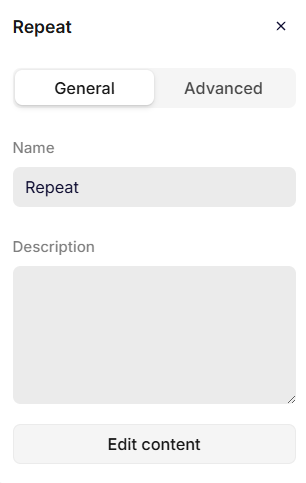
General settings
Advanced settings
Key
The key automatically inherits the Name you enter in the General settings. If needed, you can change it and define a unique key for the node.
The system uses the key to reference the repeating data structure in templates and transformations.
Use a clear and consistent naming pattern. For example: participants, items, or addresses.
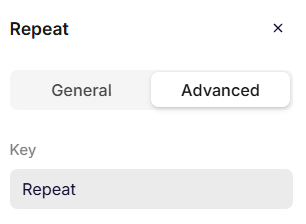
Advanced settings
Using Repeat nodes in templates
When a Repeat node is inserted into a template, it allows the document to render multiple entries dynamically.
Each entry in the repeat is processed individually, allowing the template to generate repeating sections such as:
- Lists of attendees
- Tables of items
- Multiple addresses
The template will iterate through each item and render the corresponding content.
This allows templates to adapt automatically based on the number of entries provided by the user.
Use separators between items
It is possible to add a separator to the repeat node after inserting it into the document.
The separator will be added between every iteration of the items added to it.
By default, the separator will be set to "None", which will add a line break between each iteration.
The available options for Separator are:
- None: Adds a line break between each item. This is the default.
- Newline: Starts each item on a new line.
- Custom separator: Inserts the text you enter between each item.
- Last item separator: Inserts the text you enter between the last two items, for example "and".
Place the repeat field inline
Separators only work when the repeat field is placed inline, meaning there is other content before it on the same line. A single whitespace is enough.
If the repeat field stands alone on its line, each item starts on a new line, regardless of the separator settings.
| Placement | Example | Result |
|---|---|---|
| Text before the field | Attendees: [Repeat field] | Items are joined on one line using the separators. |
| A single whitespace before the field | [Repeat field] | Items are joined on one line using the separators. |
| Field alone on its line | [Repeat field] | Each item starts on a new line. |
Include whitespace in your separators
Custom separators and last item separators are inserted exactly as you type them. Spaces are not added automatically, so remember to include them in the separator.
For example, a custom separator of , (comma and space) and a last item separator of and (with a space on both sides) produces Alice, Bob and Charlie. Without the spaces, the items run together.
Common uses for separators:
| Use case | Custom separator | Last item separator | Output example |
|---|---|---|---|
| Comma-separated values | , | None | Alice, Bob, Charlie |
| Natural sentence | , | and | Alice, Bob and Charlie |
| Oxford comma sentence | , | , and | Alice, Bob, and Charlie |
| Semicolon-separated lists | ; | None | Paris, France; Berlin, Germany; Copenhagen, Denmark |
| Inline lists with pipes | | | None | Option A | Option B | Option C |
| Slash-separated values | / | None | Admin / Editor / Viewer |
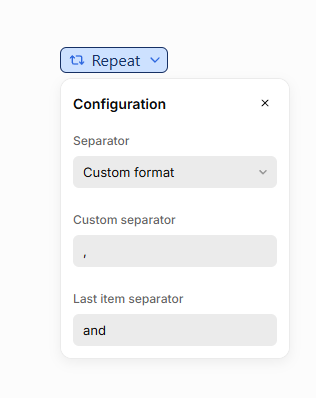
Repeat node inside template
Was this article helpful?
That’s Great!
Thank you for your feedback
Sorry! We couldn't be helpful
Thank you for your feedback
Feedback sent
We appreciate your effort and will try to fix the article