Corporate Infographics is a tool for creating and inserting infographics in both PowerPoint, Word and Excel. This feature opens a task pane containing a selection of infographics. The user is able to select a template and customize it.
The infographics are based on templates that we configure save as json files within the Content folder in the client's SDUP. Read more about how to configure infographics in this article.
We have implemented overlay buttons on this feature. Read more about overlays and how to implement them in this article.
Module is located here:
...SD.Installers\AdvancedInstalls\CorporateInfographics\Modules\01_nocontext_InfographicsPlugin is located here:
...\SD.Installers\AdvancedInstalls\CorporateInfographics\Plugins\InfoGraphicsCommands
CMD: <Cmd case="InfoGraphics:Activate"/>
Description: This command activates Corporate Infographics and opens the task pane. If a inserted infographic is selected and this command is called, it will open the edit view of the infographic concerned.
CMD: <Cmd case="InfoGraphics:Templates"/>
Description: This command opens the view of all templates in the task pane.
How does Corporate Infographics work?
Infographics can easily be inserted or edited. This section elaborates how Corporate Infographics work from a user perspective.
1) Click the button in ribbon or the overlay button that appears when a placeholder is selected.
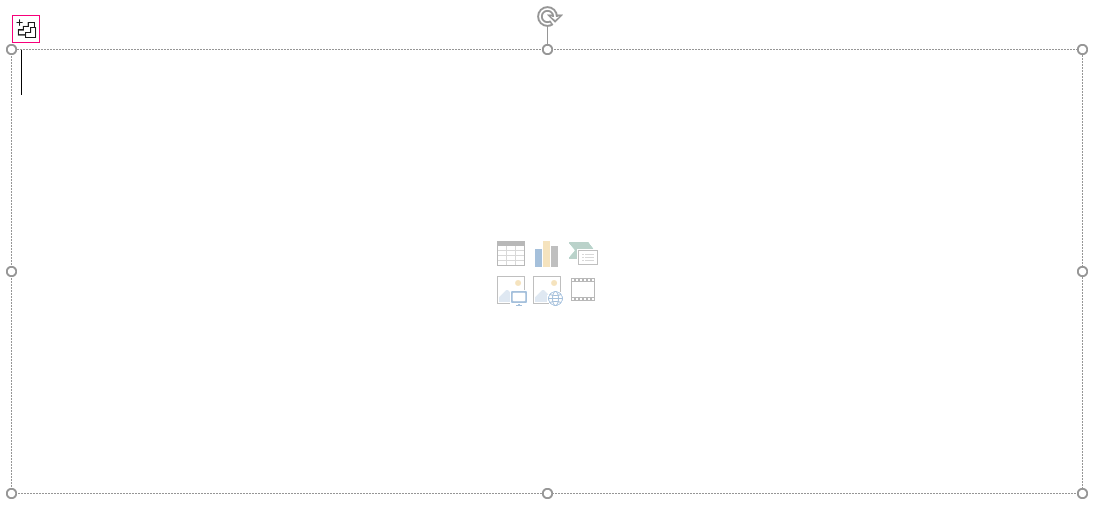
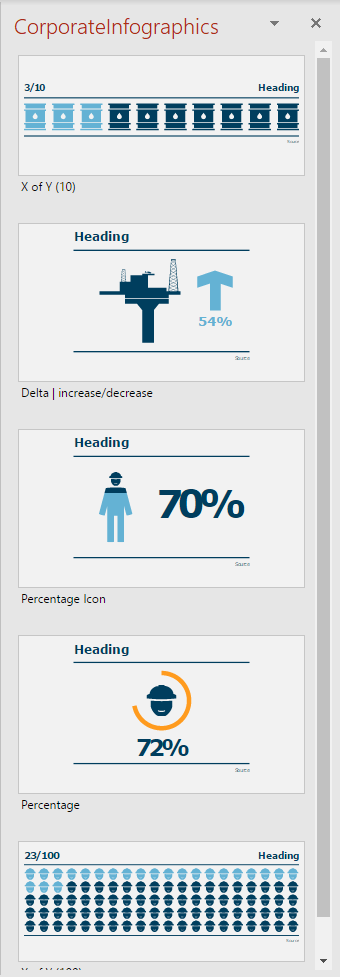
This will open a task pane containing the particular templates.
2) When a template is selected, the user is able to customize both text, color, icon and data.
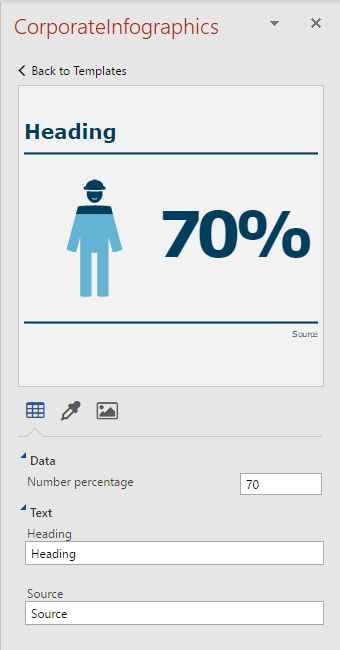
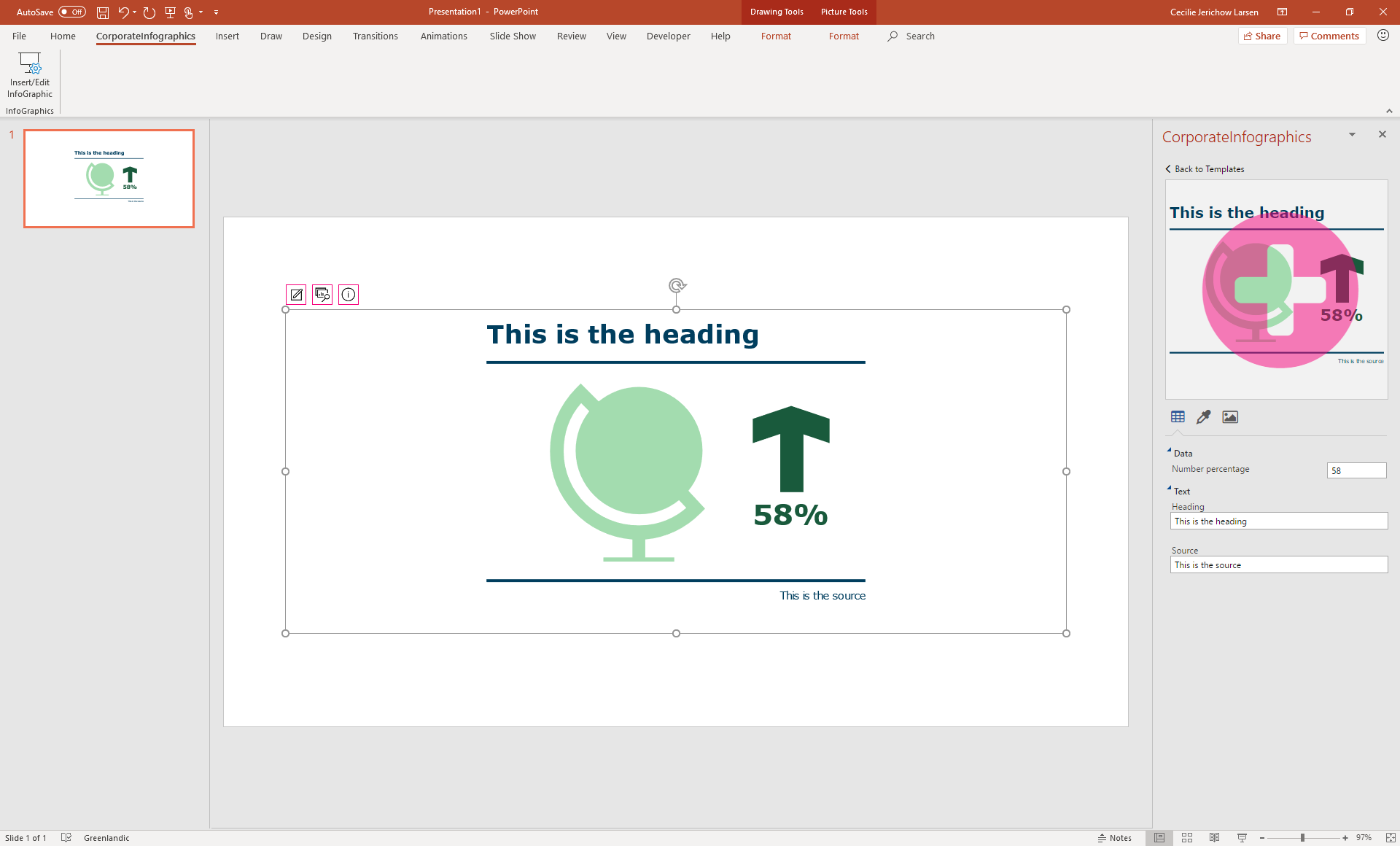
When the customization is done, hover and click the preview of the infographic to insert it.
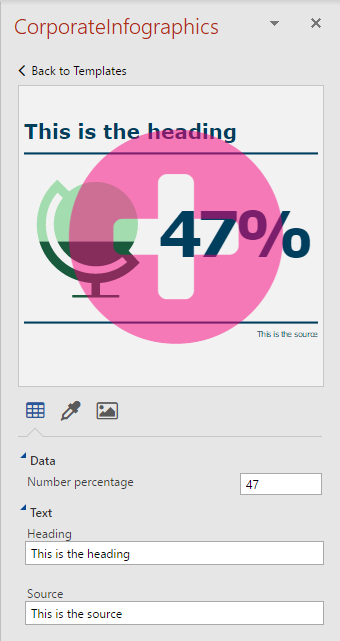
3) After inserting an infographic, three buttons appear when selecting the infographic. The first one opens the editor view of the selected infographic, allowing the user to edit the particular infographic, while the second one opens the template view. The third one is for information if needed.

The inserted infographic can easily be edited. Click the first overlay button when the infographic is selected. After editing, hover and click the preview, and the inserted infographic will automatically update due to the changes.
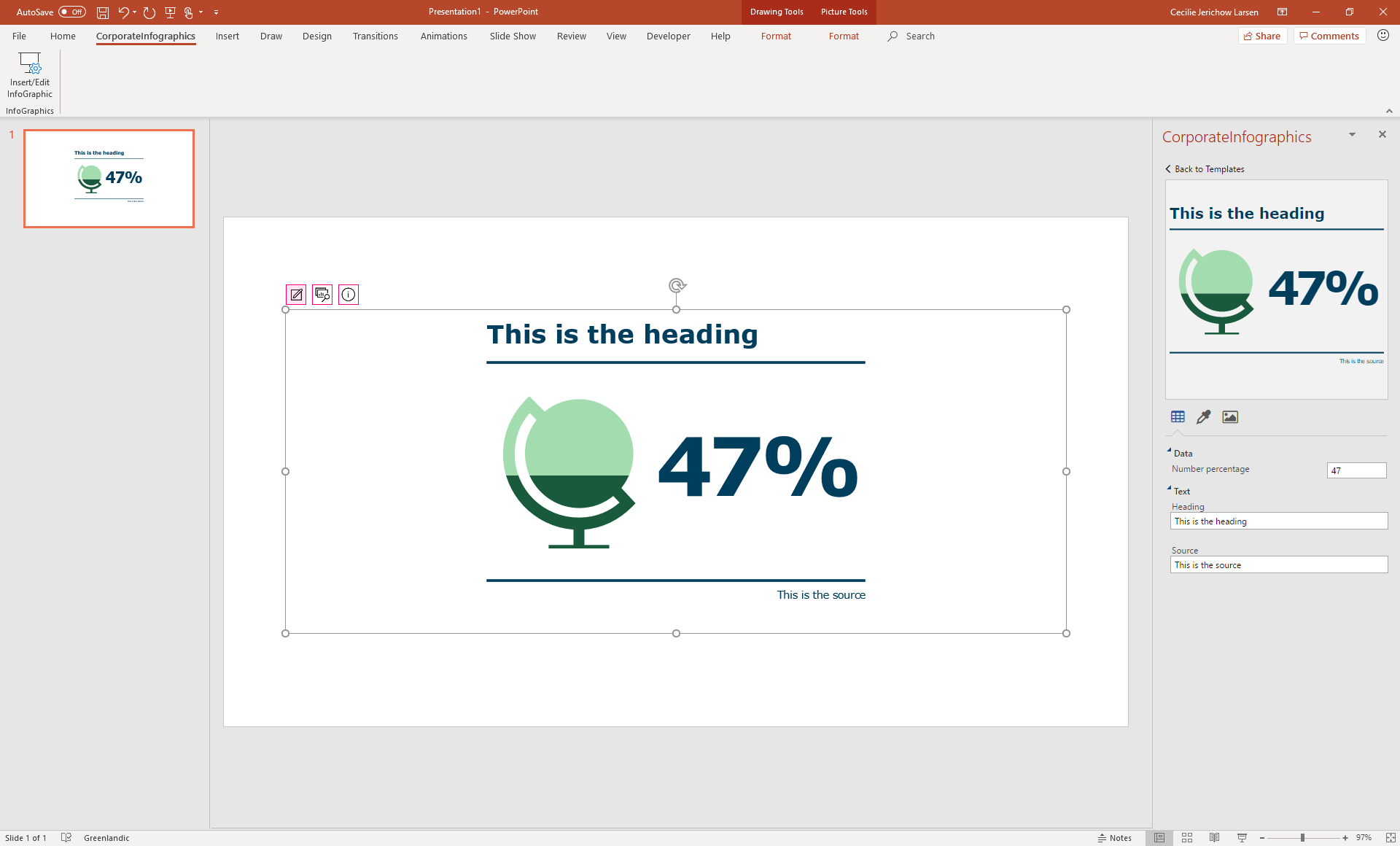
4) The template of the selected infographic can be changed as well. Click at the second overlay button to open the template view.
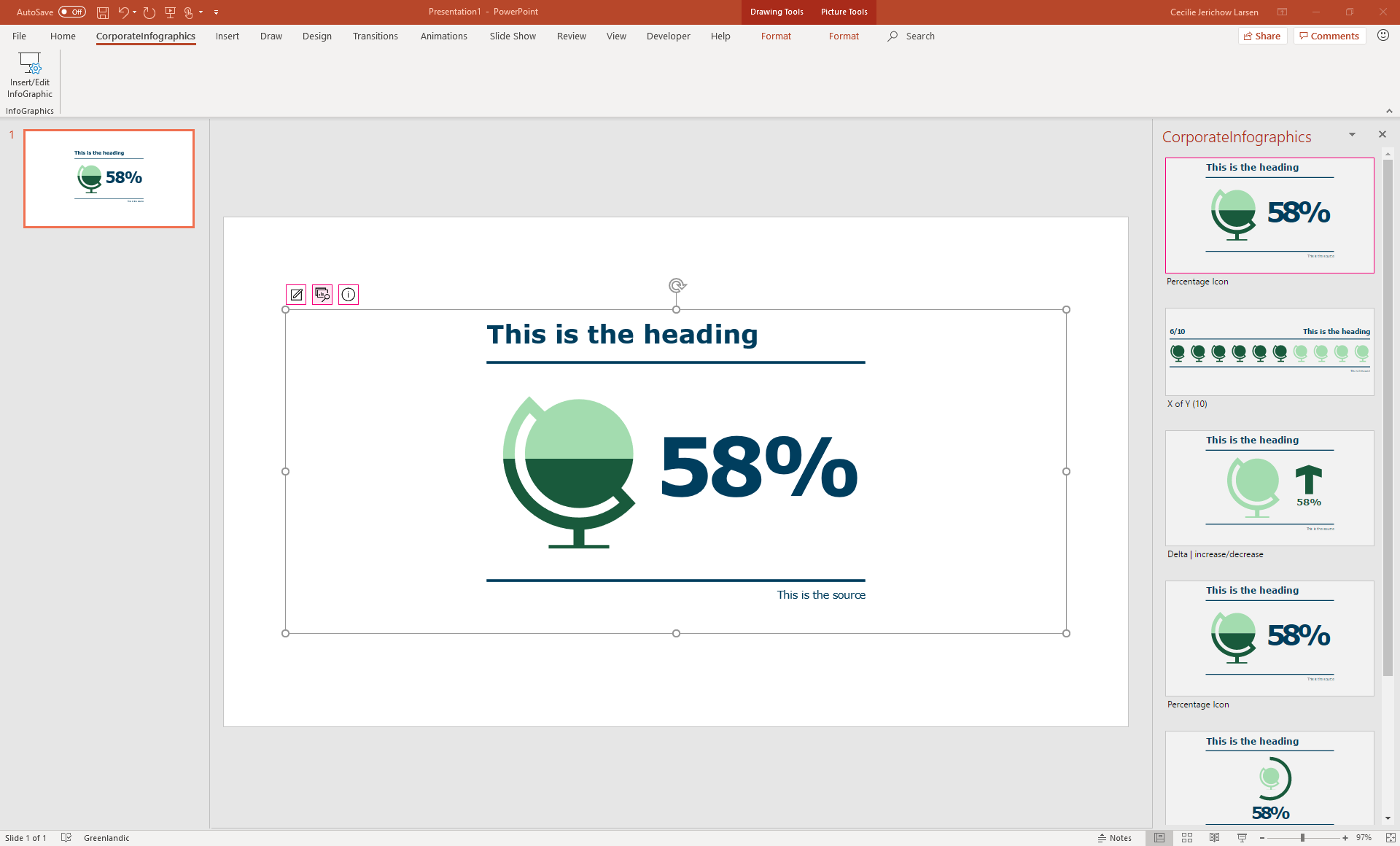
Here, another template for the infographic can be selected. When a template is selected, it jumps to the editor view. To update the template of the infographic, hover and click the preview.
Was this article helpful?
That’s Great!
Thank you for your feedback
Sorry! We couldn't be helpful
Thank you for your feedback
Feedback sent
We appreciate your effort and will try to fix the article