3.10. Data source tool (add-on)
With the data source tool, any spreadsheet can be prepared as a source for the mail merge functionality in DynamicTemplate. In practice, the user points out the columns containing relevant data and new columns with correct names will be inserted.
In the following section, you will find a description on how to configure and use the data source tool. Please contact Omnidocs for further information
3.10.1. Setup
The data source tool requires an update of the license file ‘System.cfg’ as well as addition/adjustment of the configurations file ‘MergeSourceConfig.xml’. Both files are provided by Omnidocs, but the customer can add certain elements to the configurations file.
’MergeSourceConfig.xml’ (Figure 153) must include the element PrepareSourceNames , that contains the column headings corresponding to the standard fields of the template’s dialog box

Figure 153
The attribute CustomColumns can be used to add one or more customised columns, separated by semicolons (‘;’). Data from these columns can be inserted in template fields which are normally not part of the data source. This feature requires that the template is set up to insert data from the new columns. Contact Omnidocs for further information about this issue.
‘MergeSourceConfig.xml’ (Figure 153) must contain the item PrepareSourceConfigsPath specifying a path for placing saved merge source prep configurations. The path can contain environmental variables such as ‘%username%’ if each user is to have their own configurations. All users must have read privileges at the specified location, and Standard Content editors must have write permissions to create the configurations.
Example:
<PrepareSourceConfigsPath> \\sharedstorage\DynamicTemplate\XML\PrepareSourceConfigs\% username%\</PrepareSourceConfigsPath>
If the value is omitted or blank, configurations are saved by default in a subfolder named ‘PrepareSourceConfigs’ at the location specified in the ‘XmlPath’ item, as described in 3.1.9.1. System folder paths .
3.10.2. Usage
Once the data source tool has been configured, this button will be added to the dynamictemplate menu in Excel:

Figure 154
Before activating the data source tool, the spreadsheet must contain all needed columns with merge data and optional headings.
Clicking ‘Prepare’ brings up the dialog box below, showing each template field followed by a drop-down menu with the spreadsheet column headings:
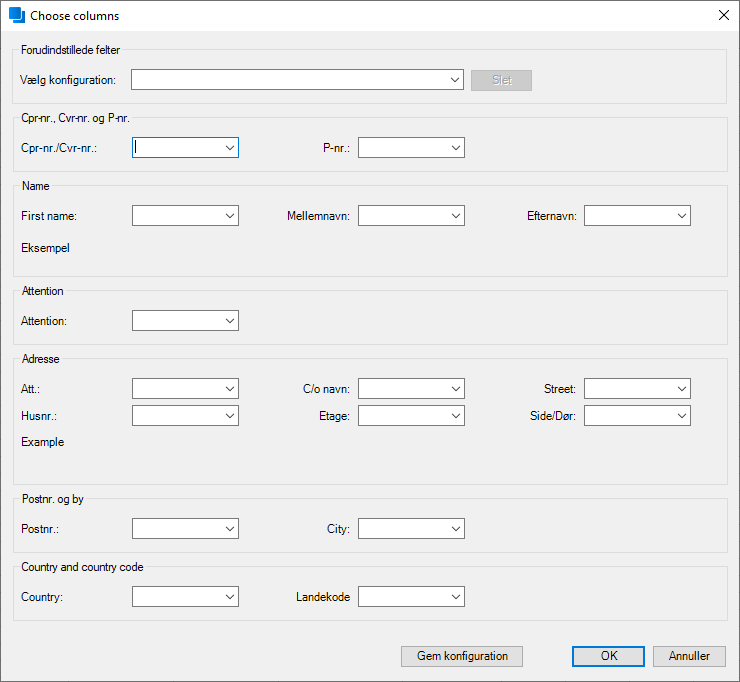
Figure 155
The user goes through all drop-down menus and selects the columns corresponding to each merge field. Note, that a field may be chosen automatically if a matching heading is found.
Depending on the source data it may be necessary to combine two or more fields. E.g., if First name, Middle name, and Surname are registered in separate columns, they must be selected individually and combined in one ‘Name’ field.
If source data is combined in other ways, e.g. First name and Middle name in one field and Surname in another, each column should be selected only once in the appropriate drop-down menu, in order to avoid repetitions. Check the ‘Example’ fields to verify the final form.
When all merge fields have been linked to a column, click ‘OK’ to create new columns in the spreadsheet, complete with contents and correct headings. Save the final spreadsheet and use it as data source for DynamicTemplate.
Before clicking ‘OK’, you can save the current column configuration by clicking the ‘Save Configuration’ button. Specify the configuration name, and the configuration is saved as an XML file at the location specified in the configuration file, as described in 3.10.1. Setup The file names indicate the prep configurations’ names as they appear on both the Excel menu bar and in the Preparation Tool itself. It is then possible to rename saved configurations simply by renaming the files.
To delete a saved configuration, first select it from the list, then click the ‘Delete’ button. Saved configurations can also be deleted by simply removing the created XML files in the folder.
Note that the ‘Save Configuration’ and ‘Delete’ buttons are only available to Standard Content editors. All users will be able to use the saved configurations in the tool, as illustrated below.
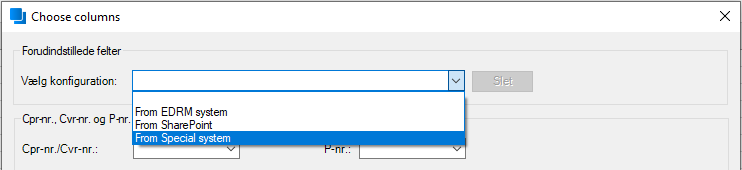
Figure 156
When a configuration is selected from the list, all columns are set to the configuration settings.
When using a saved configuration where one or more saved column names or letters do not match the merge source they are used for, the maximum number of columns are configured and a message appears stating which columns could not be configured. This way the user can configure the outstanding columns themselves, if necessary.
Saved configurations can also be applied to a merge source directly from the menu bar, as illustrated below.
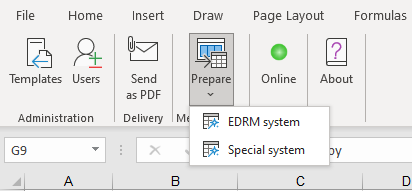
Figure 157
When selecting a configuration from the list, the configuration is applied directly to the open Excel sheet, just as it would if you specified the same configuration in the Preparation Tool and subsequently clicked the OK button. This lets you quickly align a merge source without having to open the Preparation Tool first.
Changes (creating new, deleting, or renaming) in configurations require that you restart Excel before they take effect in the menu bar.
When using a saved configuration where one or more saved column names or letters do not match the merge source they are used for, the maximum number of columns are configured, and a message appears stating which columns could not be configured. This way the user can configure the outstanding columns themselves, if necessary.
Was this article helpful?
That’s Great!
Thank you for your feedback
Sorry! We couldn't be helpful
Thank you for your feedback
Feedback sent
We appreciate your effort and will try to fix the article