3.8. Statistics Module (add-on)
Omnidocs offers a statistics module that registers the usage of templates, Standard Content, and various Standard Content fields and presents the information in a simple web- based dashboard.
Note: The function requires that it can be communicated with the cloud service for this, cf. section 4. System prerequisites.
In the following section, you will find a description on how to configure and use the statistics module.
Please contact Omnidocs for further information.
3.8.1. Setup
Access to the statistic module requires an update of the license file ’System.cfg’. The file is provided by Omnidocs.
3.8.1.1. Username settings
It is possible to configure whether to include real usernames when recording statistics. You manage the setting in ‘Setup.xml’ in the element Setup -> StatisticsSettings -> IncludeUserName:

Figure 127
If you omit the setting or set it to ‘false’, real usernames are not recorded in the statistics, but instead replaced by auto-generated IDs. If you set the setting to ‘True’, the username is registered.
3.8.2. Usage
When the statistics module has been configured, the shortcut button will be active for Standard Content administrators in the ‘Templates’ and ‘Standard Content’ windows.
Clicking the shortcut opens the customer’s statistics page in the default browser, and the user will be logged in automatically:
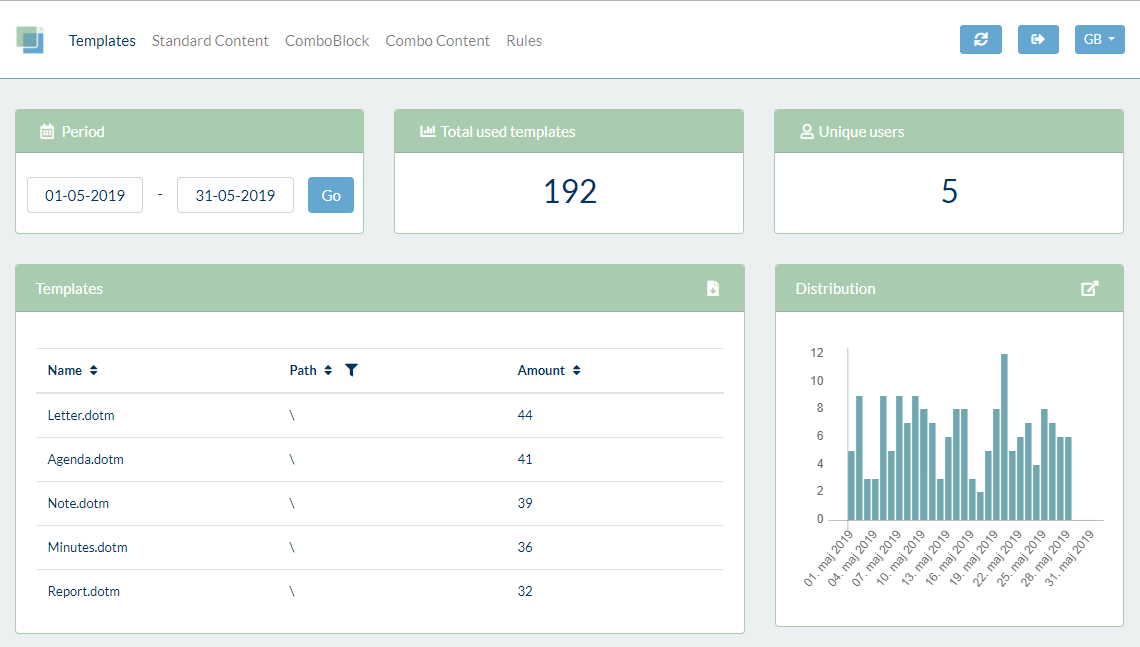
Figure 128
The top menu is used for selecting which content type to show statistics for, and in the top right corner it is possible to change the language and log out of the page.
Regardless of the selected content type, the statistics window will consist of the following sections:
3.8.2.1. Time period
The statistics data for the current month is shown by default, but a different time period can be entered in the ‘Period’ section. Enter the Start and End dates in the related fields and click ‘Go’ to only show data from the selected period.
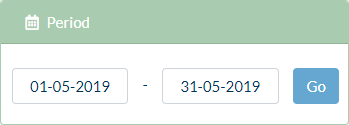
Figure 129
3.8.2.2. Total used (type)
’Total used (type)’ displays the number of times the selected content type has been used during the period.
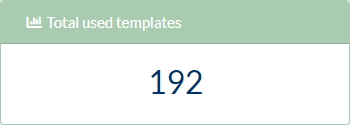
Figure 130
3.8.2.3. Unique users
’Unique users’ displays the number of unique users who have used the selected content type during the period.
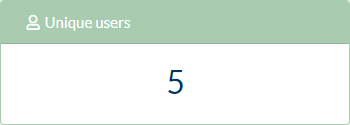
Figure 131
3.8.2.4. Content overview
The title of the content overview corresponds to the selected content type and shows all activity of this content during the selected period. The table also shows the path to the folder or file, where the content was located when used. Finally the table shows the number of times the content has been used.
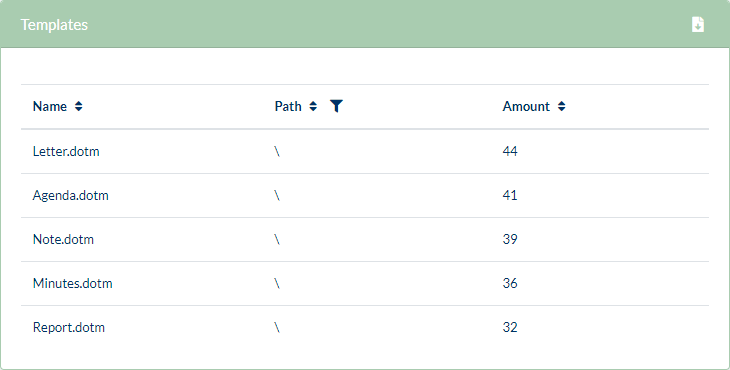
Figure 132
All columns can be sorted in ascending or descending order by clicking the sorting icon or the column header itself.
A filter can be added to the ’Path’ column to limit the list to just one folder and its subfolders. Press the ‘Filter’ button and tick the selected folder:
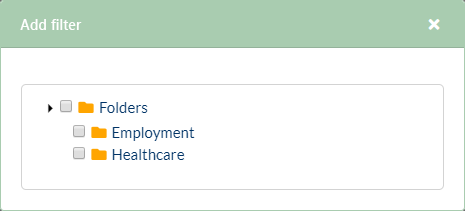
Figure 133
The selected filter will be displayed over the table and can be removed by clicking the cross to the right:
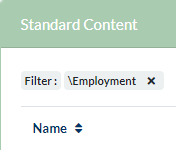
Figure 134
Click the ‘Download CSV’ button in the upper right corner to download a comma separated list (.csv) of the currently displayed contents.
3.8.2.5. Distribution
The section ‘Distribution’ displays the use of the selected file or field on either a daily or monthly basis depending on the length of the selected period.
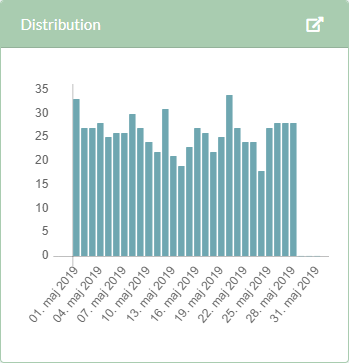
Figure 135
To enlarge the diagram click the ‘Enlarge view’ button or simply click the diagram. In full size view the diagram can be saved as PDF by clicking the ‘Download PDF’ button .
3.8.2.6. Contents
When selecting a specific ComboBlock in the content overview, the ‘Contents’ window will list which Standard Contents, attachments, and appendices that have been inserted and how often. Mandatory contents will also be listed and naturally be rated higher than the optional contents.
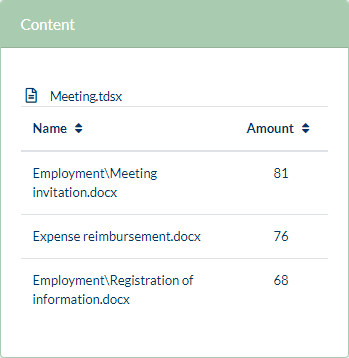
Figure 136
3.8.2.7. Outcome
When selecting a specific Combo Content or rule in the content overview, the ‘Outcome’ window will list how often the various outcomes have been inserted. For rules, an icon to the left will indicate the result type.
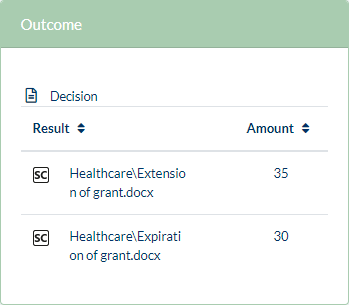
Figure 137
3.8.2.8. Details
When selecting specific contents in the content overview, the ‘Details’ window will list the user profiles that have inserted this content and how often. When selecting a specific profile, the ‘Distribution’ section will change to show data for this user profile only.
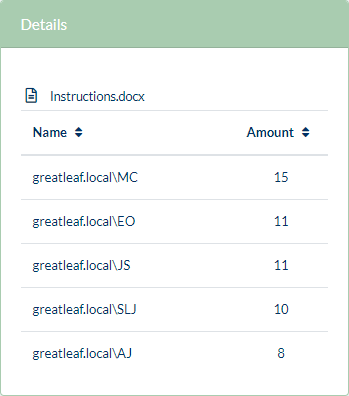
Figure 138
The real usernames are only displayed if this is enabled in the configuration file ‘Setup.xml’ as described in 3.8.1.1 Username settings.
Was this article helpful?
That’s Great!
Thank you for your feedback
Sorry! We couldn't be helpful
Thank you for your feedback
Feedback sent
We appreciate your effort and will try to fix the article