Lost macros/template ribbon
If your template contains macros and UI customization (buttons) and you are unable to use them your document may have lost the connection to the document template.
To reestablish connection to the document template go to the Developer tab (not visible by default) and click Document Template.
Activate the Developer tab
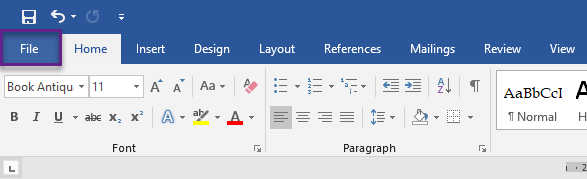
Click File
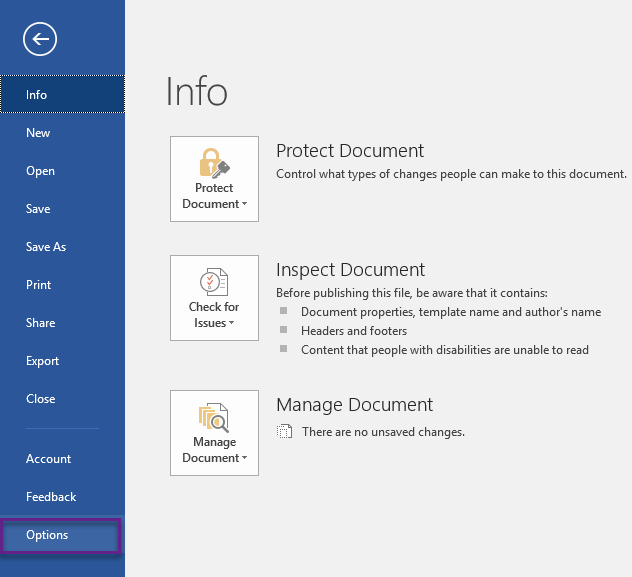
Click Options
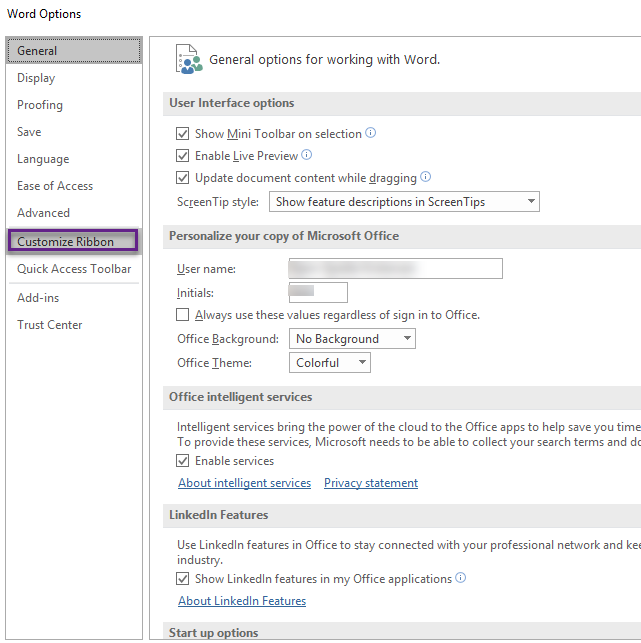
Click Customize Ribbon
Click to add a tick mark next to Developer in the Main Tabs ribbon drop down menu and click OK
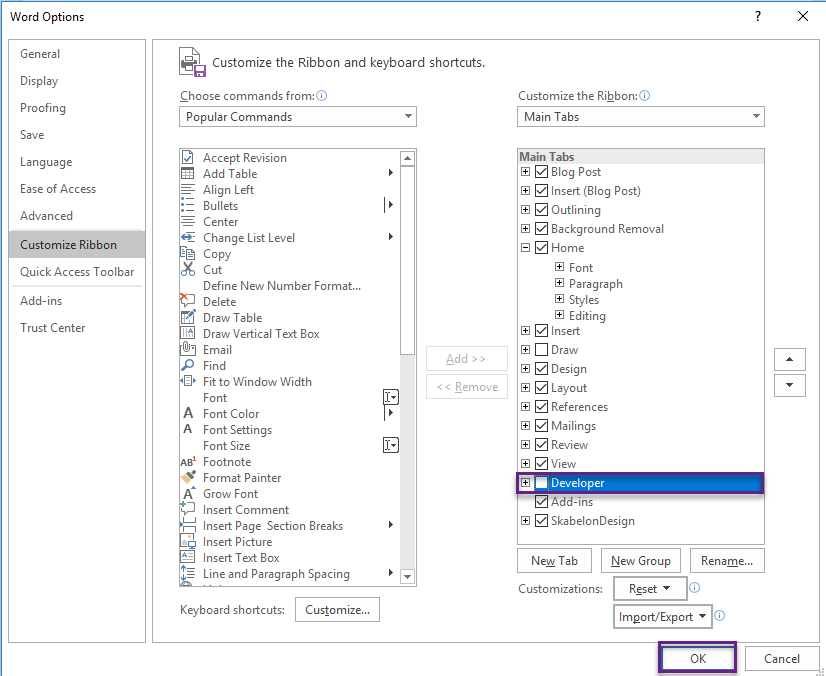
You will now see the Developer tab in your ribbon.
Attach Document Template
Click the Developer tab in your ribbon - it it is missing check the above steps
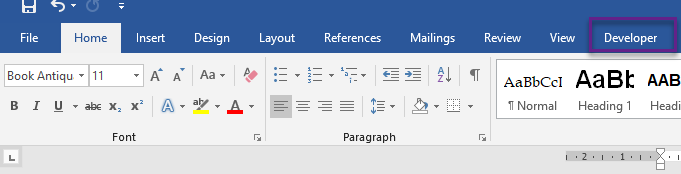
Click Document Template

This will open the dialog Templates and Add-ins
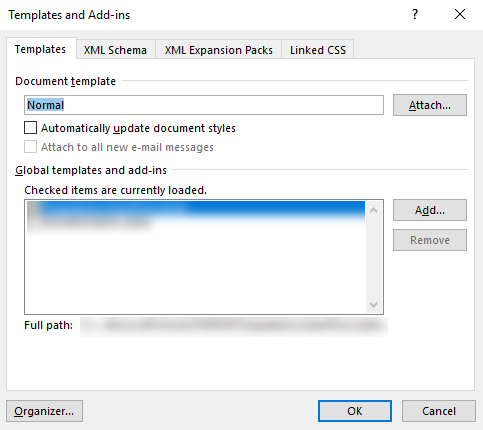
If the document template is not attached it will default to the Normal template.
Click Attach... to open the dialog Attach Template
Navigate to the location of your document template, click it and click Open.
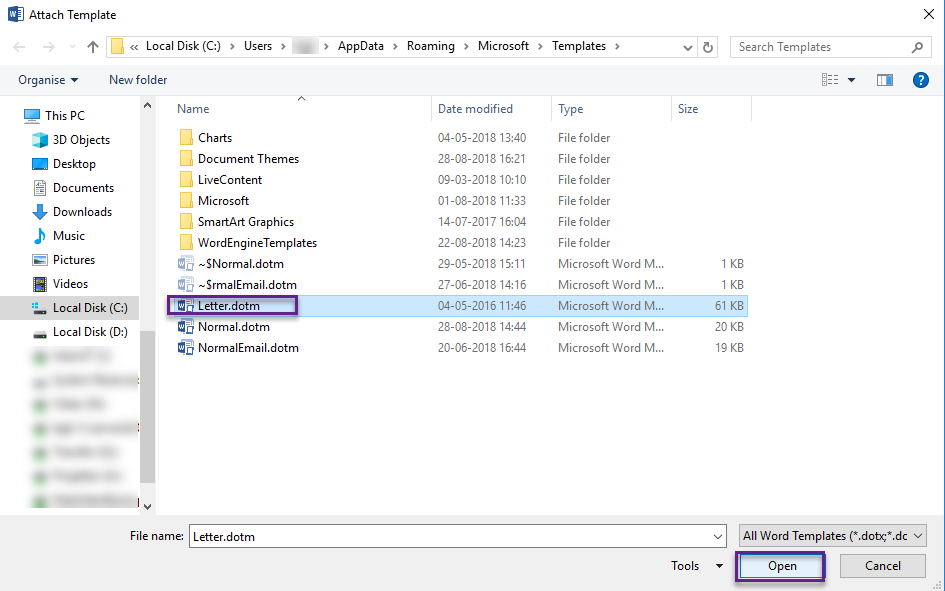
(If you do not know the location of the template consult with your template administrator)
Now the correct path to the document template should be shown in Templates and Add-ins.
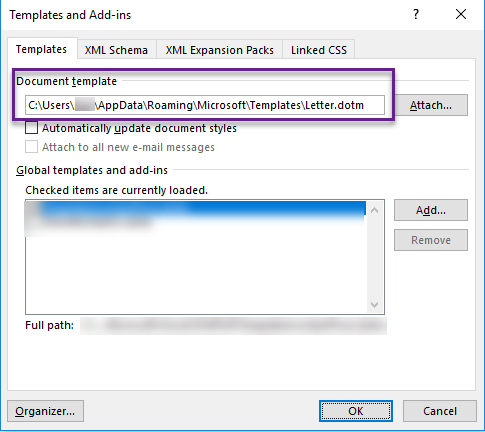
Click OK
Now the document template is attached and the functionality in the macros within should be available again and buttons will reappear.
Was this article helpful?
That’s Great!
Thank you for your feedback
Sorry! We couldn't be helpful
Thank you for your feedback
Feedback sent
We appreciate your effort and will try to fix the article