Add-in user interface error messages, like the ones shown in the image below, usually appear right after starting an MS Office app. In most cases, they are of informative nature and don't affect the functionality of the apps or any additional solutions that are added.
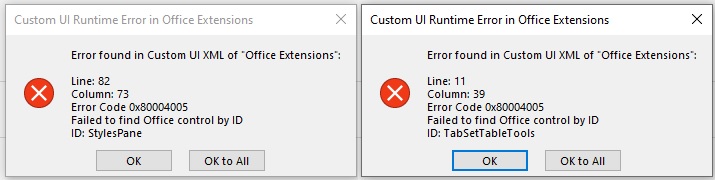
By default, such messages are disabled in all of the MS Office apps, but it is possible that sometimes they are activated by mistake. In order to disable them again, the following, simple guide applies:
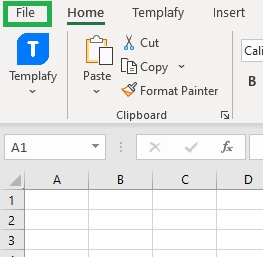
- Open the MS Office app the error messages appear in and click File
- Click Options on the bottom left corner of the window
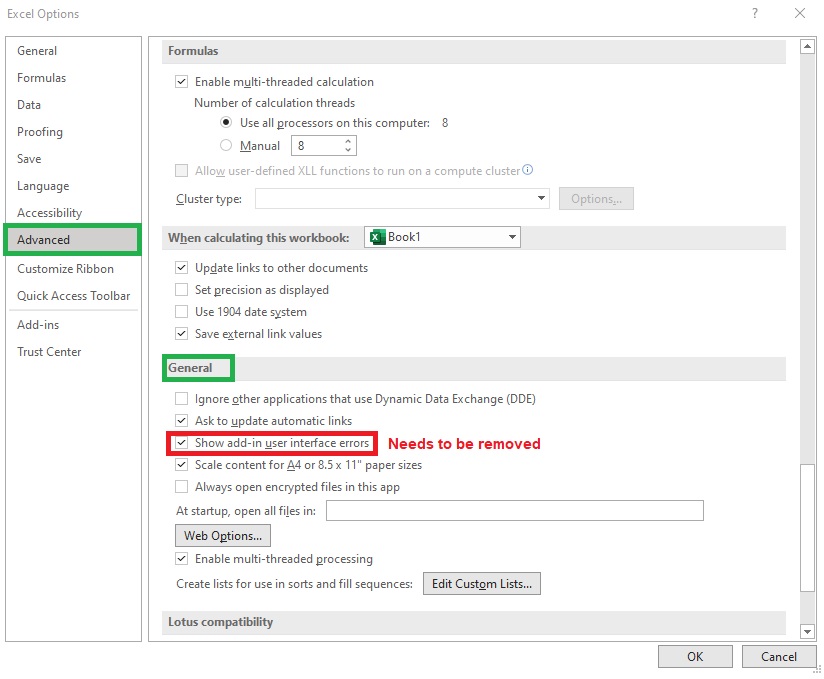
- Access the Advanced tab, and scroll down to the General group
- Uncheck the option Show add-in user interface errors
- Restart the app

Was this article helpful?
That’s Great!
Thank you for your feedback
Sorry! We couldn't be helpful
Thank you for your feedback
Feedback sent
We appreciate your effort and will try to fix the article