Installation
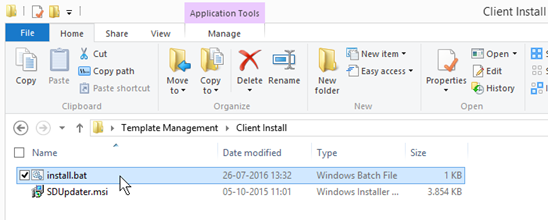
Install via the files SDUpdater.msi and install.bat. The two files can be deleted after the installation.
Run the file install.bat
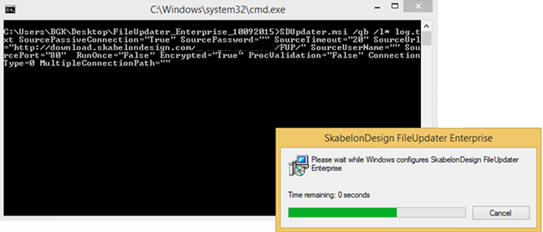
The following prompt will open with a status indicator for the installation. The installation runs automatically from there.
It is also possible to package and deploy the FileUpdater client with e.g. SCCM or a Startup Script.
When properly installed FileUpdater will have a registry hive with values as shown below.
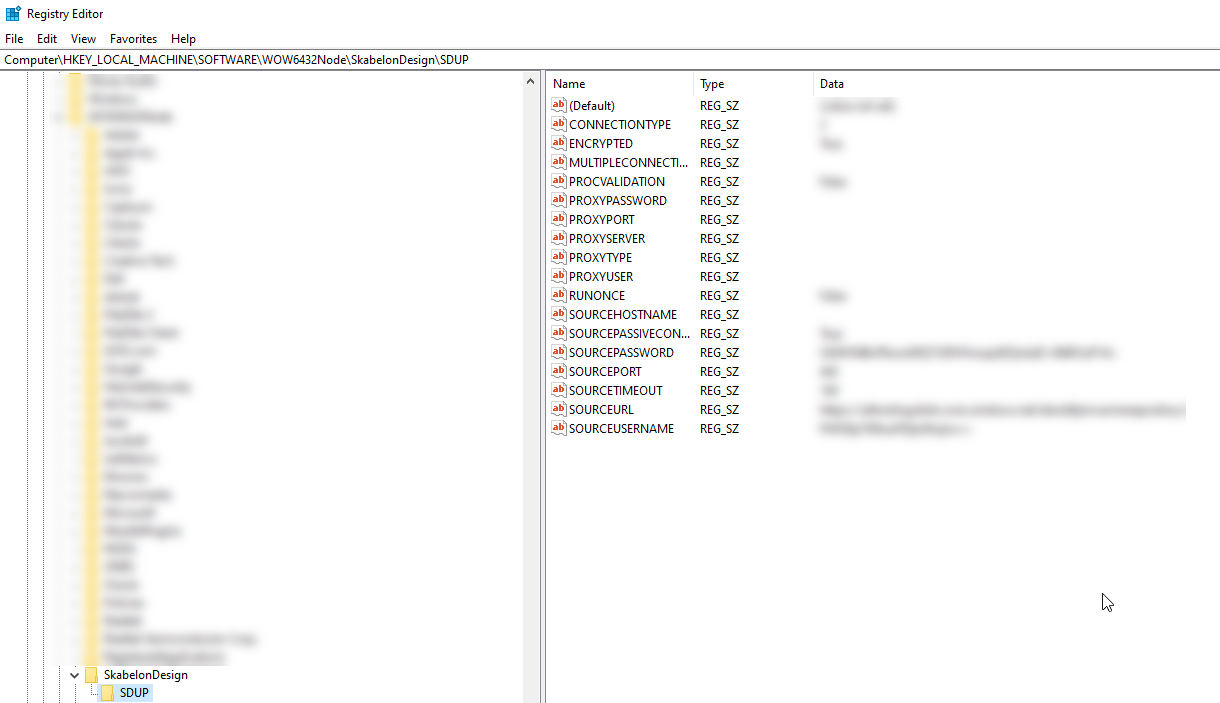
It is also possible to install the MSI first and then add the registry entries afterwards but without them there is no configuration and synchronization is not possible.
The default hive location is Computer\HKEY_LOCAL_MACHINE\SOFTWARE\WOW6432Node\SkabelonDesign\SDUP although Computer\HKEY_CURRENT_USER\SOFTWARE\WOW6432Node\SkabelonDesign\SDUP is also a possible configuration. Reach out to Omnidocs Support if you have any questions.
Update with the Client Module
The FileUpdater client performs an update automatically when logging into Windows and every 24 hours thereafter by default. An update here means that the client compares the list of published files in the filelist.xml with the files that FileUpdater has installed on the computer in the file InstalledFiles.xml. In an update there is a download and synchronisation, if there are new changes. New files that have been published by the administrator since the last update will be installed or files that have previously been installed with the client will be deleted, if the administrator has published that change. At the end of the update any changes to the registry will be merged. InstalledFiles.xml is updated so it reflects all files that have been installed with the FileUpdater client on the computer as well as merged registry entries.
Automatic updates
When FileUpdater is performing the update the message SkabelonDesign FileUpdater Running will appear when hovering the mouse cursor over the icon in the system tray. It usually takes 1-2 minutes the first time until the process is complete. When the process is complete the message SkabelonDesign FileUpdater Idle will appear when hovering the mouse cursor over the icon in the system tray

Manually executed updates
It is also possible to execute and update manually without restart or otherwise logging on again:
- If you do not see the FileUpdater icon in the notification area find FileUpdater by searching in Start and run the application:
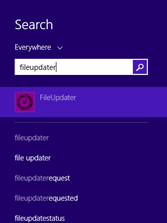
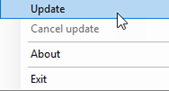
- Right click the FileUpdater icon in the notification area (lower right corner) and choose Update.
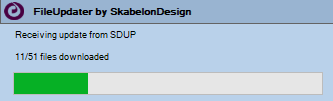
A status indicator will show the progress:
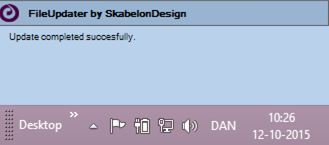
When finished it will show a success or error message:
Was this article helpful?
That’s Great!
Thank you for your feedback
Sorry! We couldn't be helpful
Thank you for your feedback
Feedback sent
We appreciate your effort and will try to fix the article