Uninstallation
Uninstallation on a larger scale can be done with an uninstallation package, e.g. with SCCM. When the FileUpdater client is uninstalled all the files that was synchronized to the machine in question is uninstalled with it; Office add-ins, templates, etc.
Manually uninstallation is done thusly:
- Close FileUpdater. If uninstalling the client, first close Word and/or other Office applications that the solution from Omnidocs are used in. If only uninstalling the admin module it is not necessary to close Office applications.
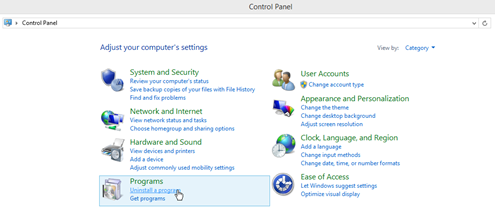
- Open Control Panel in Windows Start
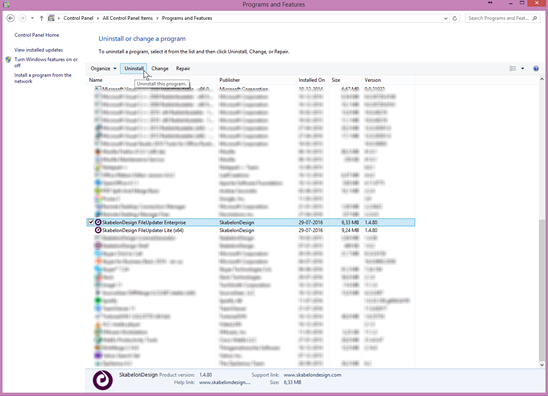
- Click Uninstall a program which opens Programs and Features, the list of installed programs.
- Uninstall the client, the admin module or both by selecting the program(s) and clicking Uninstall (or right click the program(s) and clicking Uninstall.
- The FileUpdater client is named SkabelonDesign FileUpdater Enterprise and the admin module is named SkabelonDesign FileUpdater Lite (x64) (when it is a 64-bit version).
If the FileUpdater client is running when uninstalling the following dialogue appears:
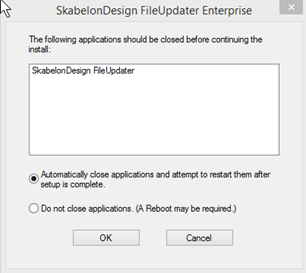
If so, either click Cancel and close the uninstallation, close the FileUpdater client and uninstall again or choose Automatically close applications and attempt to restart them after setup is complete.
Clearing repository or post uninstallation clean up
The FileUpdater client may in some cases have issues removing registry entries on uninstall, which is particularly relevant if there are registry entries that activate Office add-ins. If these registry entries stay on the machine after uninstallation the users may see prompts for the missing add-ins, which is a user pain.
Therefore we recommend depending on the organisation's preference publishing an empty repository or preparing an afterburner package/script to remove the registry entries right after uninstalling the FileUpdater client.
Please reach out to Omnidocs Support by creating a ticket if you have any questions about this.
Was this article helpful?
That’s Great!
Thank you for your feedback
Sorry! We couldn't be helpful
Thank you for your feedback
Feedback sent
We appreciate your effort and will try to fix the article