Branded Agenda is a tool for PowerPoint that empowers users by letting them create branded agendas easily. When the presentation is set up to Branded Agenda, you can easily add titles and subtitles as agenda points to your agenda slide. This article will elaborate how to use the tool.
Insert agenda slide
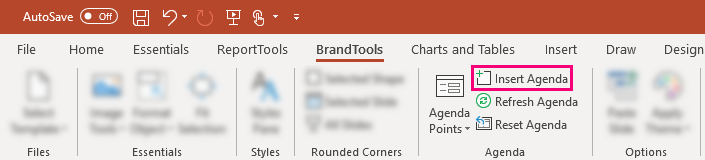
First, an agenda slide must be inserted. To do so, click "Insert Agenda" and the slide with agenda layout will be inserted in the presentation.
Add titles and subtitles as agenda points
When writing in a title placeholder, three buttons will appear next to the placeholder concerned.

The first one adds the selected title to the agenda slide, while the second one adds as subtitle. The third one refreshes the agenda.
The steps below illustrates how the agenda can be created after an agenda slide is inserted.
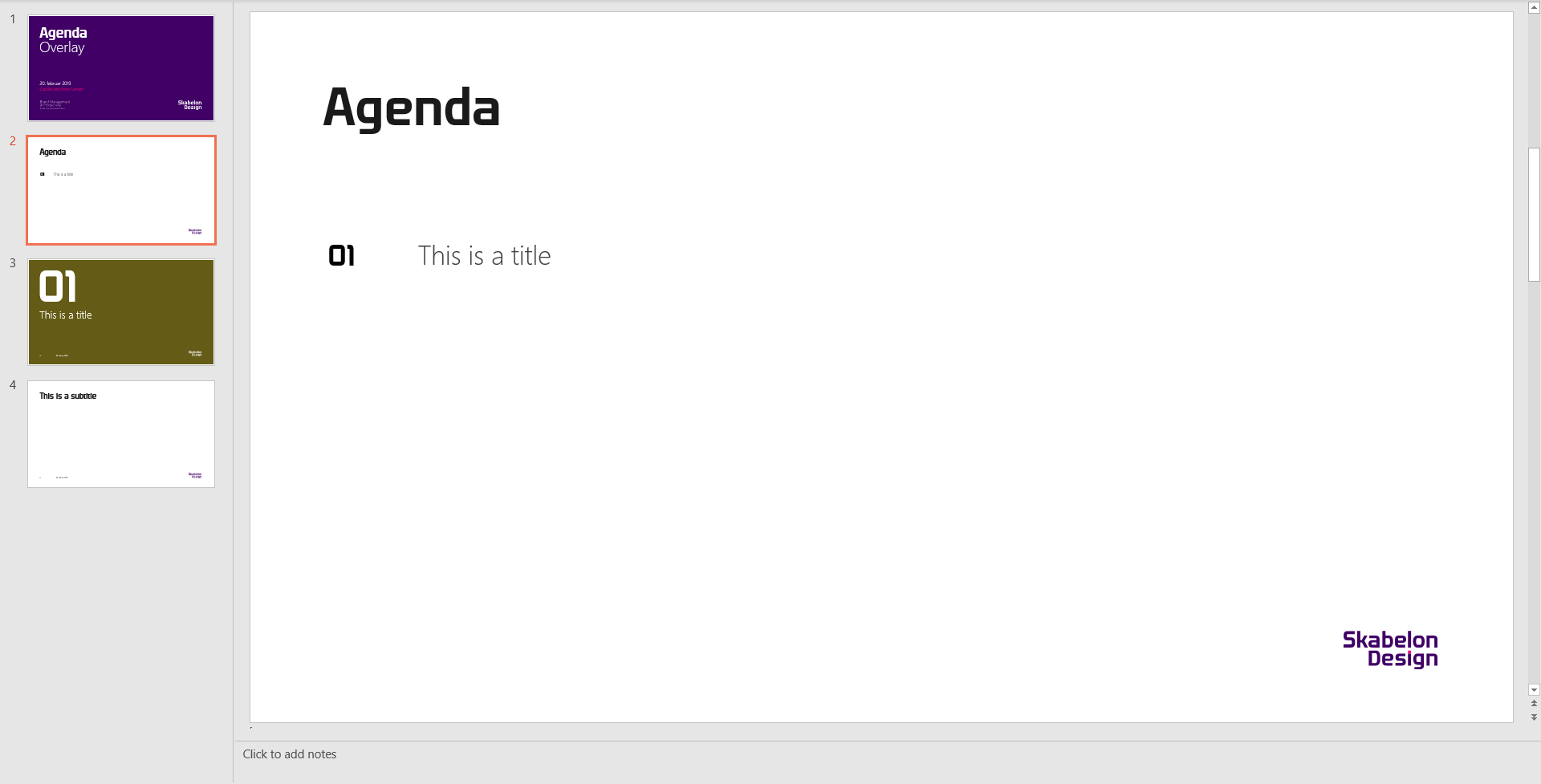
1) Select a title placeholder at a slide and click "Add Agenda Point".

This will automatically add the title to the agenda slide.
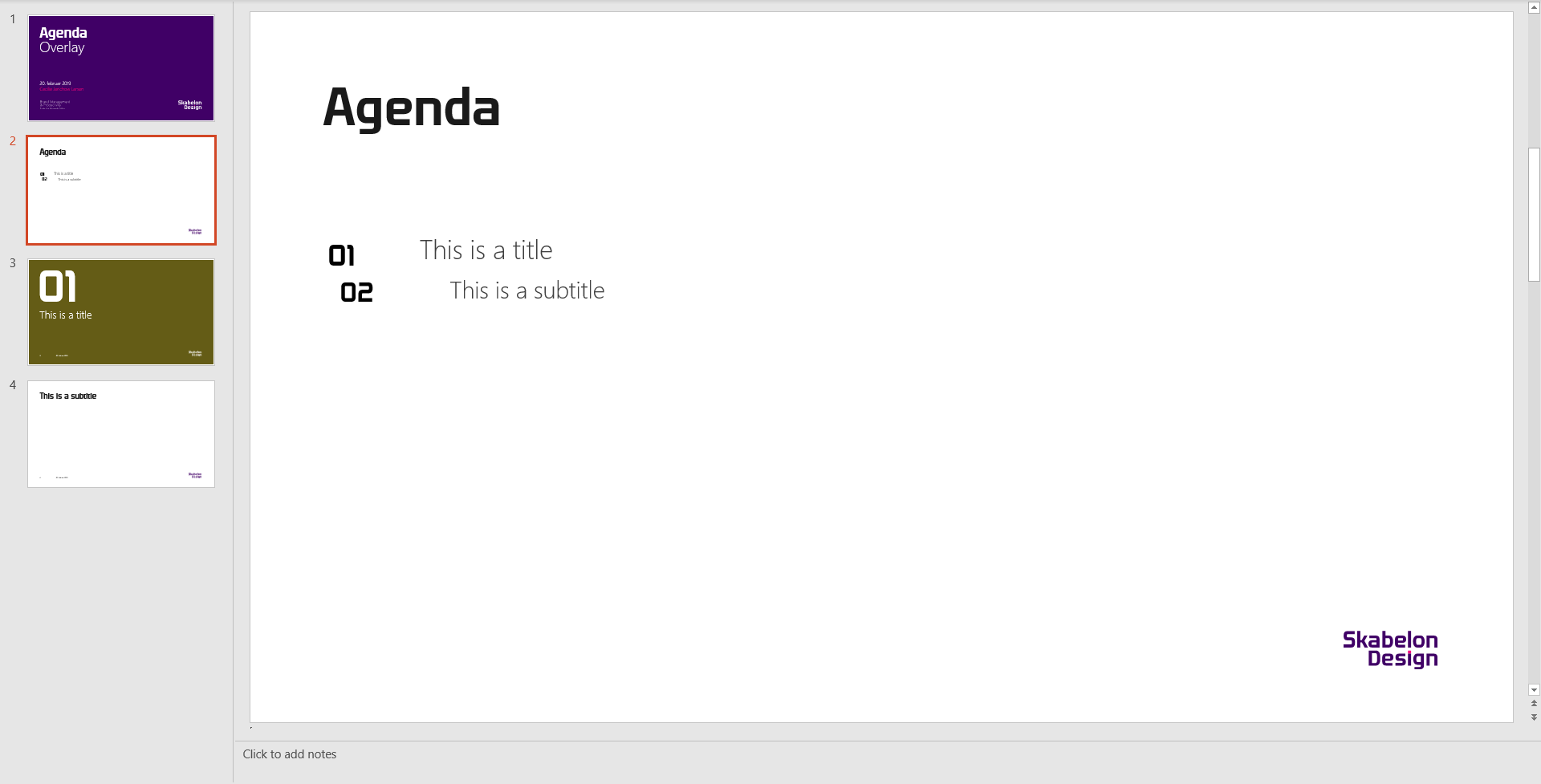
2) Now, a title at another slide can be added as a subtitle to the title above.

Again, the agenda slide will automatically add the subtitle.
Remove agenda points
As soon as a title or subtitle are added to the agenda slide, a new button that removes the agenda point will appear next to the title or subtitle placeholder concerned when selected.
Let's say that the subtitle should be removed from the agenda. Thus, we select the placeholder and the button appears.

Just as when adding an agenda point, the agenda will automatically update when an agenda point is removed.
Refresh agenda
The agenda slide does not update automatically when changes are made in the order of slides nor if a title or subtitle are renamed.
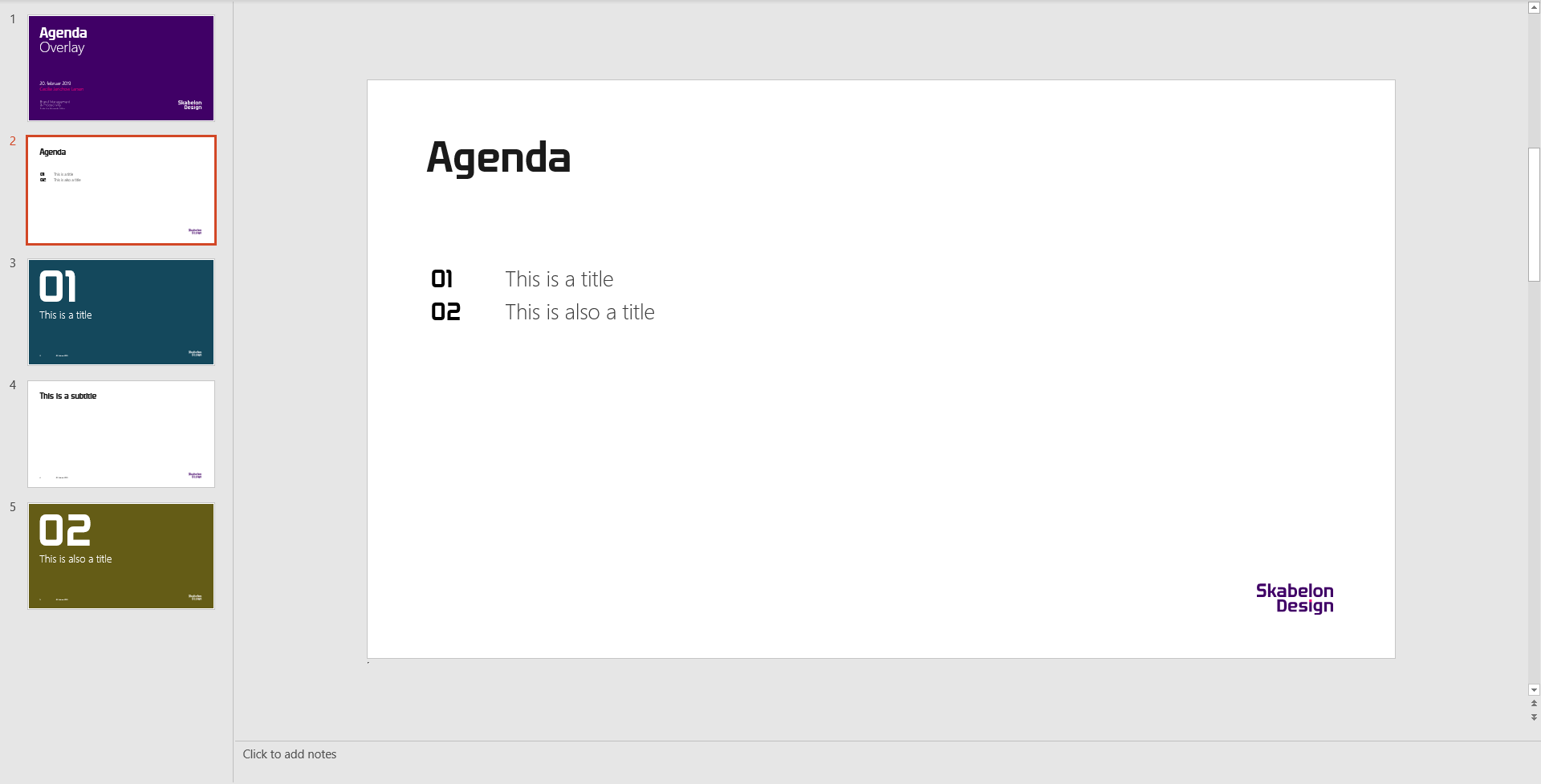
As an example, we add a new slide that appears before the existing one. Thus, we must rename the title and number at the existing slide.
Now, we must update the agenda manually.

This will update the agenda slide where the changes are implemented.
Was this article helpful?
That’s Great!
Thank you for your feedback
Sorry! We couldn't be helpful
Thank you for your feedback
Feedback sent
We appreciate your effort and will try to fix the article