If the tab or buttons in the tab are missing in Word or another Office program, it is often because one or more add-ins are not active. An add-in can be inactive for various reasons, but it can usually be fixed quickly.
Omnidocs' most widely used add-in is OfficeExtensions, so this article uses it as its starting point.
Sections in this article:
Enable the OfficeExtensions add-in in Word
Enable the OfficeExtensions add-in in Word
If OfficeExtensions is inactive, you can enable it with the following steps:
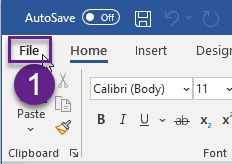
1) Click File
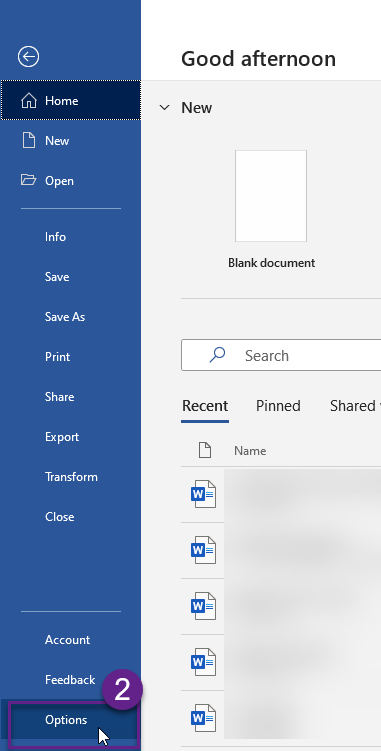
2) Click Options
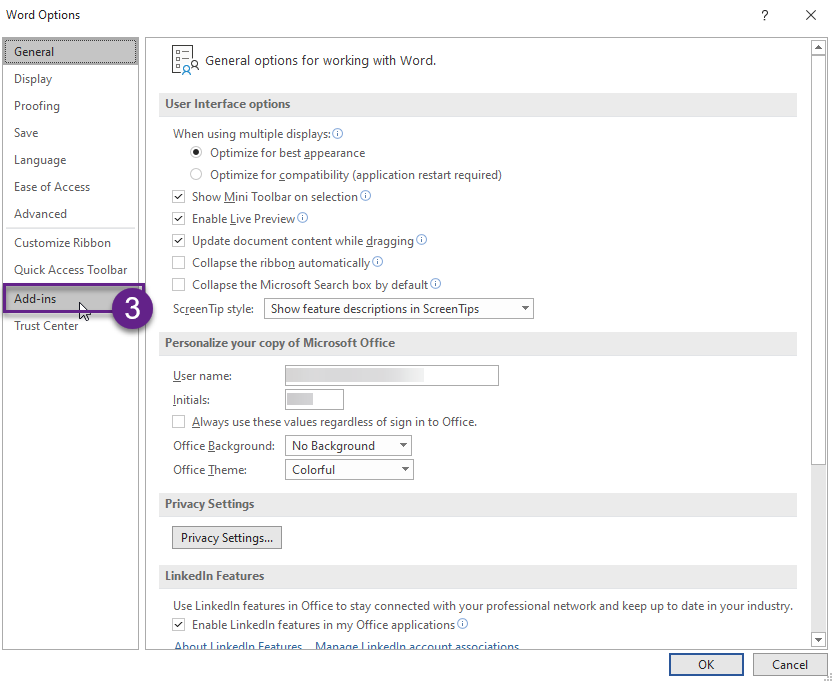
3) Click Add-ins in the Word Options. menu.
View and manage Microsoft Office Add-ins is now open and shows an overview of all add-ins in Word:
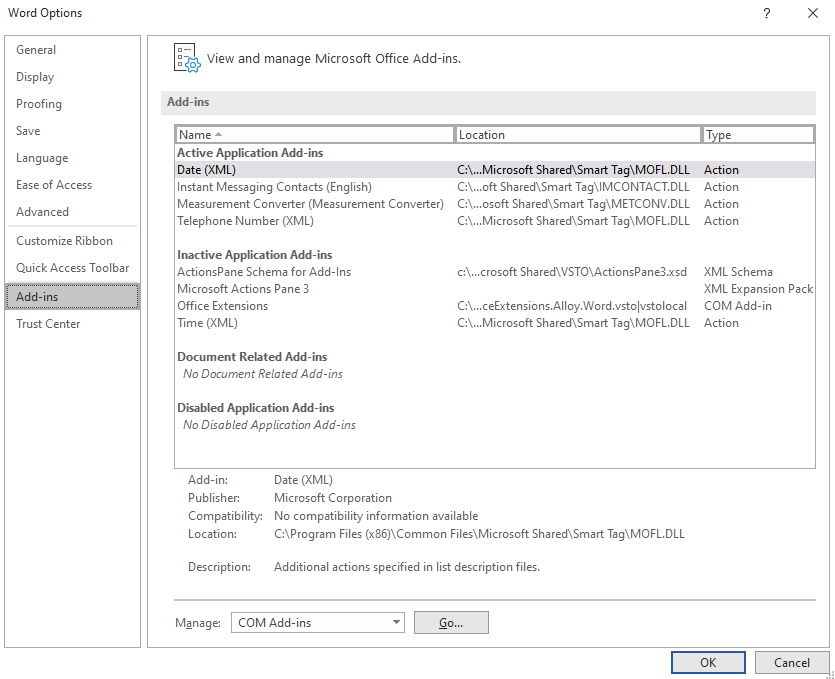
At the bottom of the menu you will see the Manage drop-down menu. COM Add-ins will be preselected.
4) Click Go

5) In the COM Add-ins menu, select the check box for the add-in OfficeExtensions by clicking on the box.
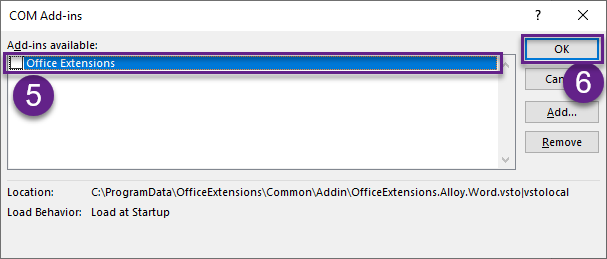
6) Click OK and the button/tab should return in Word.
Disabled Items
If the functionality does not reappear after step 6, the add-in may be disabled. It will then appear in the Disabled Items list. In that case, you can follow these steps:
7) Click the arrow on the Manage drop-down menu and select Disabled Items in View and manage Microsoft Office Add-ins
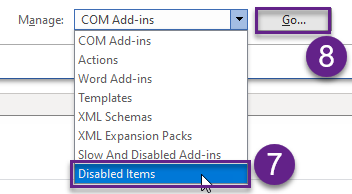
8) Click Go
9) In the newly opened Disabled Items dialog, click Add-in: zofficeextensions.alloy.word (officeextensions.alloy.word.dll)
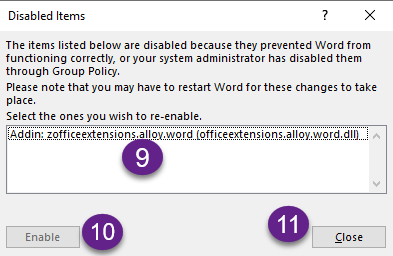
10) Click Enable
11) Click Close
Then continue from step 5 again.
If the add-in cannot be found in View and manage Microsoft Office Add-ins, the solution is not installed correctly. In that case, please contact your internal IT support.
Was this article helpful?
That’s Great!
Thank you for your feedback
Sorry! We couldn't be helpful
Thank you for your feedback
Feedback sent
We appreciate your effort and will try to fix the article