Overview
-
Introduction
-
About support cases
-
Guide to creating a user account on Omnidocs Support
-
View an overview of existing support cases
-
Create a support case
-
Changing user access
Introduction
This article shows how to register as a user in our support system, create support tickets and follow their progress. Cases must be created via the support site: https://support.omnidocs.com/en/support/tickets/new.
About support cases
For security reasons, you must register as a user in order to create support cases. It also gives you access to view the cases outside the emails received from the system, which provides a better overview.
Support cases can only be created through the form. If an email is sent to support@omnidocs.com, the sender receives an automatic reply that points this out.
Guide to creating a user account on Omnidocs Support
You can create an account on our support site, access support tickets and check their status. Complete the following steps:
1) Go to https://support.omnidocs.com/en/support/home
2) Click Sign in at the top right of the page
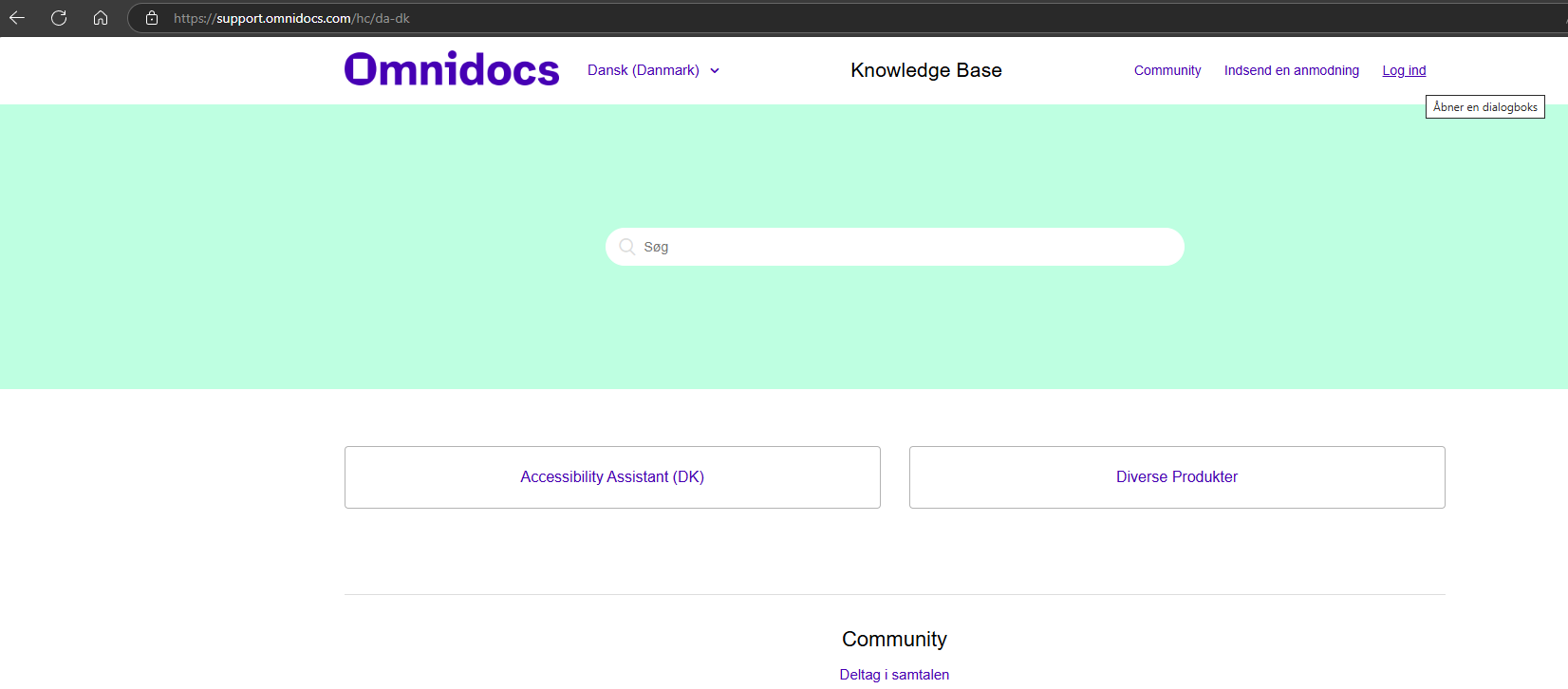
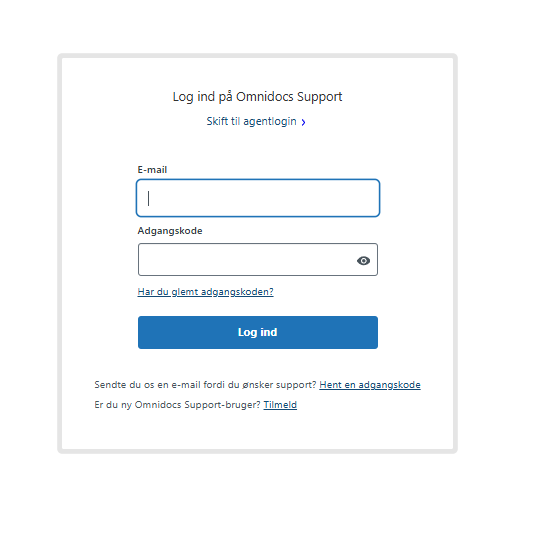
3) Click Sign up in the Sign in to Omnidocs Support dialog.
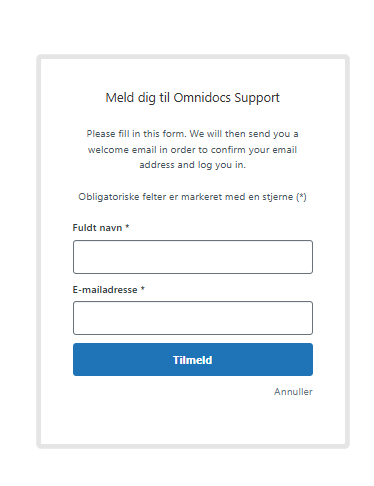
4) Enter your full name and email address in the Sign up for Omnidocs Support dialog and click Sign up.
If you use the same email address that you may previously have used to create support cases on the Omnidocs Support site, you should be able to see those earlier support cases with that email.
5) You will see a message titled Check your email.
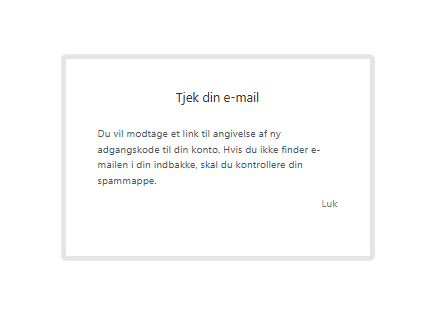
6) Check your email for a message from Omnidocs Support and click the activation link.
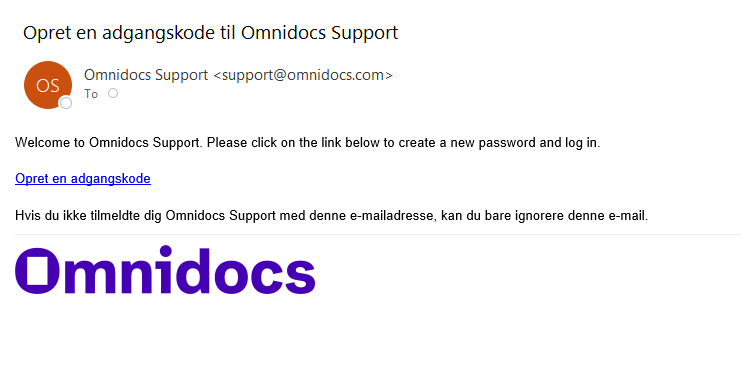
7) Create a password for your Omnidocs Support account and click Set password
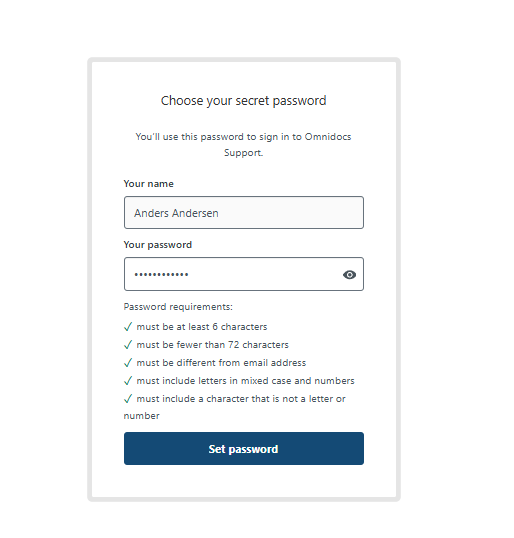
You can now log in to Omnidocs Support with your email and password.
You can view existing support cases and create new ones by clicking Submit a request.
View an overview of existing support cases
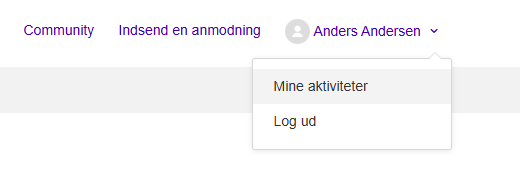
When the user is logged in and clicks their account at the top right, they can click My activities and an overview will appear.
The overview shows the ticket subject, ID, when it was created, last activity and status.
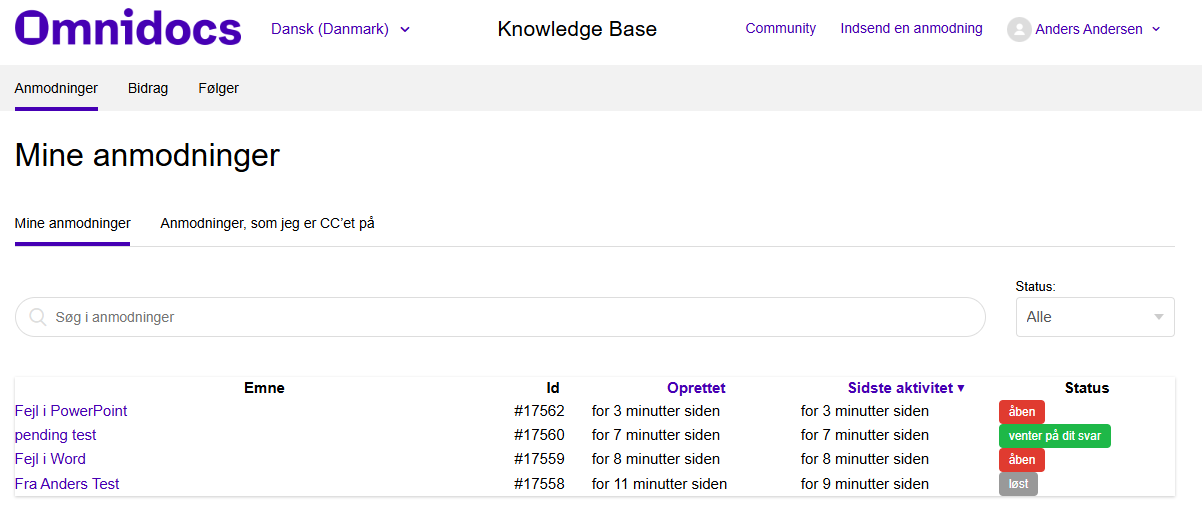
Clicking a case opens it, and the correspondence with support, including any attachments, will be visible.
When the support case has been created, it appears with the status open. If the case is waiting for a reply/action from the requester, the status will be awaiting your reply. When the case is closed/solved, the status will be solved.
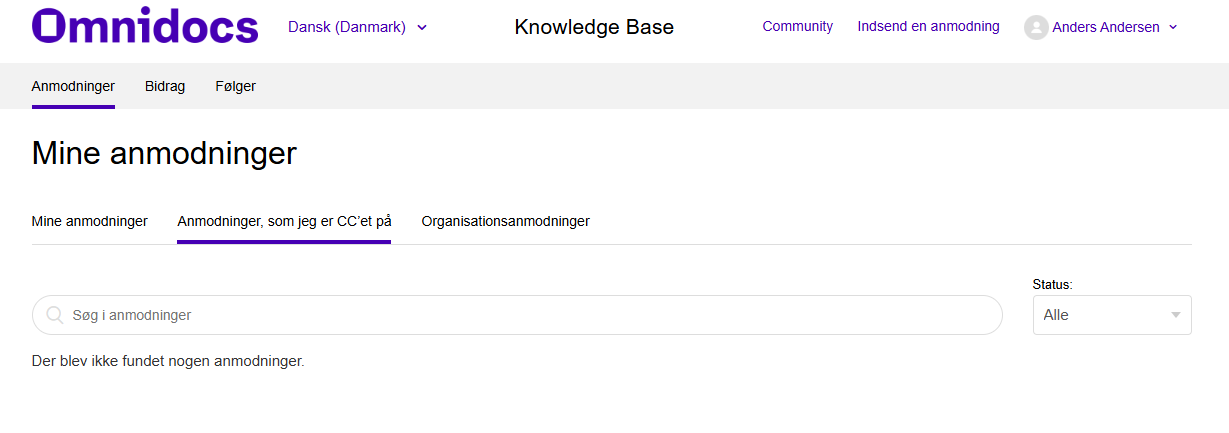
Next to the My requests overview is the Requests I'm CC'd on tab. Tickets the user is CC'd on appear here.
If the user has access to tickets for the whole organization, there will also be a tab called Organization changes.
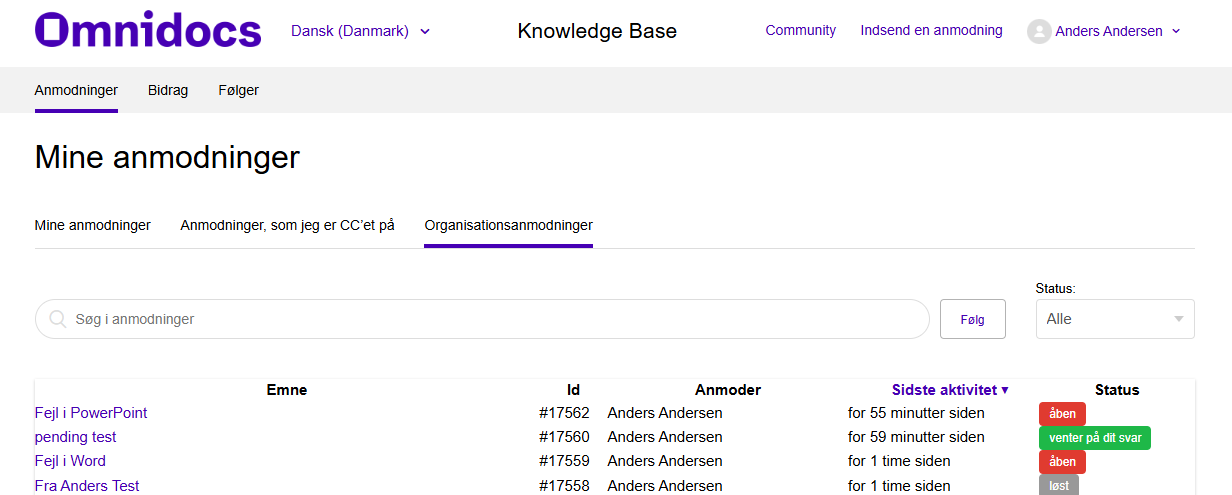
Here you will find a list of all tickets created from the organization.
Create a support case
Create a new support case by clicking Submit a request at the top of the page.
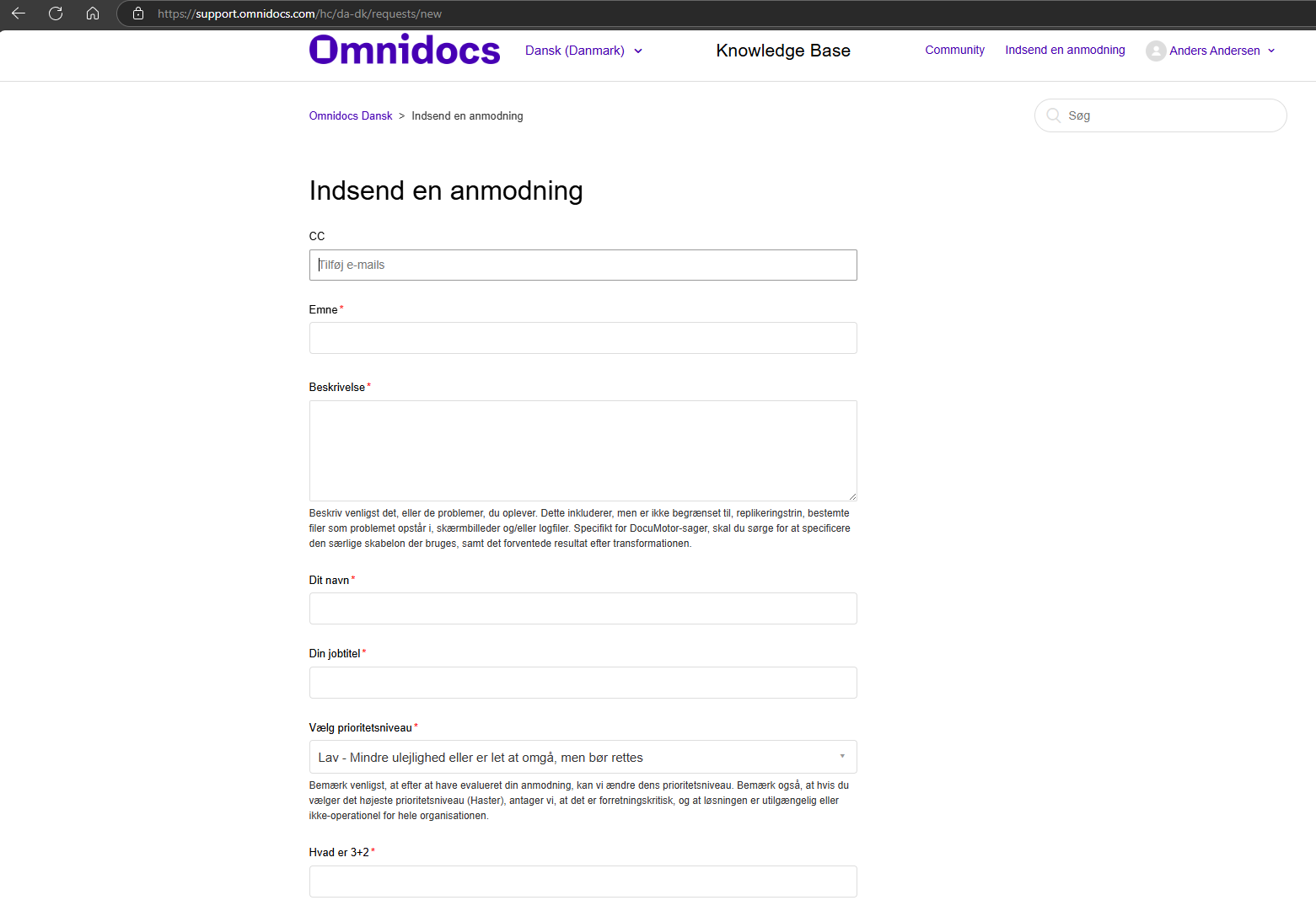

- Add any other recipients in the CC field
- In the Subject field, enter a short, descriptive title for the support case
-
In the Description field, describe the problem the case is about. If you have several unrelated problems, please create separate cases.
Please describe in as much detail as possible what the problem is about, how many users are affected, what has been tried, the steps to reproduce the problem, etc.
- In the Your name field, enter your name
- In the Your job title field, enter your job title
-
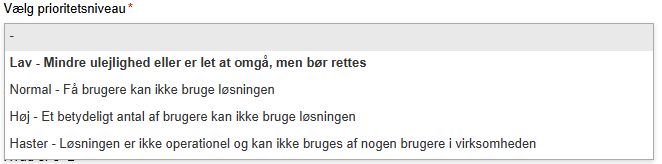
In the Select priority level field, choose between Low, Normal, High and Urgent. See the guiding descriptions of the four levels to the right of each.
- In the What is 3+2 field, enter 5
- Upload relevant files, e.g. log file(s), documents, templates or similar
Changing user access
If the user needs to see support tickets from their entire organization and not only the ones they created themselves, it is possible to change the user's access accordingly.
If needed, please contact Omnidocs Support.
Was this article helpful?
That’s Great!
Thank you for your feedback
Sorry! We couldn't be helpful
Thank you for your feedback
Feedback sent
We appreciate your effort and will try to fix the article