Datasets
TABLE OF CONTENTS
- What is a dataset?
- When to use datasets
- Opening the Dataset tab
- Dataset tab layout
- Inbound data
- Filter
- Result
- Dataset pane in the editor
- Using dataset values in the information tree
- Examples
- Considerations
What is a dataset?
Add local JSON data to a template and make the result available in the information tree.
A dataset is a local JSON data structure that you add directly to a template in the editor. After it has been added, the dataset result can be used in the template, for example to prefill form fields when configuring information tree building blocks.
A dataset consists of three parts:
- Inbound data: The raw JSON you define or paste into the editor.
- Filter: An optional transformation applied to the inbound data.
- Result: The output of the filter, or the inbound data if no filter is configured.
Datasets are stored locally in the template. They are not shared across templates and are not persisted to a central data store.
When to use datasets
Use datasets when you have data that is known at template-build time and you want to make it available in the information tree without connecting to an external data source.
Common use cases include:
- Providing a fixed list of options for a select field, such as departments or product categories.
- Filtering or reshaping inbound data before exposing it to the information tree.
- Normalizing date formats so they are consistent across the template.
- Combining values from separate fields into a single output string.
Opening the Dataset tab
The Dataset button is available in the top-right area of the editor toolbar. Click the button to open the Dataset tab.

Datasets button
From the Dataset tab, you can add a dataset to the document and configure its inbound data and filter.
Dataset tab layout
The Dataset tab uses a three-column layout:
| Column | Description |
|---|---|
| Inbound data | A JSON editor where you define the raw input data for the dataset. |
| Filter | An optional field where you configure a transformation to apply to the inbound data. |
| Result | A read-only view of the output produced by running the filter against the inbound data. |

Overview of the dataset tab
Inbound data
The Inbound data column contains a JSON editor. Enter or paste valid JSON into this editor to define the data that the dataset works with.
The JSON must be valid. If the editor contains invalid JSON, the filter cannot be run and the result pane will not update.
Filter
The Filter column is optional. Use it to configure a transformation that is applied to the inbound data before it is made available in the document.
After configuring a filter, click Run to execute it. The output appears in the Result column.
If no filter is configured, the result is the inbound data as-is.
Result
The Result column shows the final dataset output after the filter has been applied. This view is read-only.
Dataset pane in the editor
Once a dataset has been added, a collapsible Dataset pane appears in the main editor next to the information tree. The pane shows the same result view as the Result column in the Dataset tab.
If no dataset has been added to the template, the Dataset pane is not shown and existing editor behavior is unchanged.
Using dataset values in the information tree
There are two ways to connect dataset values to information tree building blocks: drag and drop, and manual configuration.
Drag and drop
You can drag a value from the Dataset pane and drop it directly onto the information tree. Create automatically adds a new node with a pre-fill key pointing to that dataset property.
If the value matches multiple possible node types, Create shows a convert option, when right-clicking the newly created node. For example, dropping an array value gives you a Repeat node, but allows you to convert it to a Table node.
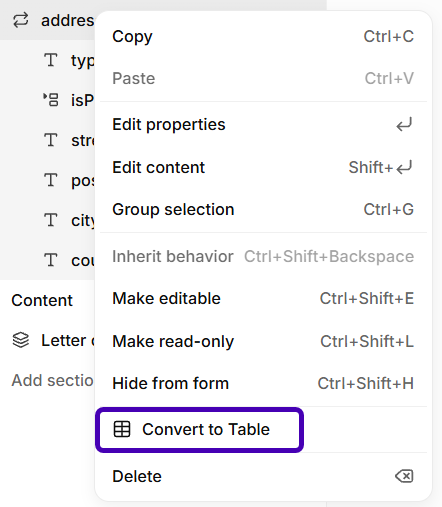
Converting to a different node type after dragging a dataset value to the information tree
Manual configuration
You can also manually create a node and add a pre-fill key pointing to the desired dataset path. Open the node's configuration panel, navigate to the Advanced tab, and add the JSON path under Pre-fill keys. If no match is found at that path, the node falls back to its configured key.
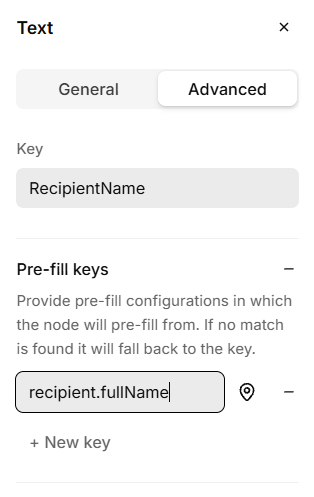
Manually configuring a pre-fill key to connect a node to a dataset value
Examples
Pre-select an option in a select node
Use a dataset to transform an inbound value into the structure expected by a Select node. A Select node requires an object with an option property that references the name of the element to select, and a data object that contains the values to insert into that element.
In this example, the recipient's department determines which office location is selected in the template.
Map inbound data to a Select node
{
  "recipient": {
    "name": "Jane Doe",
    "department": "Legal",
    "office": "Copenhagen Office",
    "location": "Wilders Plads 15A, Copenhagen"
  }
}{
offices: {
option: recipient.office,
data: {
Name: recipient.office,
Location: recipient.location
}
}
}{
"offices": {
"option": "Copenhagen Office",
"data": {
"Name": "Copenhagen Office",
"Location": "Wilders Plads 15A, Copenhagen"
}
}
}The option value must match the name of an element configured in the Select node. If the office name from the external system does not match exactly, use replace or if in the filter to normalize the value before passing it through.
Filter a list to a relevant subset
When the inbound data contains more entries than are needed in the template, use a filter condition to return only the relevant items.
{
  "products": [
    { "name": "Widget A", "active": true },
    { "name": "Widget B", "active": false },
    { "name": "Widget C", "active": true }
  ]
}products[?active == `true`][
{ "name": "Widget A", "active": true },
{ "name": "Widget C", "active": true }
]Only active products are passed through to the information tree.
Normalize a date format
Use to_datetime and format to convert a raw date string to a usable format before it is used in the template.
{
  "contractDate": "2025-02-19T00:00:00Z"
}{
contractDate: format(
to_datetime(contractDate, 'dd-MM-yyyy', 'en-US'),
'MMMM d, yyyy',
'en-US'
)
}{
"contractDate": "February 19, 2025"
}The normalized date string is available in the information tree under contractDate.
Join two fields into a single value
Use join to combine two string fields from the inbound data into one value, such as a full name composed from a first name and a last name.
{
  "firstName": "Jane",
  "lastName": "Doe"
}{
fullName: join(' ', [firstName, lastName])
}{
"fullName": "Jane Doe"
}The combined value is available in the information tree under fullName.
Considerations
- Invalid JSON: The JSON editor does not block the editor from functioning, but a filter cannot be run while the inbound data contains invalid JSON.
- Large datasets: Very large datasets may affect editor performance. Keep inbound data limited to what is needed for the document.
- Filter expressions: Filter logic is evaluated locally. Consider variations in the inbound data that may cause the filter to fail.
Coming soon: An AI assistant for datasets will help write and validate filters directly in the editor.
Was this article helpful?
That’s Great!
Thank you for your feedback
Sorry! We couldn't be helpful
Thank you for your feedback
Feedback sent
We appreciate your effort and will try to fix the article