2.4. Microsoft Office PowerPoint
The complete DynamicTemplate menu in Microsoft Office PowerPoint is illustrated in Figure 87:
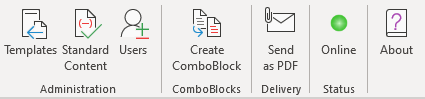
Figure 87
The sections below detail the DynamicTemplate functions and dialog boxes specific to PowerPoint. Standard Content blocks in PowerPoint are called SlideBlocks and are unique to PowerPoint and cannot be interchanged with Standard Content blocks for Word or Outlook. This is explained in the following section.
2.4.1. Standard Content
 Figure 88
SlideBlocks used in Microsoft Office PowerPoint are PowerPoint presentations containing one or more slides, and are saved as ‘.ppt’, ‘.pptx’ or ‘.pptm’ files in the Standard Content library (section 3.1.3. Standard Content ). SlideBlocks in Microsoft Office PowerPoint are manually saved in the desired subfolder within the Standard Content library.
Clicking ’Standard Content’ in the DynamicTemplate menu in Microsoft Office PowerPoint brings up the following dialog box:
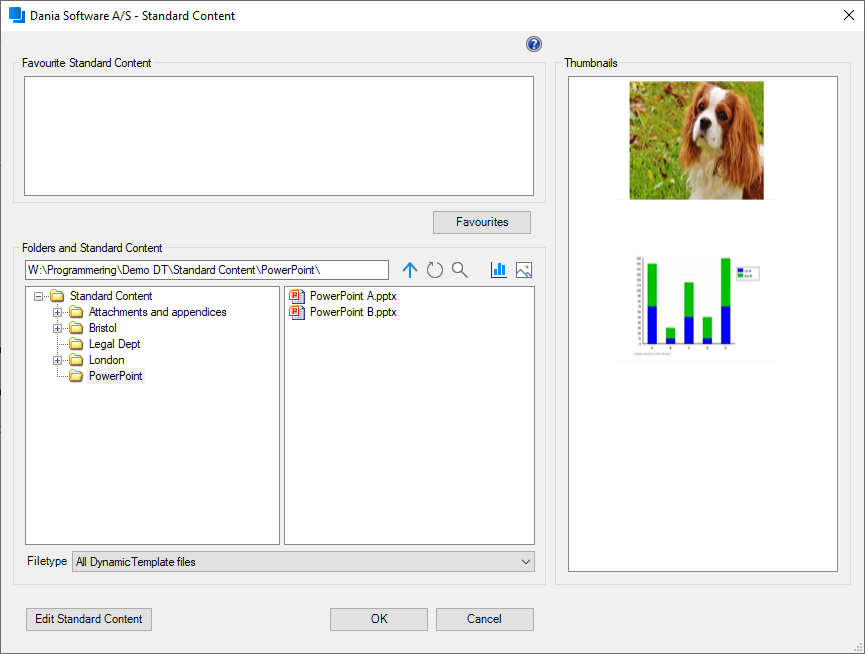
Figure 89
On the right side of the dialog box shown in Figure 89 , the ‘Thumbnails’ pane shows the first slide of the SlideBlocks contained in the selected folder. Users can navigate the Standard Content library and select the desired SlideBlock. Clicking ‘OK’ inserts the SlideBlock into the active presentation.
Alternatively, the user can select the SlideBlock from the ‘Thumbnails’ pane and click ’OK’. When a SlideBlock is selected in the navigation pane, it will also be highlighted in the preview pane, and vice versa.
‘Favourite’ SlideBlocks will only be shown when the Standard Content menu is activated from PowerPoint, whereas ’Favourite’ Standard Content blocks in Outlook and Word are visible across these two programs.
Selecting a SlideBlock in Figure 89 and clicking ‘Edit Standard Content’, will open the block for editing in a new window in Microsoft Office PowerPoint.
2.4.2. Creating ComboBlocks
 Figure 90
Clicking ’Create ComboBlock’ within Microsoft Office PowerPoint brings up the following dialog box:
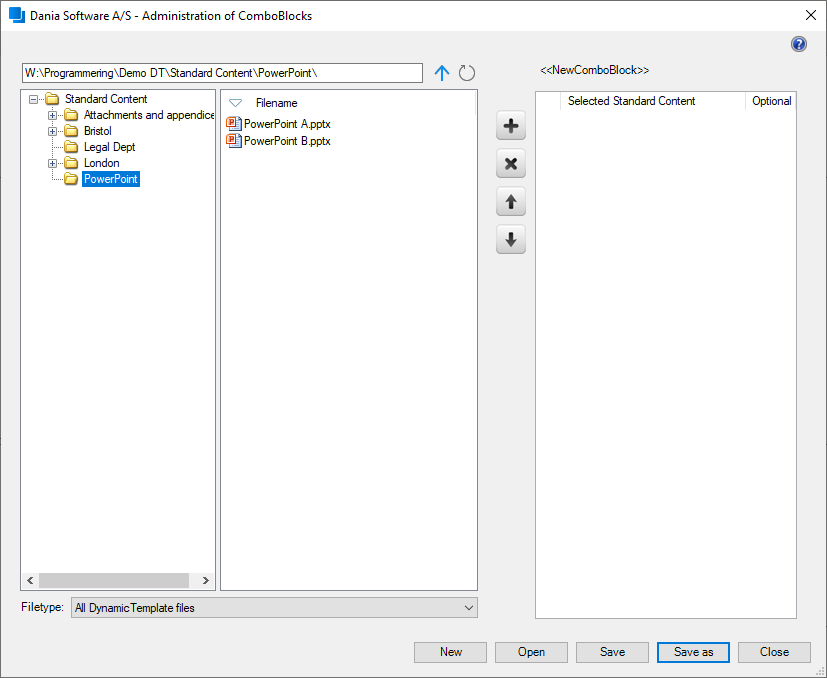
Figure 91
On the left of the dialog box in Figure 91 is the navigation pane where Standard Content administrators can browse the Standard Content library. By using the mouse to drag-and-drop, or by choosing a SlideBlock and clicking the 'plus' button, administrators can build a chain of SlideBlocks in the right-hand pane ‘Selected Standard Content’.
The order of the selected SlideBlocks can be altered by selecting a block and using the 'up' and 'down' buttons. Blocks can also be removed by clicking 'x', or using the ’Delete’ key while the block is selected.
To move or delete several SlideBlocks at once, the ’Ctrl’ key can be held down while each block is selected with the mouse.
The buttons at the bottom right of the dialog box in Figure 91 allow Standard Content administrators to create a new ComboBlock, open an existing ComboBlock, save changes, or save as a new ComboBlock. Clicking ‘Save as’ brings up the following dialog box:
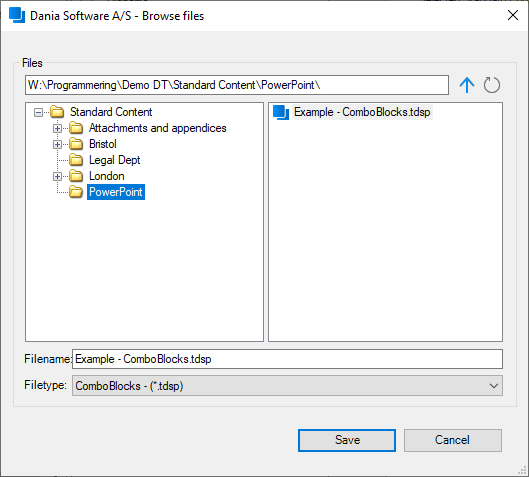
Figure 92
The dialog box shown in Figure 92 is used to select the folder where the new ComboBlock should be saved. The default save location will be the startup folder (refer to section 2.2.2.2 Startup folder ) – unless no startup folder has been selected in which case the root of the Standard Content library will become the default location. The file type for ComboBlocks in PowerPoint is always ‘ComboBlocks – (*.tdsp)’.
When a ComboBlock is inserted into a presentation, each SlideBlock that is referenced is inserted as a set of slides in the order defined.
ComboBlocks are a tool within Microsoft Office PowerPoint enabling the use of the same slides within multiple presentations. When an update to a slide is required, only the original slide needs to be edited within the relevant SlideBlock.
For example, a Standard Content administrator in the company’s head office can create and maintain a SlideBlock showing employee statistics, budget figures and other relevant information, which can then be used within presentations created by people in other areas of the company via ComboBlocks.
When a user inserts a ComboBlock, the latest version of each slide within each SlideBlock will automatically be used.
2.4.2.1. Optional ComboBlock
Next to every Standard Content/appendix which was added the ComboBlock you find the tick option 'Optional' as illustrated in the figure below:
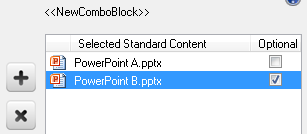
Figure 93
If the Standard Content/appendix is specified as 'Optional', the user will see the below dialog box when inserting the ComboBlock which makes it possible to select or reject the insert of the Standard Content/appendix:
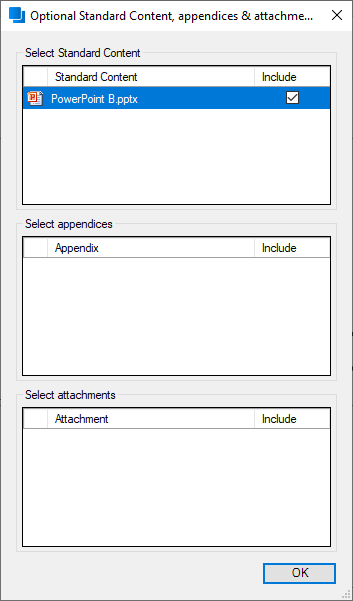
Figure 94
By clicking the 'OK' button, the ComboBlock and the other optional Standard Content/appendix options are inserted.
Was this article helpful?
That’s Great!
Thank you for your feedback
Sorry! We couldn't be helpful
Thank you for your feedback
Feedback sent
We appreciate your effort and will try to fix the article