Files and Appendices
TABLE OF CONTENTS
- What are appendices?
- The Files content source
- Uploading files
- Managing files
- Previewing a file
- Adding appendices to a template
- Appendices in generated documents
- Format compatibility
- Good to know
What are appendices?
Appendices are static files attached to a template that are automatically appended to every document generated from that template. They are inserted at the end of the generated document, preceded by a section break.
Typical uses include terms and conditions, privacy policies, regulatory disclosures, or any other fixed document that should always accompany the main output.
Appendices are sourced from the Files content source at unit level. Supported file types are Word (.docx), Excel (.xlsx), PowerPoint (.pptx) and PDF.
The Files content source
Files is a content source available in the left navigation of your unit, alongside Documents, Elements, Themes, and Images. It is where you store and manage the static files that can be used as appendices.
The Files overview lists all files and folders in the content source, with their name, tags, last modified date, and created date. You can search by name and filter by tag.
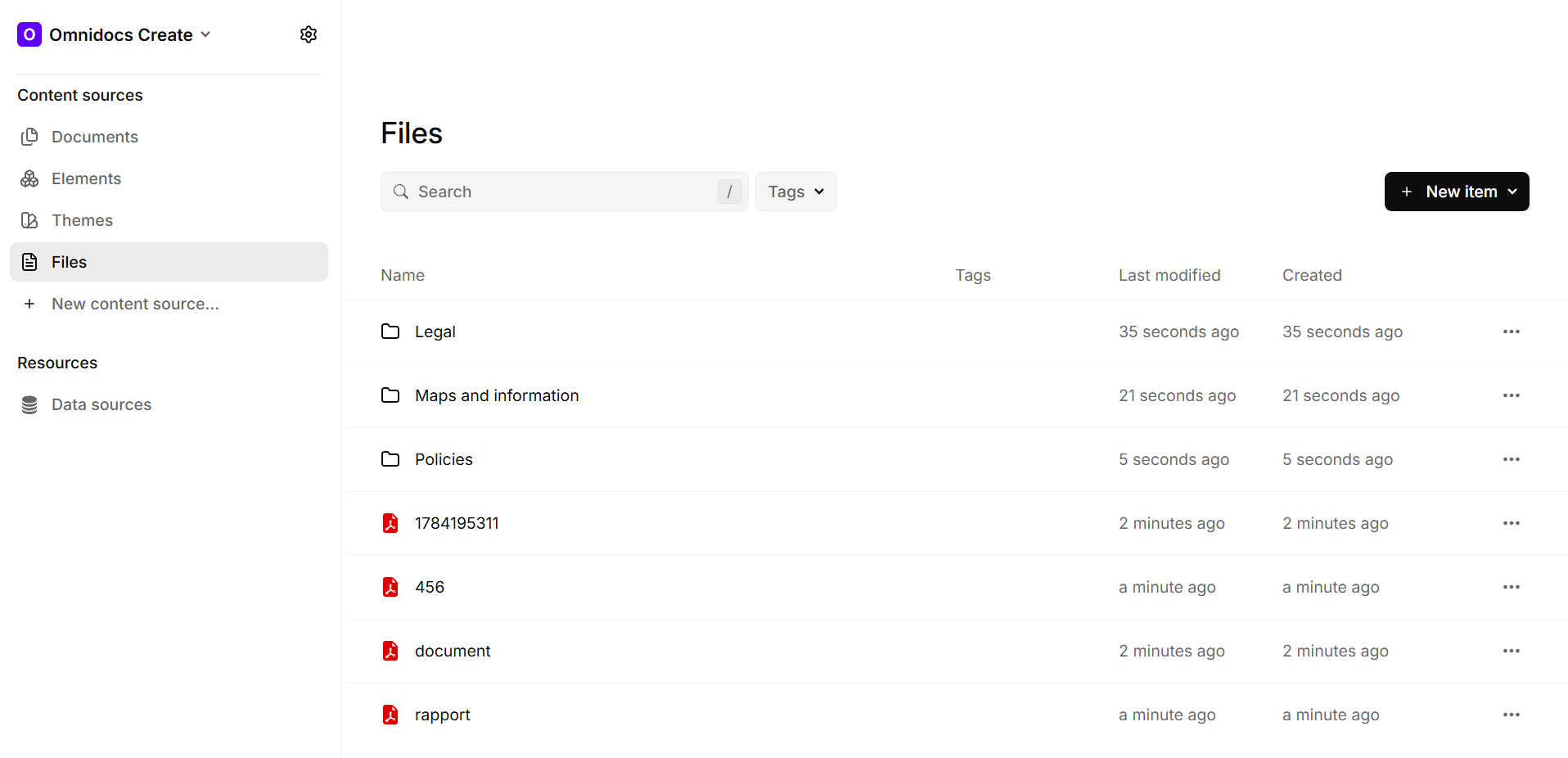
Files content source overview
Uploading files
To upload a file, click + New Item in the top right of the Files overview and select Upload (Word, PDF, Excel, PowerPoint). Select the file from your computer. The file is uploaded and appears in the list under its original file name.
It is also possible to upload multiple files at once.
You can also create folders using the Folder option in the same menu to keep files organized.
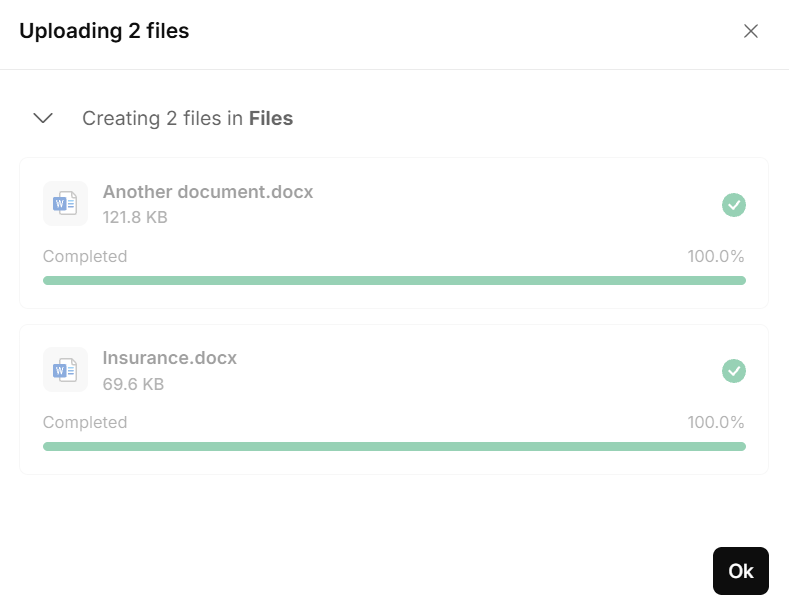
Files list after multiple files have been uploaded
Managing files
Click the ... menu on any file to access the following options:
| Option | Description |
|---|---|
| Preview | Opens a preview of the file. |
| Copy Id to clipboard | Copies the file's unique identifier. |
| Duplicate | Creates a copy of the file in the same location. |
| Rename | Renames the file. |
| Move | Moves the file to a different folder or content source. |
| Replace file | Replaces the current file with a new upload, keeping the same name and location. |
| Download file | Downloads the file to your computer. |
| Delete | Permanently deletes the file. |
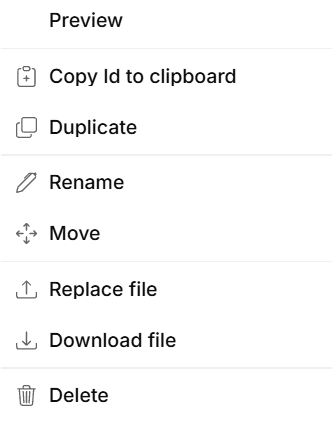
File options menu
Previewing a file
Selecting Preview from the file options menu opens a preview of the file directly in Create. The preview shows the file's content as it will appear when appended to a generated document.
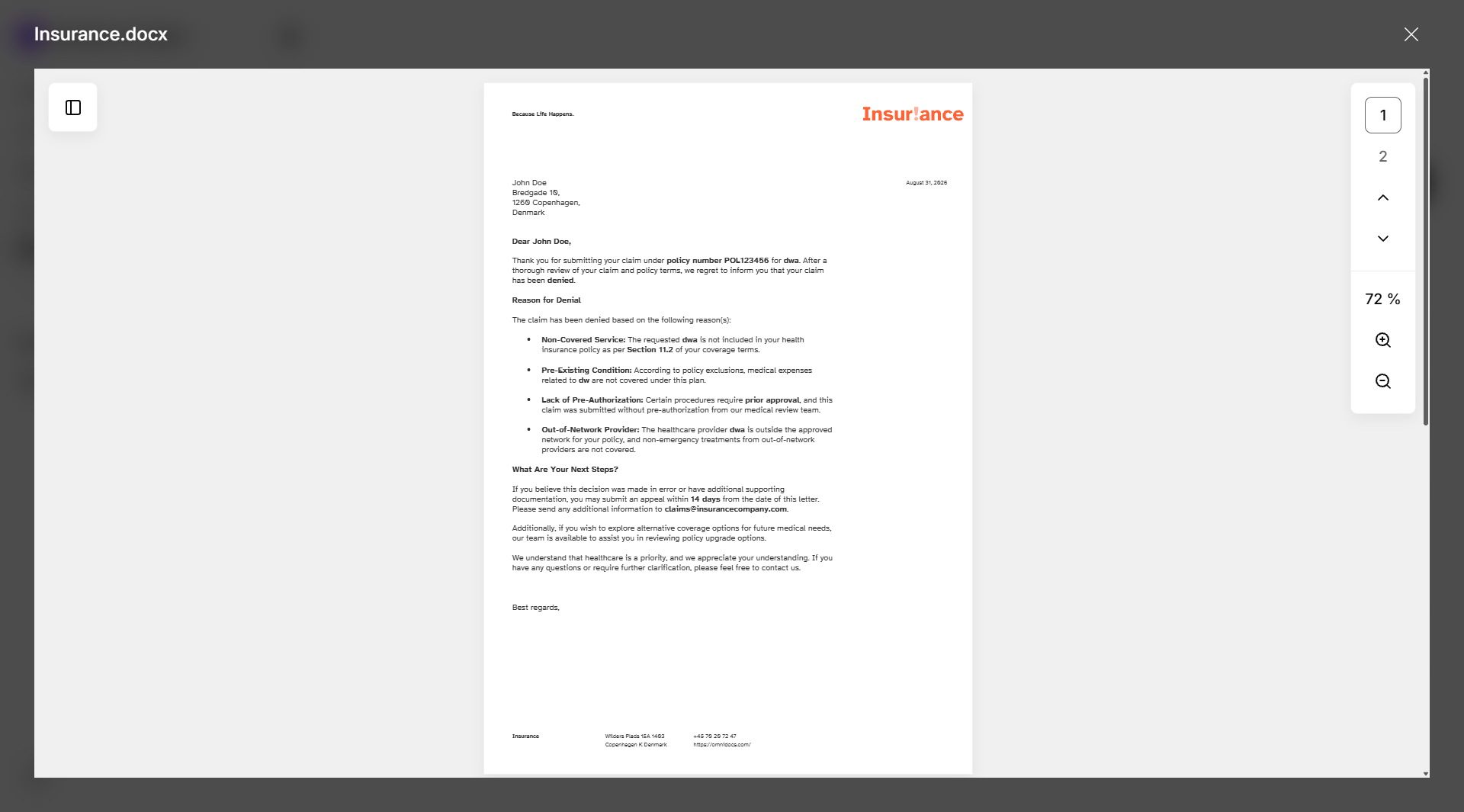
File preview
Adding appendices to a template
Appendices are configured in the template editor. A paperclip button in the editor toolbar opens the Appendices dialog.

Appendices button in the template editor toolbar
The Appendices dialog lists all files currently attached to the template.
To add an appendix, click + Add file and select a file from the Files content source. Files must be Word (.docx) or PDF and no larger than 50 MB each.
Once a file is added, it appears in the list. From there, you can replace it, download it, or remove it using the controls next to its name. You can add multiple appendices to a single template.
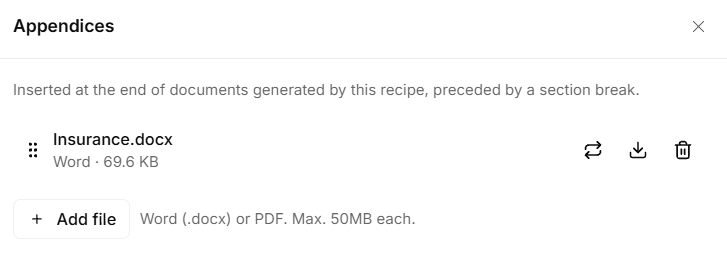
Appendices dialog with one appendix added
The paperclip button in the editor toolbar shows a counter indicating how many appendices are currently attached to the template.
Appendices in generated documents
When a document is generated from a template that has appendices configured, each appendix is automatically inserted at the end of the document, preceded by a section break. No action is required from the person generating the document.
The appendices are appended in the order they appear in the Appendices dialog.
Format compatibility
Not all appendix file types are compatible with all output formats.
If the selected output type is Word (.docx), all ".pdf" appendices will be discarded.
Good to know
- Supported file types: Word (.docx), Excel (.xlsx), PowerPoint (.pptx) and PDF. Other file formats are not supported.
- File size limit: Each appendix file must be 50 MB or smaller.
- Format compatibility: Appendices may not be included if the output format is incompatible with the file type.
- Order: Appendices are appended in the order they are listed in the Appendices dialog. Reorder them in the dialog to change the output order.
- Static content only: Appendices are fixed files. Their content does not change based on information tree input or dataset values.
Was this article helpful?
That’s Great!
Thank you for your feedback
Sorry! We couldn't be helpful
Thank you for your feedback
Feedback sent
We appreciate your effort and will try to fix the article