Office program is running into problems
Office programs are sometimes closed unexpectedly.
When any Office add-in is loading in an Office program and said Office program is closed "unexpectedly" in the process that Office program will, by design, prompt the user, the next time it opens, to disable that add-in "Yes" or "No" in a standard prompt with the body text "[Office program] is running into problems with the '[Add-in name' add-in. If this keeps happening, disable this add-in and check for available updates. Do you want to disable it now?"
Example:
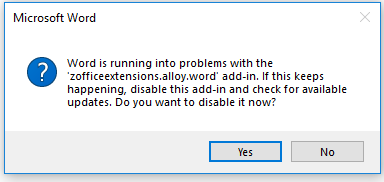
This happens regardless of whether the add-in that was trying to load was actually the reason why the Office program closed.
The natural impulse for many is to click "Yes". Doing this will result in the add-in being "hard disabled", meaning it will end up in Disabled Items.
Our recommendation
If confronted with the above prompt with one of our add-ins we recommend to click "No" in the prompt the first time or two. This will keep the add-in active.
If the problem persists we recommend as per the Microsoft guideline to disable the add-in and create a ticket in our support system with a detailed account of the incident at omnidocs.com/support
Screenshots and log files are very welcome.
The add-in is disabled - how to get it back?
Short version
If the add-in is disabled by clicking "Yes" in the above prompt it is hard disabled and can be reactivated in a two step process
1) Enable the add-in in Disabled Items
2) Activate (tick) the add-in in the category it belongs to. It is usually "COM Add-ins" or some times "[Word/PowerPoint/Excel] Add-ins". See our list of add-ins and their categories here: How to check if add-ins are enabled
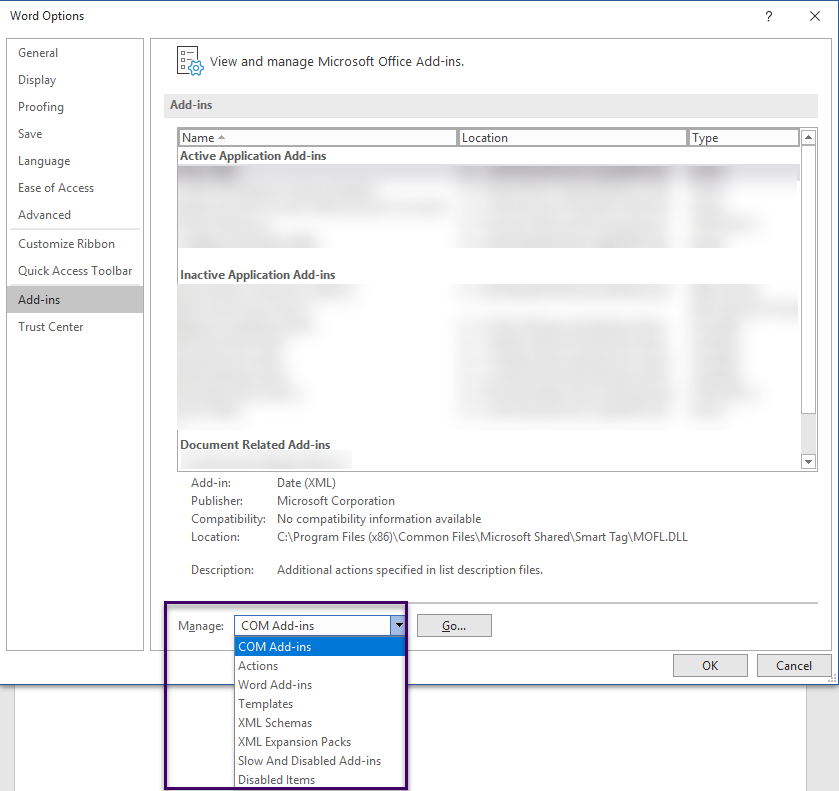
Detailed version
Enable the add-in in Disabled Items
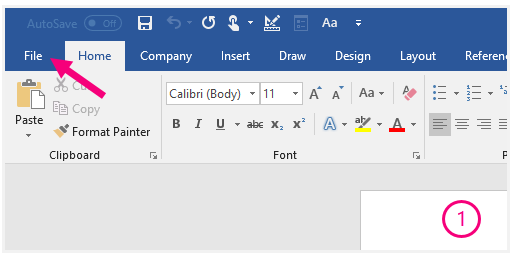
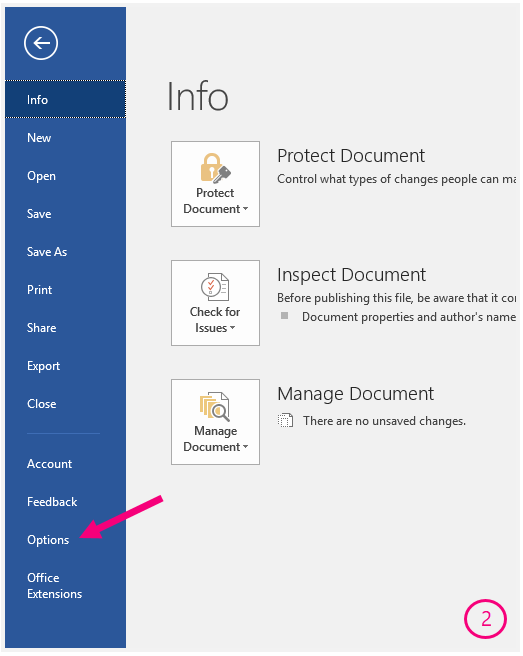
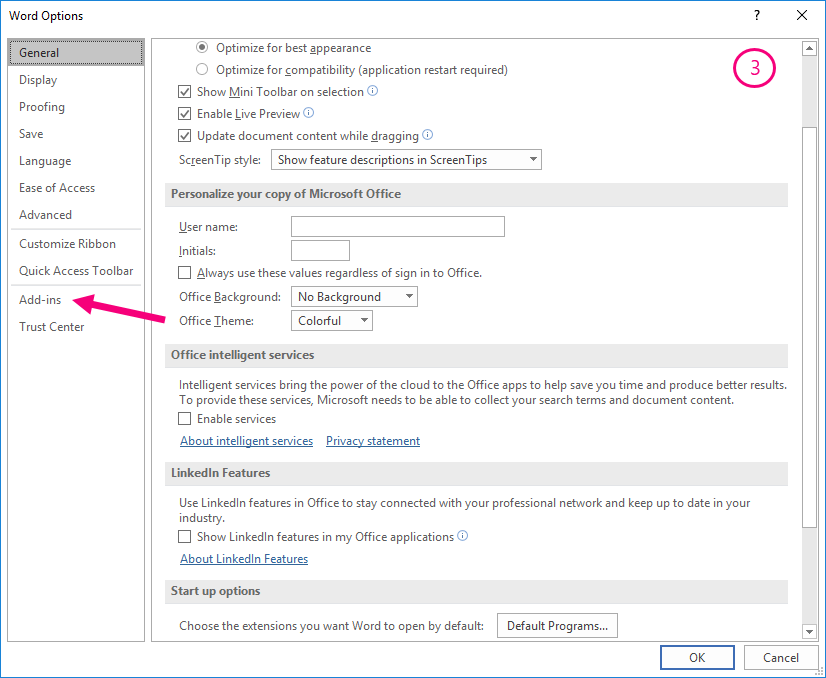
Open the Office program and click
- File
- Options
- Add-ins
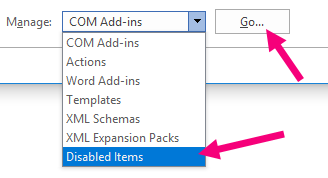
In the bottom of the Options menu locate the drop down menu named Manage, choose Disabled Items and click "Go..."
Click on the add-in in question and click Enable and then Close
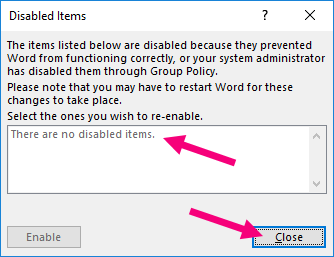
This only "enables" or in other words removes the add-in from Disabled Items. The add-in is not fully activated yet.
Activate the add-in
Now that the add-in is enabled (no longer hard disabled) it can be activated by setting the tick mark for the add-in in the appropriate menu.
- Find the drop down menu named Manage in Options as detailed above
- Click "Go..."
- Tick the add-in and click "OK"
If in doubt which kind of add-in to choose from the drop down - see our list of add-ins and their categories here: How to check if add-ins are enabled
Was this article helpful?
That’s Great!
Thank you for your feedback
Sorry! We couldn't be helpful
Thank you for your feedback
Feedback sent
We appreciate your effort and will try to fix the article