Use this outline below to enable detailed error messages from Visual Studio Tools for Office (VSTO), when you are loading a VSTO add-in.
First, you need to identify the system properties on your machine.
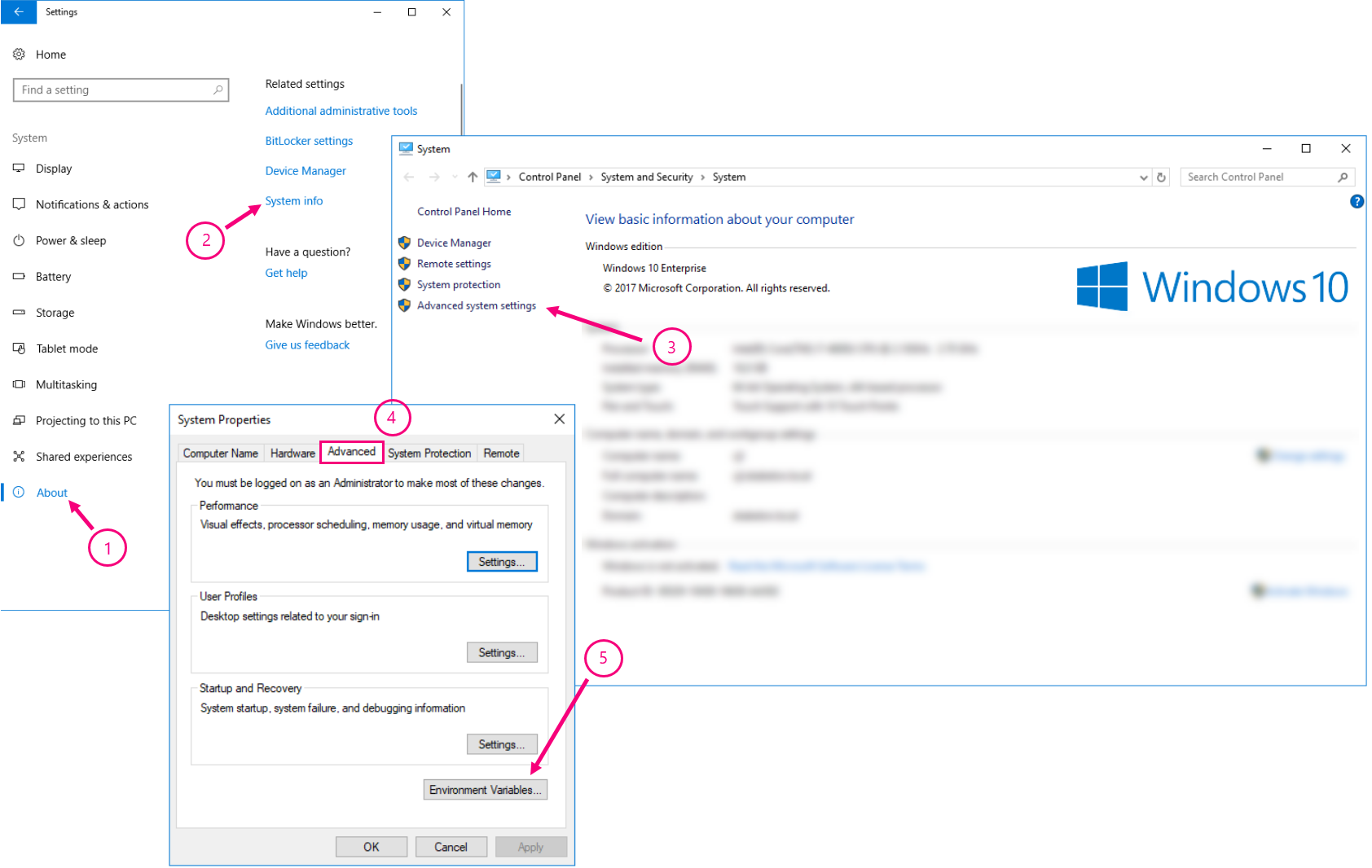
(Win10) Click Start -> Settings -> About (1) -> Under Related Settings, click System Info (2) -> Advanced System Settings (3) -> Advanced (4) -> Environment Variables... (5)
Add a new system variable and type the following:
Variable name: VSTO_SUPPRESSDISPLAYALERTS
Variable value: 0 (zero)
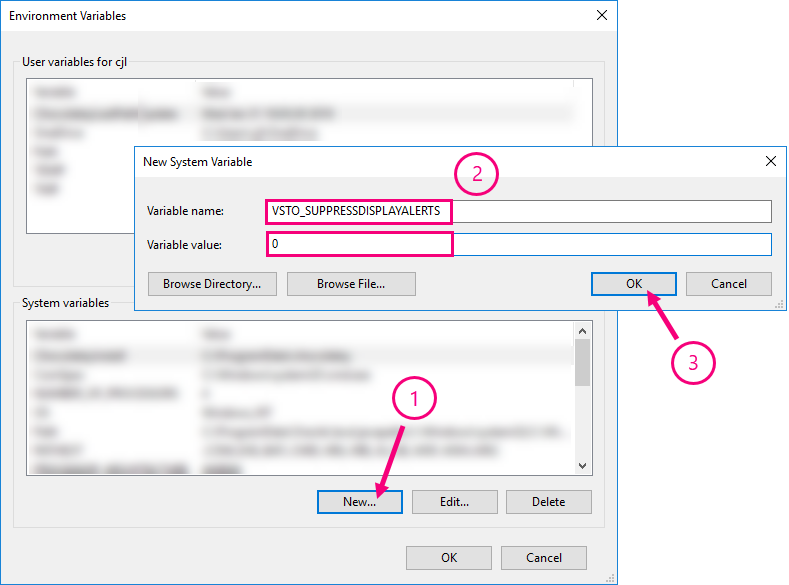
Clik OK, and restart Office programs.
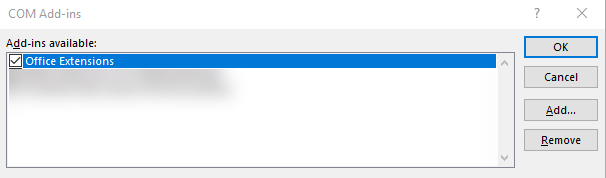
Within Word you go to Options -> Add-ins -> Com Add-ins -> Go...
Enable the your add-in again, and you should now get errors messages displayed if any are present:
In PowerShell or Command Prompt
It is possible to set the environment variable for the current user with no restart or admin rights required.
To display VSTO errors:
SETX VSTO_SUPPRESSDISPLAYALERTS 0

To not display VSTO errors:
SETX VSTO_SUPPRESSDISPLAYALERTS 1

Was this article helpful?
That’s Great!
Thank you for your feedback
Sorry! We couldn't be helpful
Thank you for your feedback
Feedback sent
We appreciate your effort and will try to fix the article