How to use trusted locations
If you use templates with macro code, you can set Word to trust their locations. Never put confidence in all macros without exception, as potentially harmful macros from the internet will get access to the user's files if the harmful macro is not captured by antivirus software.
Therefore we recommend Disable all macros with notification, as visualized below. This indicates that macro warnings are allowed, but the setting is more secure.
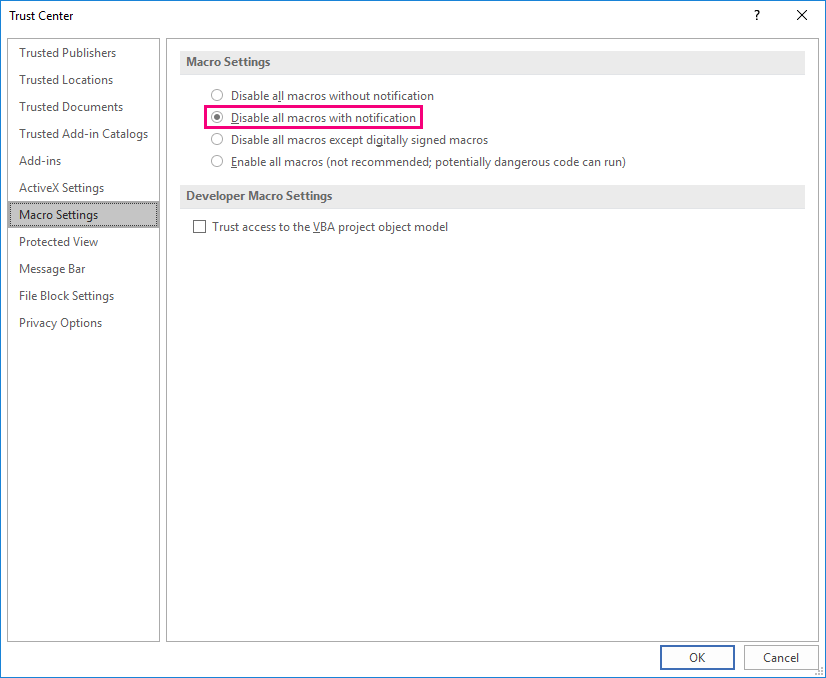
File -> Options -> Trust Center -> Trust Center Settings -> Macro Settings
How to make a trusted location
To create a trusted location means that you make an exception to the rule that all macros must be disabled with a notification.
This can be done with a group policy (GPO) or you can configure it in Word as followed and visualized below:
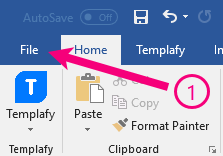
- Open Word and click File
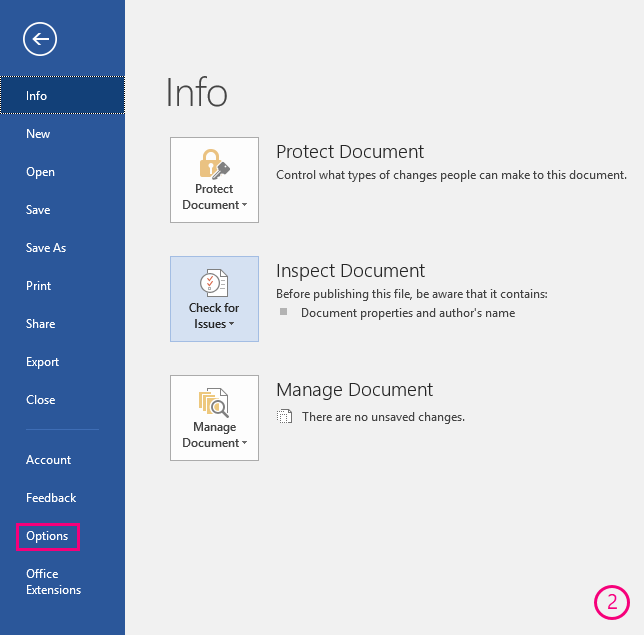
- Click Options
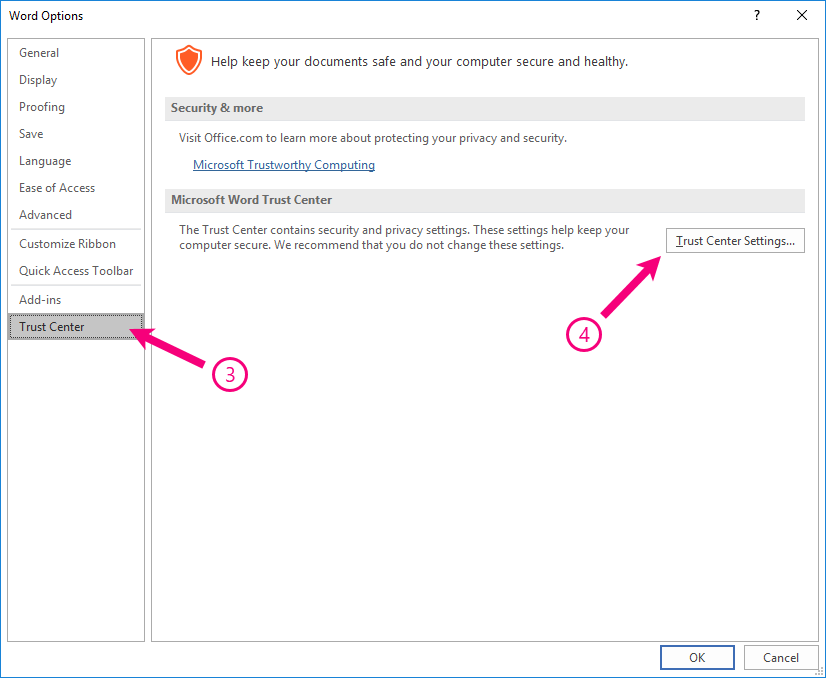
- Click Trust Center
- Click Trust Center Settings ...
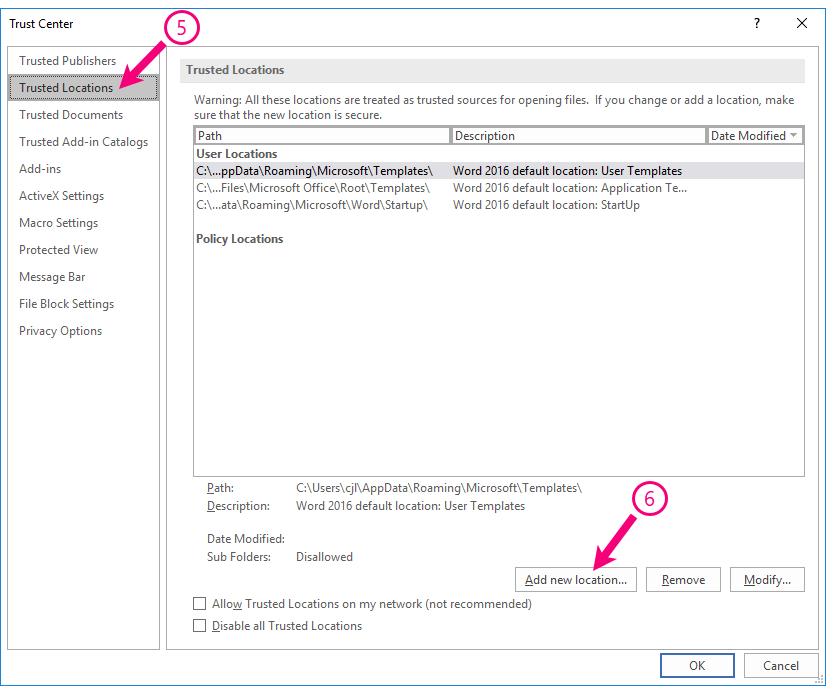
- Click Trusted Locations
- Click Add new location ...
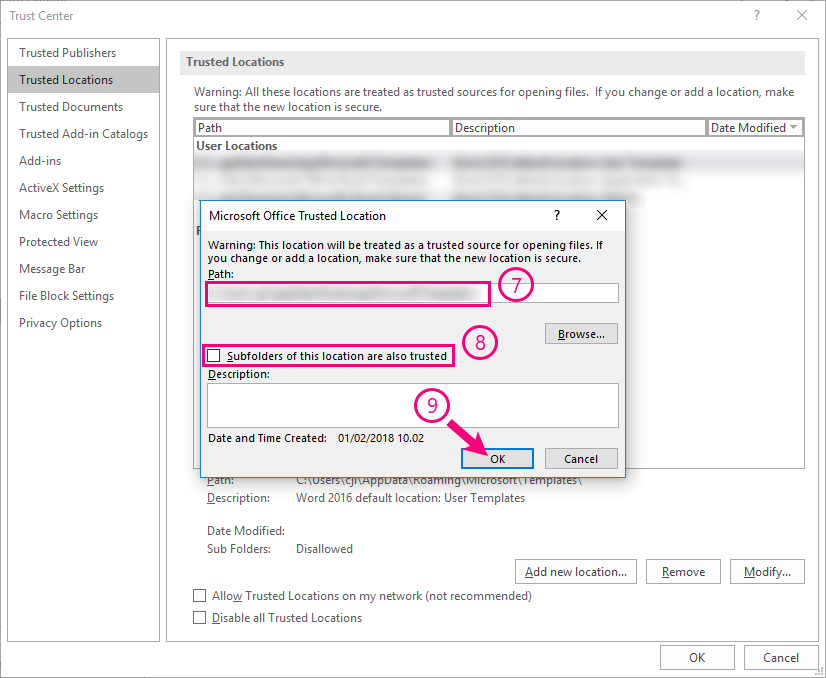
- Insert the path to the new location to be trusted under Path
- Multiple placements can be added if the templates are located in multiple locations. If there are also templates in sub folders, check the Subfolders of this location are also trusted.
- Click OK in the open windows.
Now the placement is added and the macros are available from this location without any security warnings. If an error message occurs when the new path is added, the IT administrator has not assigned the user rights to make the setting. Adjust the rights or contact your IT department.
Signed Templates
As an alternative to trusted folders, it is also possible to sign templates with a digital certificate. Macros in a digitally signed template are allowed to run without any warnings if the certificate is installed by the user.
Contact Omnidocs if you wish to sign your template with our digital certificate.
Was this article helpful?
That’s Great!
Thank you for your feedback
Sorry! We couldn't be helpful
Thank you for your feedback
Feedback sent
We appreciate your effort and will try to fix the article